

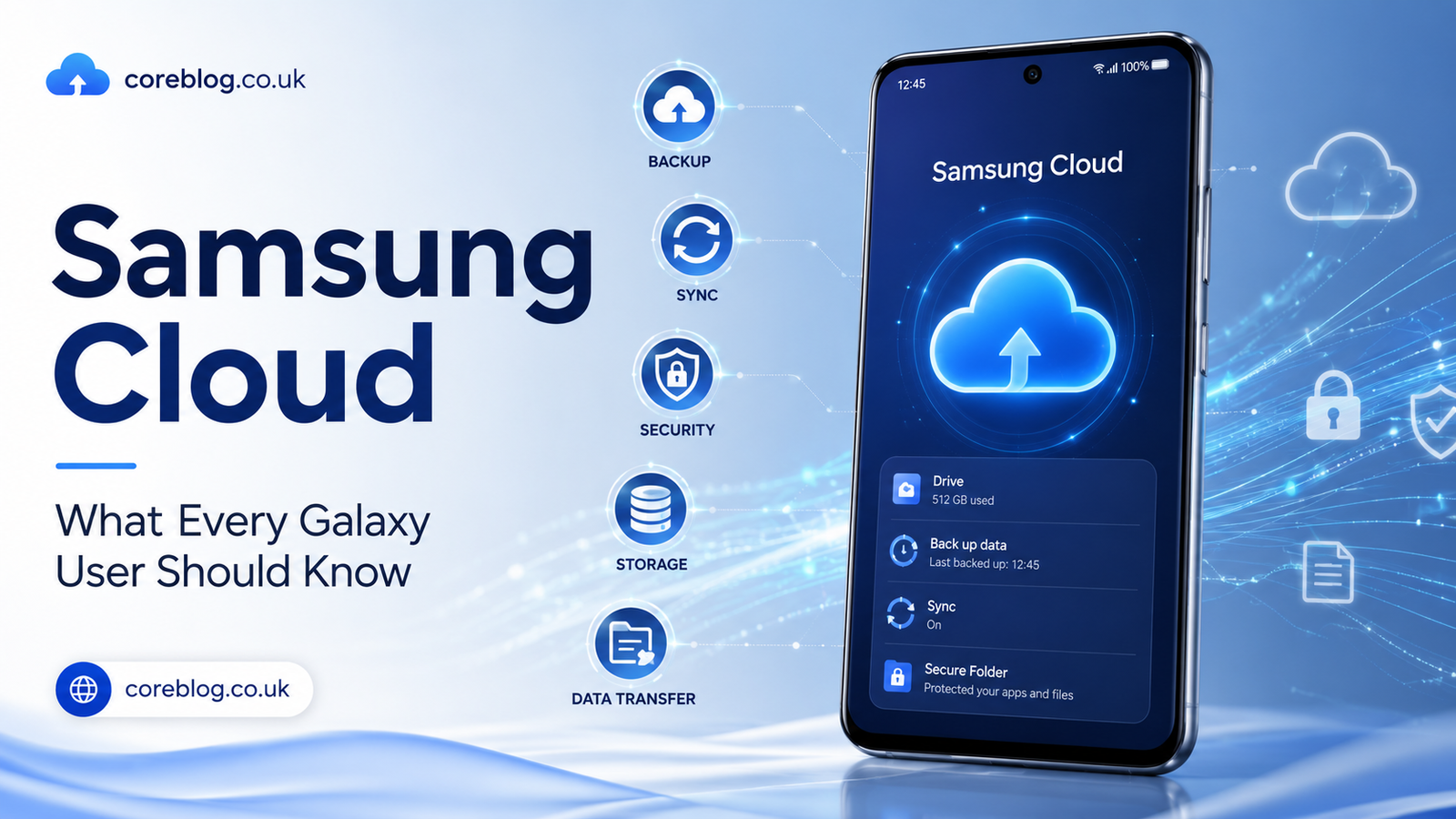
Your Phone Holds More Than You Think
Most people do not realize how much of their life is sitting inside their phone until something goes wrong. A lost device, a cracked screen, a failed update, or even a simple factory reset can suddenly turn into a stressful moment. Contacts, messages, settings, photos, notes, alarms, app data, and personal files all matter more than we admit.
That is where Samsung Cloud becomes important.
For Galaxy users, Samsung Cloud is more than just another storage feature hidden in the settings menu. It is a backup and restore tool built around the Samsung ecosystem. It helps users protect important data, move smoothly between Galaxy devices, and avoid the panic that comes with losing phone information.
However, many users still feel confused about what Samsung Cloud actually does. Some think it saves everything. Others believe it no longer works. A lot of people mix it up with Google Drive, OneDrive, Smart Switch, or general cloud storage apps.
The truth is simpler, but also a little more detailed. Samsung Cloud still has a useful place for Galaxy owners, especially when it comes to device backup, restore options, account syncing, settings, and certain types of personal data. At the same time, users need to understand its limits, especially around photos, videos, and file storage.
In this guide, we will break down Samsung Cloud in a clear, natural, and practical way. No confusing tech language. No boring manual-style explanation. Just a simple guide every Galaxy user should understand.
What Is Samsung Cloud?
Samsung Cloud is Samsung’s cloud-based service designed for Galaxy devices. It allows users to back up, restore, and sync selected data through a Samsung account. In simple words, it helps your phone remember important things even if your device is changed, reset, damaged, or replaced.
Think of it like a safety net for your Galaxy phone.
When your data is backed up, you can restore many important items later. This can include phone settings, call logs, messages, contacts, calendar data, apps, home screen layout, alarms, and other supported information depending on your device and region.
Why Samsung Cloud Matters
Samsung Cloud matters because phones are no longer just communication tools. They are digital wallets, work assistants, memory boxes, entertainment hubs, and personal organizers.
A Galaxy phone may contain:
- Important contacts
- Business call history
- Text messages
- App settings
- Calendar reminders
- Wi-Fi settings
- Notes and voice recordings
- Home screen layout
- Device preferences
- Backup files before a phone upgrade
Without a proper backup, losing this data can be frustrating. With Samsung Cloud, restoring much of it becomes easier.
Is Samsung Cloud Only for Samsung Phones?
Yes, Samsung Cloud is mainly built for Samsung Galaxy devices. It works best when you are using a Samsung account on a Galaxy phone or tablet. This is one of the biggest differences between Samsung Cloud and services like Google Drive or Microsoft OneDrive.
Samsung Cloud is not trying to be a general storage platform for every device in your home. Instead, it focuses on helping Galaxy users manage Samsung device data.
How Samsung Cloud Works on Galaxy Devices
Samsung Cloud works through your Samsung account. Once you sign in on your Galaxy device, you can choose what data you want to back up or sync.
You can usually find it by going to your phone settings and opening the accounts or backup section. The exact wording may change based on your One UI version, device model, carrier, or region, but the basic idea remains the same.
The Basic Process
Here is how Samsung Cloud generally works:
- You sign in with your Samsung account.
- You open Samsung Cloud or backup settings.
- You choose what data should be backed up.
- Your phone uploads supported data to the cloud.
- You can restore that data later on the same or another Galaxy device.
This is especially helpful when setting up a new Galaxy phone. Instead of starting from zero, you can bring back many familiar settings and personal details.
What Makes It Convenient?
The biggest strength of Samsung Cloud is convenience. You do not need to manually copy every setting or remember every detail. If your backup is current, the restore process can save time.
For example, after restoring from Samsung Cloud, your new Galaxy device may feel more familiar right away. Your settings, layout, and basic phone data can return without much effort.
That is a small thing when everything works. But when you are setting up a new phone in a hurry, it feels like a big relief.
What Can You Back Up With Samsung Cloud?
One of the most common questions users ask is simple: what does Samsung Cloud actually back up?
The answer can vary depending on your Galaxy model, software version, country, carrier, and Samsung account settings. However, Samsung Cloud commonly supports several key data types.
Common Data Samsung Cloud May Back Up
Samsung Cloud may support backup for items such as:
- Call logs
- Messages
- Contacts
- Calendar data
- Clock and alarms
- Home screen layout
- Apps and app settings
- Device settings
- Samsung Notes
- Voice recordings
- Documents
- Music files
- Phone settings
Again, the exact list can differ from one device to another. That is why every Galaxy user should open the Samsung Cloud section on their own phone and check what is currently available.
Why You Should Check Backup Categories
Many people assume their phone is backing up everything automatically. That is risky.
A better habit is to check the backup list yourself. Make sure the categories you care about are turned on. If messages matter to you, check messages. If settings matter, check settings. If contacts are stored in a Samsung account, check contact syncing.
It only takes a few minutes, but it can save you from a painful surprise later.
What Samsung Cloud May Not Fully Replace
Samsung Cloud is useful, but it should not be your only storage plan for every type of data. For example, photos and videos may require separate attention depending on Gallery sync, OneDrive settings, Google Photos, or other backup apps.
Also, some third-party app data may not restore exactly the way you expect. Apps have their own backup systems, login methods, and privacy rules. So even after restoring a phone, you may still need to sign in again or reconfigure some apps.
Samsung Cloud vs Google Drive vs OneDrive
A lot of Galaxy users get confused because their phone may include Samsung Cloud, Google Drive, and OneDrive options. These services can overlap in some areas, but they are not the same.
Here is a simple comparison.
| Feature | Samsung Cloud | Google Drive | OneDrive |
|---|---|---|---|
| Best for | Galaxy backup and restore | General file storage and Google data | Files, documents, and photo backup through Microsoft |
| Account needed | Samsung account | Google account | Microsoft account |
| Works best with | Samsung Galaxy devices | Android, web, Google apps | Windows, Microsoft apps, mobile apps |
| Device settings backup | Strong for Galaxy settings | Some Android backup support | Not mainly for phone settings |
| Photo backup | Depends on current Gallery and OneDrive settings | Google Photos often handles this | OneDrive app can handle photo backup |
| Ideal user | Galaxy owner | Android and Google user | Microsoft and Windows user |
Which One Should You Use?
For most Galaxy users, the smartest setup is not choosing only one. Instead, use each service for what it does best.
Use Samsung Cloud for Galaxy phone backup and restore. Use Google services for Gmail, Google Contacts, Google Photos, and Android-related syncing. Use OneDrive if you already work with Microsoft apps or want your files available on Windows.
In other words, do not think of cloud services as enemies. Think of them as different tools in the same digital toolbox.
Samsung Cloud and Photos: What Galaxy Users Should Know
Photos are where many users get confused. Years ago, people often linked Samsung Cloud with Gallery photo syncing. Later, Samsung shifted Gallery sync features toward Microsoft OneDrive in many regions. Because of this, some users still wonder whether Samsung Cloud stores their photos or not.
The safest answer is this: check your own Gallery sync and cloud backup settings.
Why Photo Backup Needs Extra Attention
Photos and videos are usually the most emotional files on a phone. A lost message is annoying. A lost vacation photo, baby picture, wedding clip, or family video can hurt much more.
So, when it comes to media backup, do not guess.
Open your Gallery settings. Check whether Gallery sync is active. Check whether OneDrive camera backup is active. If you use Google Photos, open that app and confirm backup is turned on there too.
A Practical Photo Backup Plan
Here is a simple plan that works for many Galaxy users:
- Use Samsung Cloud for device data and settings.
- Use Google Photos or OneDrive for photos and videos.
- Keep important files backed up in more than one place.
- Download very important albums to a computer or external drive.
- Review your backup settings after major phone updates.
This may sound like extra work, but it is worth it. A backup is only useful if it is actually working.
Temporary Cloud Backup: A Helpful Feature for Phone Changes
Samsung also offers Temporary Cloud Backup on supported Galaxy devices. This feature is useful when you are changing phones, sending a device for repair, or preparing for a reset.
Instead of only backing up smaller device settings, Temporary Cloud Backup can help store a broader set of data for a limited time. It is designed as a short-term safety option rather than permanent storage.
When Temporary Cloud Backup Is Useful
Temporary Cloud Backup can be helpful when:
- You are upgrading to a new Galaxy phone.
- Your device needs repair.
- You are doing a factory reset.
- You want a short-term backup before a major software update.
- You need to move data without using a computer.
Why “Temporary” Matters
The word temporary is important. This is not meant to be long-term storage like a permanent cloud drive. If data is stored for a limited period, you should restore it before that time ends.
This feature is best used when you have a clear reason and a clear timeline. For example, if you are switching from an older Galaxy phone to a new Galaxy S series device, it can make the transfer process smoother.
How to Access Samsung Cloud
You can usually access Samsung Cloud directly from your Galaxy phone settings. The exact path may vary, but many Galaxy users can find it through the backup or accounts section.
Common Way to Find It
A typical path may look like this:
Settings
Accounts and backup
Samsung Cloud
From there, you can review backup settings, restore data, manage synced items, and check what is connected to your Samsung account.
Samsung Account Is Required
Samsung Cloud needs a Samsung account. If you skip Samsung account setup when buying a new phone, you may miss some useful Galaxy features.
A Samsung account can also connect with other Samsung services, such as Find My Mobile, Galaxy Store, Samsung Notes syncing, device protection tools, and account-based restore options.
How to Back Up Data With Samsung Cloud
Backing up data with Samsung Cloud is usually simple. Still, it is worth doing carefully instead of rushing through the menu.
Basic Backup Steps
Follow this general method:
- Open Settings on your Galaxy phone.
- Tap Accounts and backup.
- Choose Samsung Cloud.
- Select Back up data.
- Review the available categories.
- Turn on the data types you want to save.
- Tap Back up now.
Depending on your device, you may also see auto backup options. If auto backup is available, turning it on can help keep your data updated without manual effort.
Tips Before Backing Up
Before starting a backup, follow these quick tips:
- Connect to a stable Wi-Fi network.
- Charge your phone or keep it plugged in.
- Check your Samsung account login.
- Make sure you have enough available cloud space.
- Confirm which categories are selected.
- Do not interrupt the backup process.
A little preparation makes the backup smoother and reduces errors.
How to Restore Data From Samsung Cloud
Restoring data is just as important as backing it up. After all, a backup only matters if you can actually bring it back.
Basic Restore Steps
A typical restore process may look like this:
- Open Settings.
- Go to Accounts and backup.
- Tap Samsung Cloud.
- Choose Restore data.
- Select the device backup you want.
- Pick the data categories to restore.
- Start the restore process.
The phone may take some time depending on the amount of data. Some apps may need additional downloads or logins after the restore.
When Restoration Helps Most
Samsung Cloud restore is useful when:
- You buy a new Galaxy phone.
- You reset your current phone.
- You lose settings after an update.
- You replace a damaged device.
- You want your old phone layout back.
- You need your messages or call logs again.
Restoring does not always make the new phone exactly identical to the old one, but it can bring back a lot of familiar details.
Is Samsung Cloud Safe?
Security is a major concern for cloud storage. After all, users are trusting a company with personal data. Samsung Cloud uses Samsung account protection and cloud security features to help protect backup data.
However, user behavior matters too.
How to Make Samsung Cloud More Secure
You can improve security by following simple habits:
- Use a strong Samsung account password.
- Turn on two-step verification.
- Keep your recovery email and phone number updated.
- Do not share your Samsung account login.
- Avoid using public Wi-Fi for sensitive account changes.
- Review connected devices regularly.
- Keep your Galaxy phone updated.
Why Two-Step Verification Matters
Two-step verification adds another layer of protection. Even if someone gets your password, they may still need an extra code or confirmation to access the account.
For something as important as cloud backup, this extra step is worth it.
Samsung Cloud Storage Limits and Space Management
Samsung Cloud is useful, but storage is not unlimited for every type of backup. Some features may have limits, and available options can depend on country, device, service changes, and account settings.
That is why storage management matters.
How to Manage Samsung Cloud Space
You can manage space by:
- Deleting old device backups.
- Removing backups from phones you no longer use.
- Checking synced data.
- Reviewing large backup categories.
- Keeping only useful restore points.
- Moving photos and videos to a dedicated photo backup service.
Old backups can take up unnecessary space. If you upgraded from several Galaxy phones over the years, you may still see older backups listed. Removing backups you no longer need can keep your account cleaner.
Common Samsung Cloud Problems and Fixes
Like any digital service, Samsung Cloud can sometimes feel confusing. The good news is that many issues have simple causes.
Samsung Cloud Is Not Backing Up
If Samsung Cloud is not backing up, try these fixes:
- Check your internet connection.
- Make sure you are signed in to your Samsung account.
- Restart your phone.
- Update your phone software.
- Check available cloud storage.
- Confirm backup categories are selected.
- Try backing up on Wi-Fi instead of mobile data.
Samsung Cloud Restore Is Missing Data
If restored data seems incomplete, the original backup may not have included that category. Another reason could be that some app data is controlled by the app itself, not Samsung Cloud.
For example, banking apps, messaging apps, and social apps often require fresh login or separate backup settings.
Samsung Cloud Option Is Missing
If you cannot find Samsung Cloud, your device model, region, software version, or carrier settings may affect availability. Use the settings search bar and type “Samsung Cloud” or “Backup.”
If it still does not appear, check whether your device supports it.
Samsung Cloud for New Galaxy Users
If you just bought your first Galaxy phone, Samsung Cloud is one of the features worth setting up early. Many users ignore it during setup because they are excited to install apps, adjust wallpapers, and test the camera.
That is understandable. New phones are fun.
But backup settings should be part of your first-day checklist.
First-Day Samsung Cloud Checklist
Here is a simple checklist for new Galaxy users:
- Sign in to your Samsung account.
- Open Samsung Cloud settings.
- Turn on backup for important data.
- Set up two-step verification.
- Check contact syncing.
- Review Gallery backup options.
- Decide whether to use OneDrive or Google Photos for media.
- Run a manual backup after setup.
Doing this early means you are protected before something goes wrong.
Samsung Cloud for Phone Upgrades
Samsung Cloud is especially helpful when moving from one Galaxy device to another. While Smart Switch is often used for direct phone-to-phone transfer, Samsung Cloud can still play a key role.
Samsung Cloud and Smart Switch Together
Smart Switch is great for transferring a lot of data directly. Samsung Cloud is useful for restoring backed-up settings and account-based information.
For the best result, many users can use both:
- Use Smart Switch for direct transfer.
- Use Samsung Cloud for backup and restore support.
- Use Google or OneDrive for photos and documents.
- Keep a local backup for very important files.
This layered approach gives better protection than depending on one method only.
Best Practices for Samsung Cloud
A good backup system is not something you set once and forget forever. It needs small checks from time to time.
Simple Habits That Help
Follow these habits to get the best from Samsung Cloud:
- Check backup settings once a month.
- Run a manual backup before major updates.
- Back up before factory resets.
- Remove old backups from unused devices.
- Keep your Samsung account secure.
- Confirm photo and video backup separately.
- Use more than one backup method for important files.
Do Not Wait Until Something Breaks
Most people only think about backups after a problem. By then, it may be too late.
A better approach is simple: back up before you need it. It is not exciting, but it is smart.
Who Should Use Samsung Cloud?
Samsung Cloud is useful for almost every Galaxy user, but it is especially helpful for certain people.
Samsung Cloud Is Great For:
- Galaxy users who upgrade phones often
- People who want quick restore options
- Users who care about messages and call logs
- Samsung Notes users
- People who customize their phone settings
- Business users with important contacts
- Anyone preparing for repair or reset
- Users who want Samsung ecosystem convenience
Samsung Cloud May Not Be Enough For:
- People who need huge long-term file storage
- Users who store large video libraries
- People switching away from Samsung devices
- Users who want one cloud service across every brand
- Anyone who needs advanced file sharing tools
This does not make Samsung Cloud bad. It simply means you should use it for the right purpose.
Samsung Cloud Myths Users Should Stop Believing
There is a lot of confusion around Samsung Cloud. Let’s clear up a few common myths.
Myth 1: Samsung Cloud Saves Everything Automatically
Not always. You need to check what is selected for backup. Some data may require manual setup, while some media backup options may use other services.
Myth 2: Samsung Cloud Is the Same as Google Drive
No. Samsung Cloud focuses more on Galaxy device backup and Samsung account syncing. Google Drive is broader and works across many devices and platforms.
Myth 3: You Do Not Need Samsung Cloud If You Use Google
You may still benefit from Samsung Cloud. Google services are useful, but Samsung Cloud can restore Galaxy-specific settings and device data that Google may not handle in the same way.
Myth 4: Samsung Cloud Is Only for Experts
Not at all. It is made for regular Galaxy users. Once you understand the basic settings, it becomes easy to use.
Practical Samsung Cloud Setup Guide
If you want a simple setup, here is a practical approach.
H4: Step 1: Secure Your Samsung Account
Before backing up anything, secure your account. Use a strong password and turn on two-step verification.
H4: Step 2: Choose Important Backup Categories
Do not blindly select everything. Pick what matters. For most users, contacts, messages, call logs, settings, apps, calendar, and home screen layout are worth backing up.
H4: Step 3: Check Your Photo Backup
Open Gallery, OneDrive, or Google Photos and confirm where your photos are actually being saved. This is one of the most important steps.
H4: Step 4: Run a Manual Backup
After choosing your settings, run a manual backup. Do not assume it already happened.
H4: Step 5: Review It Monthly
Once a month, check whether your latest backup looks current. This small habit can prevent big problems.
Final Thoughts: Samsung Cloud Is Still Worth Understanding
Samsung Cloud may not be the flashiest Galaxy feature, but it is one of the most practical. It helps protect important device data, supports smoother phone upgrades, and gives Galaxy users a better safety net when life gets messy.
The key is knowing what Samsung Cloud does well and where it has limits.
Use it for Galaxy backup, restore, settings, messages, call logs, apps, and Samsung account data. For photos, videos, and large files, check your Gallery sync, OneDrive, Google Photos, or another storage method. In addition, keep your Samsung account secure and review your backup settings regularly.
A good backup plan does not need to be complicated. It just needs to be clear, current, and reliable.
So, before you close this page, take a minute to open your phone settings and check your Samsung Cloud backup. Your future self may thank you for it.
If this guide helped you understand Samsung Cloud better, share it with another Galaxy user or leave a comment with your own backup tips.










Leave a Reply