

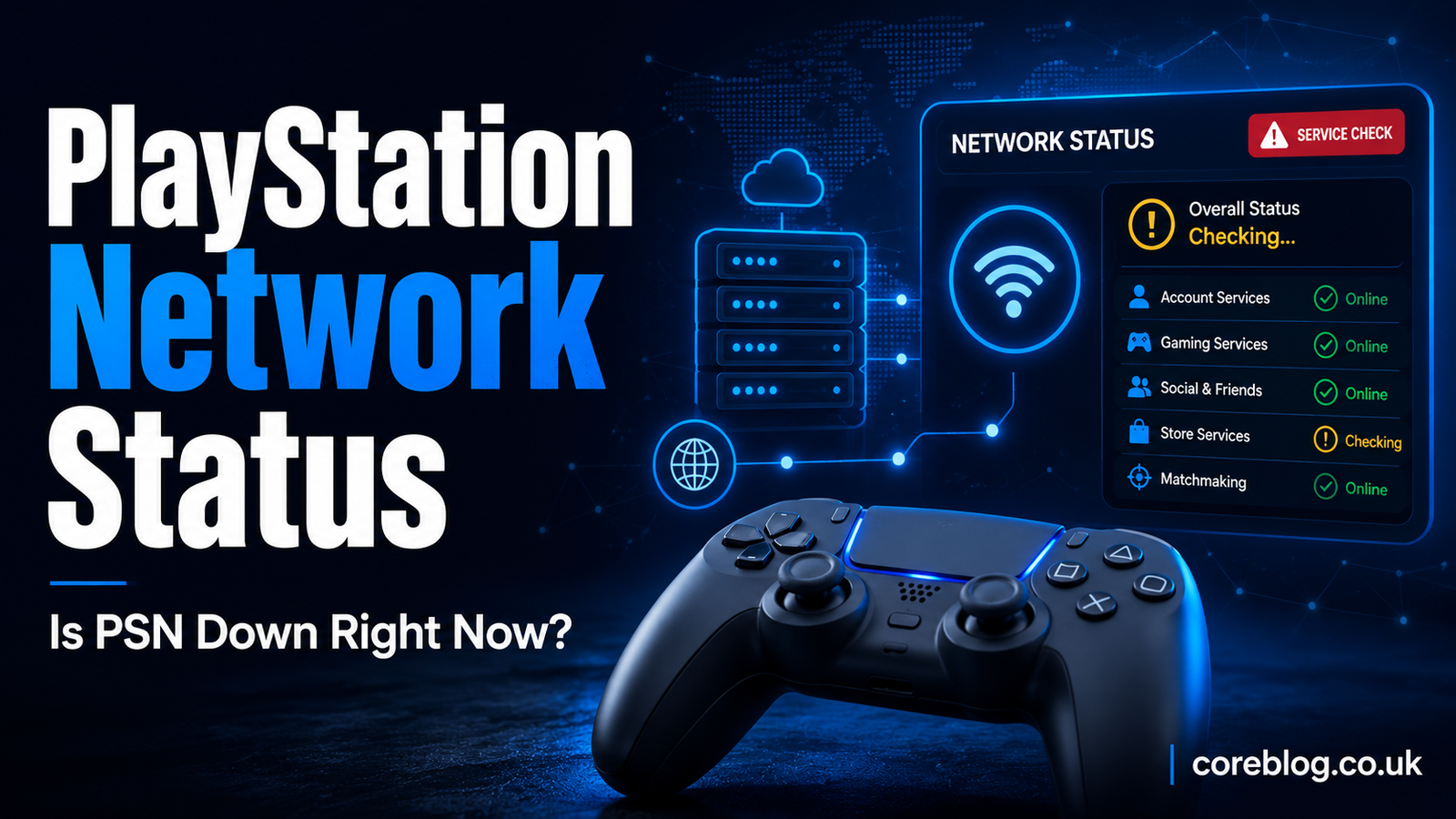
PlayStation Network Status: Is PSN Down Right Now?
You finally have time to play. Your controller is charged, your friends are waiting, and the game is ready. Then the screen displays a network error.
Nothing loads. Party chat stops working. The PlayStation Store refuses to open. Naturally, your first thought is simple: Is PSN down right now?
The good news is that you can usually find the answer within a few minutes. A problem may come from a widespread PlayStation server outage, planned maintenance, a regional service interruption, or something closer to home, such as your router, account, or console.
At the time this guide was prepared on June 27, 2026, the official PlayStation Network Status dashboard showed that all services were operating normally. However, service conditions can change quickly. Therefore, it is always worth checking the latest status before changing settings or resetting your console.
This guide explains how to check PSN, identify the real cause of an error, and safely fix common connection problems on PS5 and PS4.
What Is the PlayStation Network?
The PlayStation Network, commonly called PSN, is Sony’s online platform for PlayStation users. It connects many of the features that players use every day.
These include:
- Online multiplayer gaming
- PlayStation Store purchases
- Game and add-on downloads
- PlayStation Plus services
- Cloud save synchronization
- Party chat and messaging
- Friends lists and online profiles
- Digital game licenses
- Trophies and account data
- PlayStation App features
- Remote Play connections
- Video and entertainment services
Because so many features depend on the same online system, one service interruption can affect millions of players. However, not every error means that the entire network has failed.
Sometimes the PlayStation Store works while party chat is unavailable. In other cases, players can sign in but cannot start a multiplayer match. That is why checking the detailed PlayStation Network Status is more useful than simply asking whether PSN is online.
Is PlayStation Network Down Right Now?
As of the time of writing on June 27, 2026, PlayStation’s official service dashboard reports that its main services are up and running.
That does not guarantee that every player in every region will have a perfect connection. A regional ISP problem, game-specific server fault, overloaded router, account restriction, or local network issue may still stop you from connecting.
In other words, if the official PlayStation Network Status shows normal operation but your console remains offline, the problem is probably affecting your account, console, internet provider, router, or a specific game.
Why the Status Can Change Quickly
Online networks are constantly handling account sign-ins, store transactions, downloads, multiplayer sessions, cloud data, messages, and game updates.
A sudden rise in traffic can cause temporary slowdowns. New game launches, major seasonal updates, free multiplayer weekends, holiday events, and popular digital releases may place extra pressure on online services.
Status information can also change while engineers investigate a fault. The dashboard may initially show normal operation before an issue is confirmed. For that reason, check it again after several minutes if many players appear to be experiencing the same problem.
How to Check the PlayStation Network Status
There are several reliable ways to find out whether PSN is unavailable.
1. Check the Official Service Dashboard
The official dashboard should be your first stop. It shows whether major PlayStation services are running normally or experiencing problems.
The dashboard may report conditions affecting areas such as:
- Account management
- Gaming and social features
- PlayStation Store
- Entertainment services
- Game streaming
- Purchases and downloads
A green or normal status usually means no widespread fault has been confirmed. A warning or service alert suggests that PlayStation is investigating an issue.
Remember to select the correct country or region. PSN availability can differ between locations, so a service may work in one country while players elsewhere face difficulties.
2. Test the Connection on Your Console
If the official PlayStation Network Status appears normal, run a connection test.
On PS5
Go to:
Settings > Network > Connection Status > Test Internet Connection
On PS4
Go to:
Settings > Network > Test Internet Connection
The test checks whether your console can obtain an IP address, connect to the internet, and sign in to PlayStation services. It may also display your NAT type and estimated connection speed.
If the internet connection fails before the PSN sign-in stage, the problem is probably related to your home network or internet provider.
3. Check Whether Other Devices Are Online
Try opening a website or streaming a video on a phone, computer, or smart television connected to the same Wi-Fi network.
If every device is offline, the issue is not limited to your PlayStation. Your modem, router, or internet service provider may be experiencing trouble.
However, if other devices work normally, focus on the console’s network settings.
4. Test Another Online Game
A single game can have its own server outage even when the PlayStation Network is working.
For example, you might successfully open the PlayStation Store and view your friends list but still fail to join one particular multiplayer game. In that situation, the game publisher’s servers may be unavailable.
Try another online title. If the second game works, your console and PSN connection are probably fine.
5. Check the PlayStation App
The PlayStation App offers another quick way to test your account.
Open the app and see whether you can:
- Sign in successfully
- View your friends list
- Send a message
- Browse the store
- Check your game library
- Start a remote download
If the app works but your console does not, the fault may be linked to your console settings or local connection.
Common Signs of a PSN Outage
A full outage is often easy to notice because several features stop working at once. A smaller interruption can be less obvious.
The following table can help you narrow down the likely cause.
| Problem | Possible Cause | Best First Step |
|---|---|---|
| Cannot sign in to PSN | Outage, password issue, or account restriction | Check status and account details |
| Multiplayer will not connect | PSN, game server, NAT, or latency issue | Test another online game |
| PlayStation Store will not load | Store outage, cache, or DNS problem | Restart the console and router |
| Games show a lock symbol | Digital license problem | Restore licenses |
| Friends list is missing | Gaming and social service interruption | Check the official status |
| Downloads are stuck | Server traffic, low storage, or weak internet | Test connection and storage |
| Party chat keeps disconnecting | NAT type, packet loss, or PSN issue | Use a wired connection |
| Only one game is offline | Publisher server issue | Check another game |
| Verification code never arrives | 2-step verification issue | Use a backup code or recovery option |
| Every device is offline | Router, modem, or ISP fault | Restart network equipment |
Why PSN May Not Work Even When Servers Are Online
One of the most frustrating situations occurs when the PlayStation Network Status says everything is working, yet your PS5 or PS4 still refuses to connect.
Thankfully, this usually means the problem can be fixed from your side.
Your Router Needs a Restart
Routers can develop temporary connection errors, especially when they have been running continuously for weeks.
Turn off your console. Then unplug your modem and router from power. Leave them disconnected for about two minutes before reconnecting the modem first. Once its connection lights become stable, reconnect the router.
Restart your console and test the network again.
This simple power cycle clears many temporary IP address, Wi-Fi, DNS, and routing problems.
Your Wi-Fi Signal Is Weak
A console may show that it is connected to Wi-Fi even when the signal is too unstable for online gaming.
Weak wireless connections can cause:
- High ping
- Party chat interruptions
- Slow downloads
- Multiplayer lag
- Failed sign-ins
- Packet loss
- Random disconnections
Move the console closer to the router if possible. Thick walls, floors, large appliances, and other wireless devices can weaken the signal.
A wired Ethernet connection is usually more stable for multiplayer gaming. It reduces wireless interference and often provides more consistent latency.
Your Internet Provider Has a Regional Issue
Your internet service provider may be having trouble even when the main PlayStation servers are online.
This can affect routing between your home connection and PSN. You may still be able to browse ordinary websites while gaming services remain slow or unreachable.
Try connecting the console to a mobile hotspot for a brief test. If PSN works through the hotspot, your main internet connection or router is likely responsible.
Avoid downloading large games over mobile data unless your plan has enough allowance.
Your NAT Type Is Too Restrictive
Network Address Translation, better known as NAT, affects how easily your console communicates with other players and online services.
A moderate or strict NAT type may cause problems with:
- Voice chat
- Hosting multiplayer matches
- Joining parties
- Connecting to certain players
- Peer-to-peer games
Restarting your router may improve the situation. You should also make sure your router firmware is current and that your console is not blocked by parental controls, access restrictions, or security settings.
Changing advanced router settings without understanding them can create security or connection problems. Therefore, use your router manufacturer’s instructions or contact your internet provider when necessary.
How to Fix PlayStation Network Connection Problems
Once you have confirmed that there is no widespread outage, work through these steps in order.
Restart Your PS5 or PS4
Do not simply place the console in Rest Mode. Perform a full restart.
A restart can clear temporary memory errors, stalled background processes, frozen downloads, and failed network sessions.
After the console starts again, run the internet connection test and attempt to sign in.
Confirm Your Account Details
Make sure you are entering the correct sign-in ID, password, or passkey.
If you recently changed your password on another device, your console may ask you to sign in again. Also check whether you can access the email account connected to your PlayStation profile.
Repeatedly guessing a password can make account recovery more difficult. Use the official recovery process instead.
Check Two-Step Verification
If your password works but the verification code does not arrive, the issue may involve two-step verification.
Check that your phone has a signal and that the registered number is still correct. You may also use one of your saved backup codes. Each backup code normally works only once, so store the remaining codes securely.
Players using passkeys should confirm that the correct passkey is available on their phone, computer, or password manager.
Update the Console Software
Outdated system software can interfere with network features, account services, game launches, and online security.
On PS5, check for updates under the System Software section in Settings. On PS4, open the System Software Update menu.
Keep your console connected to power during the update. Do not switch it off while system files are being installed.
Restore Your Digital Licenses
If you can sign in but downloaded games display a lock symbol or refuse to launch, restoring licenses may help.
Restore Licenses on PS5
Go to:
Settings > Users and Accounts > Other > Restore Licenses
You may also highlight an affected game, press the Options button, and select the available license restoration option.
Restore Licenses on PS4
Go to:
Settings > Account Management > Restore Licenses
Restoring licenses should not delete your saved games or installed content. It refreshes the link between your account and eligible digital purchases.
Pause Other Downloads
A large game update, cloud backup, video stream, or download on another device may consume most of your bandwidth.
Pause unnecessary downloads and close streaming apps. Then test your online game again.
Download speed matters, but stable latency and low packet loss are often more important during multiplayer matches. A fast connection can still feel poor if it is unstable.
Try a Wired Connection
Connect your console directly to the router with an Ethernet cable.
If the problem disappears, your Wi-Fi signal or wireless interference was probably responsible. You can then continue using Ethernet or improve your wireless setup by moving the router and reducing interference.
Forget and Reconnect to Wi-Fi
Delete the saved Wi-Fi connection from your console and set it up again.
Carefully enter the password, then run the connection test. This can fix problems caused by an old password, changed router settings, or a corrupted network profile.
When Should You Use Safe Mode?
Safe Mode is a useful troubleshooting area for serious console problems. It starts the system with only basic functions enabled.
Depending on your console, Safe Mode may provide options for updating system software, clearing cache files, rebuilding the database, changing display settings, or resetting the system.
However, some options can remove settings or data. Do not select factory reset or system reinstallation options as a casual first step.
Back up important save data before using advanced recovery tools.
Rebuild the Database Carefully
Rebuilding the database scans console storage and reorganizes content. It may help when menus behave strangely, installed games are difficult to find, or downloads repeatedly fail.
It is not normally the first solution for a basic PSN outage. Check the PlayStation Network Status, restart the console, and test your internet before entering Safe Mode.
What to Do During a Confirmed PSN Outage
When PlayStation confirms a widespread service interruption, changing random console settings rarely helps.
Instead, take these sensible steps:
- Avoid repeatedly changing passwords.
- Do not factory reset your console.
- Leave failed purchases alone until service returns.
- Pause important cloud save activity.
- Check the service status periodically.
- Play an offline game while waiting.
- Keep your console connected for future updates.
- Retry the affected service after the alert is removed.
During an outage, some features may return before others. You might regain account access while the store or multiplayer system remains unavailable.
Give the network a little time before assuming that your console has developed a hardware fault.
Can You Play Games While PSN Is Down?
In many cases, yes.
Disc-based single-player games often continue to work without an active network connection. Many downloaded games can also run offline when the console is properly activated for offline use and the required digital license has already been verified.
However, you may lose access to:
- Online multiplayer modes
- Cloud saves
- Live-service game content
- Online leaderboards
- PlayStation Store purchases
- Remote Play over the internet
- Game streaming
- Online trophy synchronization
- Party chat and messaging
Some games require a permanent connection, even for certain single-player features. Their availability depends on the publisher’s own servers as well as PSN.
How Long Do PlayStation Network Outages Last?
There is no fixed outage length.
A small service interruption may last only a few minutes. A complex technical fault, security issue, maintenance window, or large regional problem can take longer to resolve.
The most reliable approach is to watch the official PlayStation Network Status rather than trusting an estimated recovery time shared by an unofficial account.
Also remember that recovery may happen gradually. Sign-in services may return first, followed by multiplayer, purchases, downloads, or social features.
How to Protect Your Account During Sign-In Problems
Connection trouble can sometimes look similar to an account security issue.
Pay attention if:
- Your password suddenly stops working
- Your sign-in email changes
- You receive unexpected purchase messages
- Unknown devices appear on your account
- You receive verification codes you did not request
- Your online ID or security settings change
In these cases, do not assume that PSN is simply down. Start the account recovery process and secure the email address connected to your profile.
Use a unique password, enable a passkey or two-step verification, and never share backup codes with another person.
A real support representative should not need your full password or one-time verification code.
Frequently Asked Questions
Why Can’t I Sign In When the PlayStation Network Status Is Normal?
Your password, passkey, verification method, internet connection, console software, or account status may be responsible. Test your internet and try signing in through the PlayStation App to narrow down the cause.
Why Is the PlayStation Store Not Loading?
The store may be experiencing a temporary service problem. Your console may also have a weak connection, cached error, DNS issue, or unfinished system update. Restart the console and network equipment before trying again.
Does Restarting the Router Fix PSN Errors?
It often fixes local connection problems. A router restart can clear temporary network conflicts and refresh the internet connection. However, it cannot repair a confirmed PlayStation server outage.
Why Does Only One Game Refuse to Connect?
The game may use separate publisher servers. If other online games work, check whether the affected title is undergoing maintenance or having a server problem.
Will Restoring Licenses Delete My Games?
Restoring licenses is designed to refresh access to eligible digital content. It should not remove installed games or save data. Still, make sure you choose the license option rather than a reset or initialization option.
Should I Reset My PS5 During a PSN Outage?
No. A factory reset is not an appropriate response to a confirmed network outage. It may remove data and will not repair PlayStation’s external servers.
How Often Should I Check the Status Page?
Check it when several PlayStation features fail at the same time. During a confirmed incident, checking every few minutes is usually unnecessary. Give the service time to recover and review the dashboard later.
Final Thoughts
When a game refuses to connect, it is easy to blame the entire PlayStation Network. Sometimes that instinct is correct. However, many apparent PSN outages are actually caused by Wi-Fi interference, router faults, account verification, restrictive NAT settings, game-specific servers, or outdated console software.
Start with the official PlayStation Network Status. If it reports an incident, avoid drastic changes and wait for the affected service to recover. If the network is operating normally, test your console connection, restart your equipment, confirm your account details, update the system, and restore licenses when appropriate.
Most importantly, troubleshoot one step at a time. That makes it much easier to identify what actually fixed the problem.
Have you recently experienced a PSN sign-in, multiplayer, store, or download issue? Share what happened and which solution worked for you. Your experience may help another PlayStation player get back online faster.











Leave a Reply