

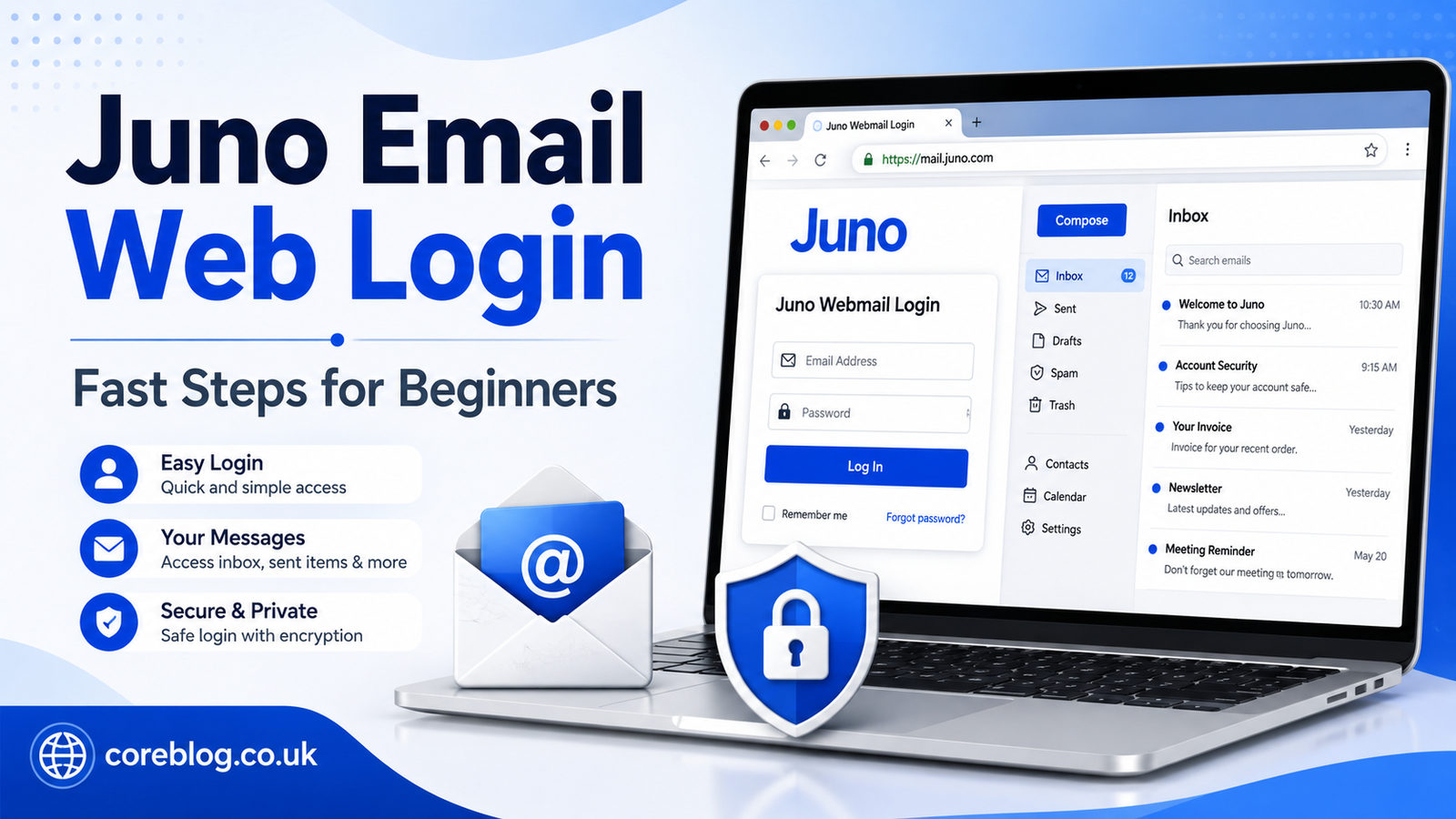
Juno Email Web Login: Fast Steps for Beginners
Email should not feel like a puzzle. Yet, when you are trying to open an old inbox, check an important message, or recover a password, even a simple login page can feel confusing. That is why this beginner-friendly guide to Juno Email Web Login is written in plain English, with practical steps you can follow without stress.
Juno email has been around for years, and many users still rely on it for personal messages, account updates, online registrations, newsletters, and daily communication. Some people use it because they have had the same email address for a long time. Others return to it after months and suddenly realize they do not remember the exact login process.
The good news is that Juno Email Web Login is not difficult once you understand the basics. You need the correct Member ID, the right password, a working browser, and a few simple troubleshooting habits. However, small mistakes can block access. A wrong username, old saved password, browser cache problem, weak internet connection, or forgotten account detail can quickly turn a simple task into a headache.
In this guide, I will walk you through the process like a real person explaining it across the table. No confusing tech talk. No unnecessary fluff. Just clear steps, useful tips, and common fixes that beginners can actually use.
What Is Juno Email Web Login?
Juno Email Web Login is the process of accessing your Juno email account through a web browser. Instead of opening a separate mail app, you visit the Juno webmail login page, enter your account details, and check your inbox online.
This is useful because you can access your email from different devices, such as:
- Desktop computer
- Laptop
- Tablet
- Smartphone browser
- Public or shared computer, if used carefully
The web login option helps users read messages, send emails, manage folders, delete unwanted mail, check spam, and keep up with important updates. For beginners, it is often the easiest way to access email because there is no need to set up incoming mail server settings, outgoing mail server details, POP3, IMAP, SMTP, or third-party email clients.
With Juno Email Web Login, everything happens inside the browser. That makes it simple, but it also means your browser settings, cookies, saved passwords, and internet connection can affect the login experience.
Why Beginners Still Use Juno Email
Juno email may not be the newest name in the email world, but many users keep it because it is familiar. An email address can become part of your digital identity. You may have used it for bank alerts, shopping accounts, social media profiles, insurance notices, school communication, or family contacts.
Here are a few reasons people still search for Juno Email Web Login:
- They want to access an old inbox.
- They forgot the login page.
- They need to recover a password.
- They want to check old messages.
- They use Juno as a backup email.
- They need to update account information.
- They are helping a parent or relative sign in.
- They want a simple webmail experience.
In many cases, the email account is important because it is connected to other services. So, learning the correct Juno Email Web Login steps can save time and prevent account access issues later.
Quick Juno Email Web Login Steps
Here is the simple version for beginners.
| Step | What to Do | Helpful Tip |
|---|---|---|
| 1 | Open your browser | Use a trusted browser like Chrome, Edge, Firefox, or Safari |
| 2 | Go to the Juno webmail login page | Type the address carefully to avoid fake pages |
| 3 | Enter your Juno Member ID | Do not add extra spaces before or after it |
| 4 | Type your password | Check uppercase and lowercase letters |
| 5 | Choose whether to stay signed in | Avoid this option on shared computers |
| 6 | Click the login button | Wait a few seconds before trying again |
| 7 | Open your inbox | Check mail, folders, spam, and account notices |
This basic Juno Email Web Login process usually works smoothly when the username and password are correct. If it does not, do not panic. Most login problems have simple causes.
Step-by-Step Juno Email Web Login Guide
Step 1: Use a Safe Internet Connection
Before entering your email details, make sure your internet connection is stable. A weak Wi-Fi signal or slow mobile data can interrupt the login process. If the page loads halfway or keeps refreshing, the issue may not be your Juno account. It may simply be the connection.
For better results, use a private network at home or work. Avoid logging in through public Wi-Fi at airports, cafes, hotels, or libraries unless you really need to. Public networks can increase privacy risks, especially when you are checking personal email.
Step 2: Open a Trusted Browser
A modern browser helps the login page load properly. If your browser is outdated, you may see blank pages, broken buttons, password errors, or slow loading.
You can use common browsers such as:
- Google Chrome
- Microsoft Edge
- Mozilla Firefox
- Safari
- Brave
If Juno Email Web Login does not work in one browser, try another. This is one of the easiest troubleshooting steps, and it often works.
Step 3: Enter the Correct Member ID
Your Juno Member ID is important. Many users make the mistake of entering the wrong format, using an old spelling, or adding spaces by accident. If you copy and paste the username from a note, check that no blank space is added at the beginning or end.
A small typing mistake can stop the Juno Email Web Login process right away. So, slow down for a second and double-check the ID before moving to the password field.
Step 4: Type Your Password Carefully
Passwords are case-sensitive. That means uppercase and lowercase letters matter. If your password includes special characters, numbers, or symbols, type them exactly.
Before you click login, check these things:
- Is Caps Lock turned off?
- Did the browser autofill an old password?
- Did you recently change the password?
- Are you using the right account details?
- Did you accidentally include a space?
Many login errors happen because the browser saves outdated credentials. If you changed your password earlier, your browser may still try to use the old one.
Step 5: Use “Keep Me Signed In” Carefully
Some login pages offer an option to stay signed in. This can be useful on your own computer, especially if you check email every day. However, it is not safe on shared devices.
Only use this option if:
- The computer is yours.
- The browser profile is private.
- No one else uses the device.
- Your device has a lock screen.
- You trust the network.
For public computers, school computers, office shared systems, or a friend’s laptop, always sign out after using Juno Email Web Login.
Common Juno Email Web Login Problems
Even when you follow the steps, problems can happen. The key is to identify the cause instead of trying the same failed login again and again.
Wrong Username or Password
This is the most common issue. If Juno says the information does not match, review your Member ID and password. Try typing them manually instead of using autofill.
If you are not sure about the password, use the password reset option rather than guessing too many times.
Browser Cache and Cookies
Your browser stores temporary files called cache and cookies. These help websites load faster, but old files can sometimes create login problems. If Juno Email Web Login keeps failing or the page does not load correctly, clearing cache and cookies may help.
You can also try private browsing or incognito mode. This opens a fresh browser session without using old saved site data.
Old Saved Password
Browsers often remember passwords. That sounds helpful, but it becomes a problem when the saved password is old. If your browser fills the password automatically and login fails, delete the saved password and type the current one yourself.
Slow or Unstable Internet
If the page freezes, spins, or times out, check your internet. Restart the router, switch networks, or move closer to the Wi-Fi signal. A login page needs a stable connection to verify your account.
Account Recovery Issues
If you forgot your ID or password, use the account recovery option. Make sure you enter the correct recovery details. If the recovery form asks for information like Member ID or ZIP/postal code, enter the details linked with your account.
How to Reset Your Juno Email Password
Password problems are normal. People forget passwords all the time, especially for accounts they do not use daily. If Juno Email Web Login does not work because you forgot your password, follow the reset process carefully.
Basic Password Reset Tips
- Use the official password reset page.
- Enter your correct Member ID.
- Provide account details when asked.
- Follow the on-screen instructions.
- Create a strong new password.
- Save it in a secure password manager.
- Update saved passwords in your browser.
Create a Strong Password
A strong password protects your email account from unwanted access. Avoid using your name, birthday, phone number, pet name, or simple words like “password123.”
A better password includes:
- Uppercase letters
- Lowercase letters
- Numbers
- Symbols
- At least 12 characters
- No obvious personal details
For example, a strong password should feel hard for someone else to guess but easy enough for you to store safely.
Safety Tips for Juno Email Web Login
Email security matters more than many people think. Your inbox can contain password reset emails, personal messages, bills, receipts, account alerts, and private information. So, safe login habits are important.
Use the Official Login Page
Always type the Juno webmail address carefully or use a trusted bookmark. Avoid clicking random email links that claim to take you to your login page. Fake login pages can look real and may try to steal your username and password.
Avoid Public Computers
Public computers can store browser history, cookies, and login data. If you must use one, do not save your password. Also, sign out completely and close the browser when finished.
Watch for Phishing Emails
Phishing emails try to trick you into giving away login details. They may say your account will be closed, your password expired, or your inbox needs urgent verification. Be careful with messages that push fear or urgency.
A safe habit is simple: do not enter your Juno Email Web Login details after clicking a suspicious email link.
Keep Your Device Updated
Your browser, operating system, and antivirus tools should stay updated. Updates fix security holes and help websites work correctly. If you use an old device or outdated browser, email access can become slower and less secure.
Juno Email Web Login on Mobile
You can use Juno Email Web Login on a phone browser as well. Open your browser, go to the webmail page, enter your Member ID and password, and check your inbox.
For a smoother mobile experience:
- Turn your phone sideways if the page looks crowded.
- Use a strong mobile signal or Wi-Fi.
- Avoid saving passwords on shared phones.
- Clear browser data if the page keeps failing.
- Keep your browser app updated.
Mobile webmail is helpful when you need quick access away from your computer. However, for long replies or file management, a laptop or desktop may feel easier.
How to Manage Your Inbox After Login
Once Juno Email Web Login works and you reach your inbox, take a few minutes to organize things. A clean inbox makes email easier to use.
Check New Messages First
Start with unread emails. Look for important account alerts, family messages, work updates, bills, or security notices. If something looks suspicious, do not click links too quickly.
Clean Spam and Junk Mail
Spam folders can fill up fast. Delete obvious junk, but also check for real emails that may have landed there by mistake. Sometimes password reset emails, order confirmations, or support replies go to the spam folder.
Delete Old Unwanted Mail
Old newsletters, expired offers, duplicate messages, and unwanted promotions can clutter your inbox. Deleting them helps you find important emails faster.
Use Folders When Possible
Folders help organize messages by topic. For example, you can separate personal mail, shopping receipts, finance emails, travel bookings, and account notices. Even a few basic folders can make a big difference.
Beginner Mistakes to Avoid
A lot of Juno Email Web Login trouble comes from small habits. Here are common mistakes to avoid:
- Typing the wrong Member ID
- Forgetting password changes
- Using an old saved password
- Logging in on fake pages
- Saving passwords on shared computers
- Ignoring browser updates
- Reusing weak passwords
- Clicking suspicious email links
- Forgetting to sign out
- Not keeping recovery details updated
These mistakes are easy to make, but they are also easy to fix. Once you know what to watch for, email access becomes much smoother.
Best Browser Tips for Smooth Login
Your browser can make or break the login experience. If Juno Email Web Login feels slow or buggy, try these simple browser fixes.
Clear Cache
Clearing cache removes old website files. This can fix loading problems and page errors.
Enable Cookies
Some login pages need cookies to remember your session. If cookies are blocked, you may not be able to stay signed in.
Disable Problem Extensions
Ad blockers, privacy extensions, script blockers, or security add-ons can sometimes interfere with login pages. Try disabling extensions one by one or use private mode.
Update the Browser
An outdated browser may not support newer page features. Updating it can improve speed, security, and compatibility.
What to Do If Juno Email Web Login Still Fails
If you tried everything and still cannot access your account, take a calm step-by-step approach.
First, confirm that you are using the correct login page. Next, check the Member ID and password. Then try another browser, clear cache, restart your device, and test a different internet connection.
If the problem continues, use account recovery. If recovery does not work, you may need to contact customer support or check whether the account is still active. This is especially important for older accounts that have not been used in a long time.
Is Juno Email Web Login Good for Daily Use?
For basic email tasks, Juno Email Web Login can be enough. It lets users check messages, reply to emails, and manage simple communication through a browser. It is especially useful for people who prefer familiar tools and do not want a complicated setup.
However, like any email service, the experience depends on your needs. If you only need simple webmail access, it can work well. If you need heavy business email features, advanced storage, team tools, or modern productivity integrations, you may want to compare your options.
Still, for many users, the goal is simple: open the inbox, read messages, send replies, and stay connected. For that purpose, understanding Juno Email Web Login is the most important first step.
Final Checklist Before You Login
Before using Juno Email Web Login, quickly review this checklist:
- Use a trusted browser.
- Check your internet connection.
- Enter the correct Member ID.
- Type your password carefully.
- Avoid public Wi-Fi when possible.
- Do not save passwords on shared devices.
- Clear cache if the page fails.
- Reset your password if needed.
- Sign out after using a shared computer.
- Watch for phishing emails.
This short checklist can prevent most beginner login problems.
Conclusion
Juno Email Web Login is simple once you know the right steps. Open the official webmail page, enter your Member ID, type your password carefully, and access your inbox through a trusted browser. If something goes wrong, do not panic. Most problems come from small issues like old saved passwords, browser cache, weak internet, incorrect account details, or forgotten recovery information.
The best approach is to stay patient and work through the basics one by one. Check your login details, refresh your browser, clear old data, try another device, and reset your password if needed. In addition, use safe habits every time you sign in. Avoid fake pages, protect your password, and sign out when using shared devices.
If this guide helped you understand Juno Email Web Login, share it with someone who may be struggling with their email access. You can also leave a comment with your own login issue or tip, because a simple shared experience can save another beginner a lot of time.












Leave a Reply