

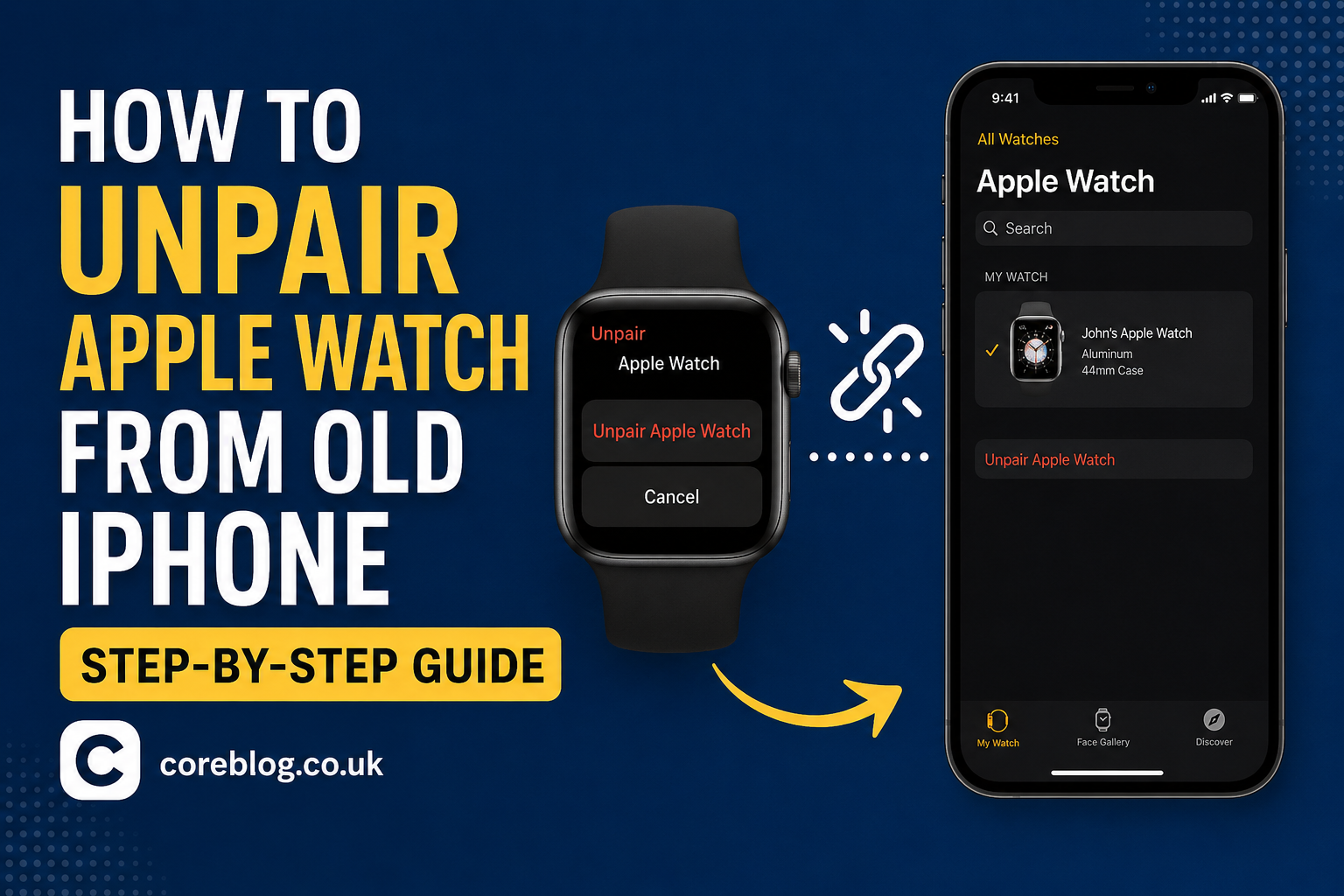
How to Unpair Apple Watch From Old iPhone: Step-by-Step
Switching to a new iPhone is exciting, but it can quickly become frustrating if your Apple Watch is still connected to your old device. Many users worry about losing fitness data, health records, or personal settings during the process. Fortunately, learning How to Unpair Apple Watch From Old iPhone is much easier than it sounds.
Whether you’re upgrading to the latest iPhone, selling your old phone, or troubleshooting connection issues, properly unpairing your Apple Watch ensures a smooth transition. Skipping this step may cause activation problems, syncing issues, or difficulties pairing the watch with another iPhone.
In this comprehensive guide, you’ll discover How to Unpair Apple Watch From Old iPhone safely, what happens during the process, what to do if your old iPhone is unavailable, and how to reconnect your watch without losing valuable information.
Why You Should Unpair Your Apple Watch Properly
Before jumping into the steps, it’s important to understand why unpairing matters.
When you unpair your Apple Watch correctly:
- A fresh backup of your watch is automatically created.
- Activation Lock is removed from your Apple ID.
- Health and Fitness data remain protected.
- Your watch becomes ready for a new iPhone.
- Pairing with another device becomes quick and hassle-free.
Many users simply erase the watch from Settings. While that works, it doesn’t always remove Activation Lock, which can create problems later.
Things to Do Before You Begin
Before following How to Unpair Apple Watch From Old iPhone, complete these quick preparations.
Charge Both Devices
Make sure your:
- Apple Watch has at least 50% battery.
- Old iPhone has enough battery power.
- Devices remain close together throughout the process.
Update Your Devices
Although optional, updating iOS and watchOS helps prevent unexpected pairing errors.
Back Up Your iPhone
A recent iCloud or computer backup protects your information if anything goes wrong.
Your backup includes:
- Messages
- Photos
- Apps
- Apple Watch backup
- Settings
How to Unpair Apple Watch From Old iPhone
This is the recommended method from Apple because it creates a backup while removing the watch correctly.
Step 1: Place Both Devices Together
Keep your Apple Watch and old iPhone within Bluetooth range.
Step 2: Open the Watch App
On your old iPhone:
- Open the Watch app.
- Tap All Watches at the top.
Step 3: Select Your Watch
Locate the watch you want to remove.
Tap the small i information icon beside it.
Step 4: Tap Unpair Apple Watch
You’ll now see the option:
Unpair Apple Watch
Tap it.
Step 5: Confirm the Process
If you own a GPS + Cellular model, you’ll see another option.
Choose whether to:
- Keep your cellular plan
- Remove the cellular plan
If you’re transferring the watch to another iPhone using the same carrier, keeping the plan is usually the best choice.
Step 6: Enter Your Apple ID Password
You’ll be asked to enter your Apple ID password.
This removes:
- Activation Lock
- Find My Apple Watch
- Apple ID association
Step 7: Wait
The watch will:
- Back up automatically
- Erase all content
- Restart
- Display the pairing screen
Congratulations—you’ve successfully completed How to Unpair Apple Watch From Old iPhone.
What Happens After Unpairing?
Many users wonder exactly what changes after unpairing.
Here’s what happens.
| Item | Result |
|---|---|
| Apple Watch Backup | Automatically created |
| Health Data | Saved with iPhone backup |
| Activity Rings | Preserved |
| Apps | Removed from Watch |
| Activation Lock | Removed |
| Personal Data | Erased from Watch |
This means you can restore nearly everything when pairing again.
How to Pair Apple Watch With Your New iPhone
Once you’ve learned How to Unpair Apple Watch From Old iPhone, pairing with the new device becomes straightforward.
Turn On Your New iPhone
Complete the normal iPhone setup.
Restore from your latest backup if available.
Turn On the Watch
Press and hold the side button until the Apple logo appears.
Open the Watch App
Launch the Watch app.
Tap:
Start Pairing
Scan the Animation
Use your iPhone camera to scan the animation displayed on the Apple Watch.
Restore From Backup
Select the latest backup.
Your watch will begin restoring:
- Apps
- Settings
- Health data
- Watch faces
- Preferences
Depending on your backup size, this may take several minutes.
What If You No Longer Have Your Old iPhone?
Sometimes the old iPhone is:
- Lost
- Broken
- Sold
- Factory reset
- Stolen
Fortunately, you can still complete How to Unpair Apple Watch From Old iPhone.
Erase Directly From Apple Watch
Open:
Settings > General > Transfer or Reset > Erase All Content and Settings
Enter your passcode.
Wait until the reset finishes.
However, Activation Lock may still remain.
Remove Activation Lock
Visit your Apple ID account on another Apple device.
Remove the watch from your devices list.
After that, the Apple Watch becomes available for pairing again.
How to Remove Apple Watch From Apple ID
Sometimes users forget this important step.
If Activation Lock remains enabled:
- Sign into your Apple account.
- Open Devices.
- Select Apple Watch.
- Choose Remove Device.
- Confirm.
Now the watch is completely disconnected.
Common Problems When Unpairing Apple Watch
Even though the process is simple, a few issues can appear.
Apple Watch Won’t Unpair
Try these fixes:
- Restart both devices.
- Enable Bluetooth.
- Connect to Wi-Fi.
- Update iOS.
- Restart the Watch app.
Unpair Button Is Missing
Check whether:
- The watch is still paired.
- You’re signed into the correct Apple ID.
- Family Setup isn’t enabled.
Pairing Failed
Possible causes include:
- Weak Bluetooth connection
- Software mismatch
- Activation Lock
- Outdated watchOS
- Incomplete reset
Restart both devices before trying again.
Does Unpairing Delete Everything?
Yes—but only from the watch itself.
Your information remains safely stored inside:
- iPhone backup
- iCloud backup
- Health database
- Activity history
Once restored, your watch looks almost identical to before.
Will I Lose My Health Data?
Usually, no.
If Health syncing is enabled, you’ll keep:
- Heart rate history
- ECG records
- Sleep tracking
- Workout history
- Activity rings
- Fitness trends
Always create an iPhone backup before starting.
Difference Between Unpairing and Resetting
Many users confuse these two actions.
| Unpair Apple Watch | Reset Apple Watch |
|---|---|
| Creates backup | No backup created |
| Removes Activation Lock | Activation Lock may stay |
| Removes Apple ID safely | Apple ID may remain |
| Recommended before upgrading | Mainly for troubleshooting |
Whenever possible, use the official unpair option.
Tips for a Smooth Upgrade
If you’re moving to a newer iPhone, follow these suggestions.
Keep Devices Nearby
Avoid walking away during transfer.
Bluetooth interruptions can slow the process.
Use Stable Wi-Fi
A reliable internet connection speeds up:
- iCloud backup
- Restore
- Activation
- Setup
Charge Before Starting
Nothing interrupts setup faster than a low battery.
Charge both devices beforehand.
Update Software
Running current versions of:
- iOS
- watchOS
helps prevent compatibility problems.
Frequently Asked Questions
Can I Unpair Apple Watch Without My Old iPhone?
Yes.
Erase the watch directly from Settings and remove it from your Apple ID afterward.
Does Unpairing Remove Cellular Service?
Not always.
You’ll be asked whether to:
- Keep the cellular plan
- Remove the plan
Choose according to your carrier and future plans.
How Long Does Unpairing Take?
Usually between five and fifteen minutes.
Large backups may take longer.
Can I Pair My Watch With Another iPhone Immediately?
Yes.
Once unpairing finishes and Activation Lock is removed, pairing can begin immediately.
Will My Apps Return?
Yes.
Restoring from backup reinstalls compatible apps automatically.
Is Factory Reset the Same as Unpairing?
No.
Factory resetting simply erases the watch.
Unpairing creates a backup and removes Activation Lock, making it the preferred option.
Expert Tips to Avoid Future Problems
Experienced Apple users recommend a few habits that save time later.
- Enable iCloud backups regularly.
- Keep your Apple ID password available.
- Update watchOS frequently.
- Avoid forcing resets unless necessary.
- Remove Activation Lock before selling your watch.
- Verify backups before upgrading your iPhone.
- Keep Find My enabled until you’re ready to transfer.
- Sync Health data regularly.
Following these practices makes every future upgrade much smoother.
Final Checklist Before Selling Your Old iPhone
Before handing over your old phone, confirm you’ve completed each step.
- Apple Watch unpaired
- Backup created
- Activation Lock removed
- Find My disabled for the watch
- New iPhone paired
- Health data restored
- Cellular plan transferred if necessary
- Old iPhone erased after confirming everything works
This checklist prevents common setup headaches.
Final Thoughts
Knowing How to Unpair Apple Watch From Old iPhone is an essential skill for anyone upgrading to a new device or preparing to sell an old one. By following the official unpairing process, you create a secure backup, remove Activation Lock, and make it easy to reconnect your Apple Watch without losing important data.
Rather than rushing through the process, take a few extra minutes to back up your iPhone, verify your Apple ID credentials, and keep both devices charged. These simple steps can save hours of troubleshooting later.
If this guide helped you understand How to Unpair Apple Watch From Old iPhone, consider sharing it with friends or family who are upgrading their Apple devices. If you have questions, tips, or experiences of your own, leave a comment and join the discussion.












Leave a Reply