

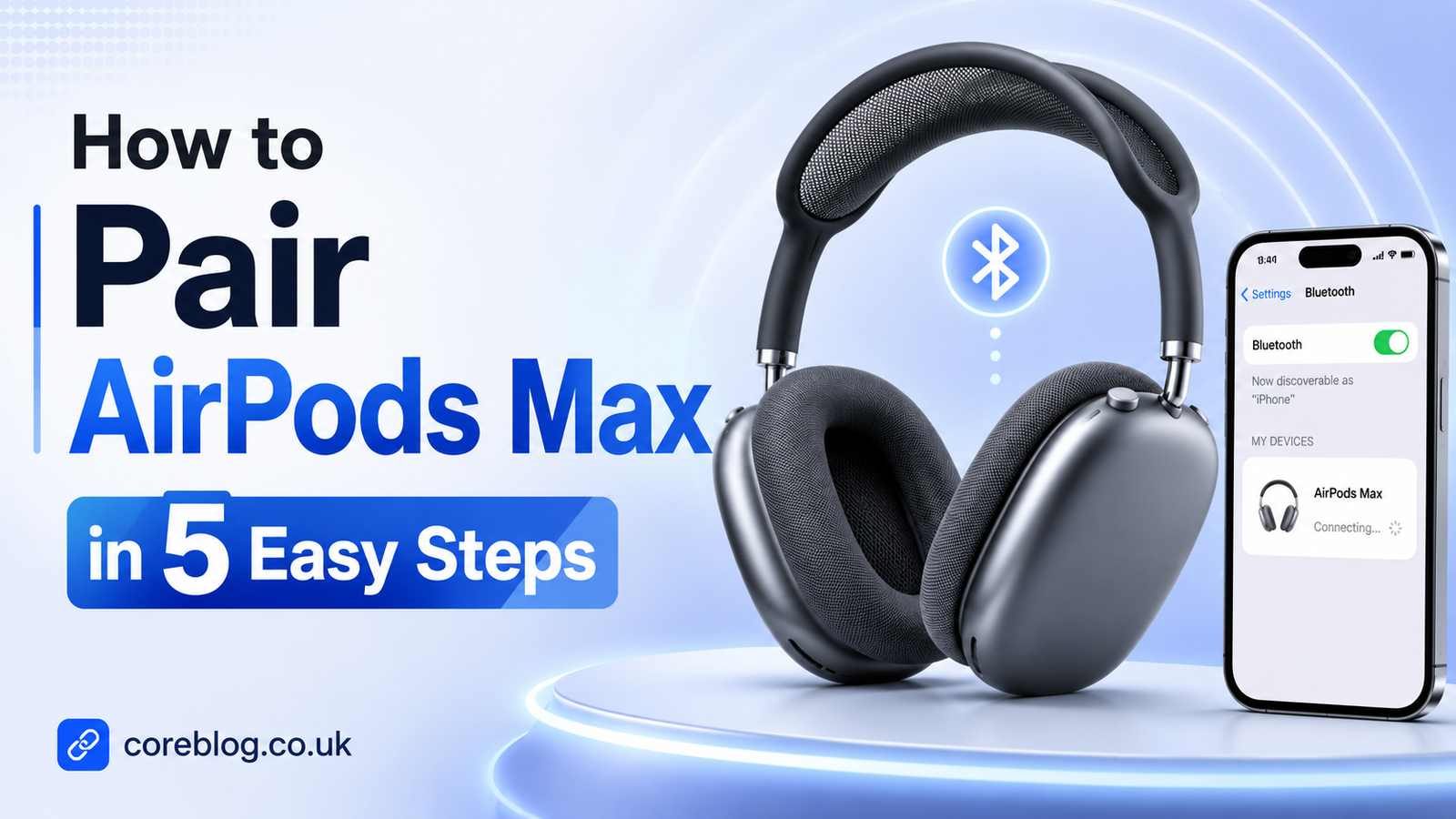
How to Pair AirPods Max in 5 Easy Steps
Buying a premium pair of headphones should make life easier. Yet the first time you switch on your AirPods Max, you may find yourself staring at the buttons and wondering what to press.
The good news is that pairing them is usually quick. In many cases, your iPhone recognizes the headphones before you even open the Bluetooth menu. Other devices need a few extra taps, but the process remains simple.
This guide explains how to pair AirPods Max with an iPhone, iPad, Mac, Android phone, Windows computer, and other Bluetooth devices. You will also learn what the flashing white light means, how to reconnect your headphones, and what to do when they refuse to appear on your screen.
Let’s get your music playing.
Before You Pair Your AirPods Max
A little preparation can prevent most connection problems. Before you begin, check these basic points:
- Give your AirPods Max enough battery power.
- Turn on Bluetooth on the device you want to use.
- Keep the headphones close to your phone, tablet, or computer.
- Install available software updates on your device.
- Disconnect the headphones from another nearby device if necessary.
- Remove the AirPods Max from the Smart Case.
- Make sure Airplane Mode is not blocking wireless connections.
You do not need a cable for normal Bluetooth pairing. You also do not need to install a separate AirPods app on an iPhone or iPad.
The main controls sit on the right ear cup. You will see the Digital Crown, which controls volume and playback, and the listening mode button, which switches between sound-control modes. The small status light near the charging port shows the current pairing state.
Understanding these controls makes learning how to pair AirPods Max much easier.
How to Pair AirPods Max in 5 Easy Steps
The following process works best when connecting AirPods Max to an iPhone or iPad for the first time.
Step 1: Unlock Your iPhone or iPad
Start by unlocking your iPhone or iPad and opening the Home Screen. Then go to Settings > Bluetooth and confirm that Bluetooth is switched on.
You can usually leave the Bluetooth page after turning it on. Apple devices often display an automatic setup card when compatible AirPods are placed nearby.
Keep your phone or tablet awake during this process. If the screen locks, the setup animation may not appear immediately.
Step 2: Take AirPods Max Out of the Smart Case
Remove your AirPods Max from their Smart Case. Hold them close to the unlocked iPhone or iPad.
Ideally, do this within about a minute of taking them out of the case. A setup animation should appear on your screen.
If you have been searching for how to pair AirPods without digging through several menus, this pop-up method is the fastest option.
Step 3: Tap Connect on the Setup Card
When the AirPods Max setup card appears, tap Connect.
Your device may show additional screens for features such as Siri, Spatial Audio, Find My, personalized settings, and automatic device switching. Follow the prompts and select the options that suit you.
Once the setup is complete, tap Done.
Your AirPods Max should now appear in your device’s Bluetooth settings. You can also see their battery level and change available headphone settings from the same area.
Step 4: Use Manual Pairing When the Card Does Not Appear
Sometimes the setup animation does not show. That does not necessarily mean something is wrong.
Press and hold the listening mode button on the right ear cup for about five seconds. Release it when the small status light begins flashing white.
The flashing white light means your AirPods Max are discoverable and ready to connect.
Next, open:
Settings > Bluetooth > Other Devices
Tap AirPods Max when the name appears. After a moment, the headphones should move into the connected-device list.
This manual method is important because it also explains how to pair AirPods Max with devices outside the Apple ecosystem.
Step 5: Play Audio and Check the Output
Open a song, podcast, video, or voice recording. Play the audio and check whether you can hear it through the headphones.
When sound continues playing through your phone or tablet speakers, open Control Center and select AirPods Max as the audio output.
Turn the Digital Crown to check the volume. You can also press the listening mode button to test the available noise-control options.
That is the complete process. In most situations, learning how to pair AirPods Max takes less time than choosing the first song to play.
Quick Pairing Guide for Different Devices
| Device | Where to Start | What to Do |
|---|---|---|
| iPhone | Settings > Bluetooth | Hold AirPods Max nearby and tap Connect |
| iPad | Settings > Bluetooth | Use the setup card or manual pairing mode |
| Mac | System Settings > Bluetooth | Flash the white light and click Connect |
| Android | Settings > Bluetooth | Put the headphones in pairing mode and select them |
| Windows PC | Settings > Bluetooth & devices | Add a Bluetooth device and choose AirPods Max |
| Smart TV | Bluetooth or Sound settings | Scan for headphones and select AirPods Max |
Menu names may look slightly different depending on the device, operating system, or manufacturer. However, the basic routine remains the same: activate Bluetooth, place the headphones in pairing mode, and select their name.
How to Pair AirPods Max With a Mac
Pairing AirPods Max with a Mac is straightforward, especially when the Mac uses the same Apple Account as your iPhone.
First, click the Apple menu and open System Settings. Select Bluetooth and make sure it is turned on.
If your AirPods Max already appear in the device list, click Connect. You may not need to pair them again.
When they do not appear, follow these steps:
- Remove the AirPods Max from the Smart Case.
- Press and hold the listening mode button.
- Wait until the status light flashes white.
- Look for AirPods Max under nearby Bluetooth devices.
- Click Connect.
After connecting, open Control Center from the menu bar. Choose the Sound section and confirm that AirPods Max are selected as the output device.
This extra check helps when the Mac reports a successful Bluetooth connection but continues playing sound through its built-in speakers.
How to Pair AirPods Max With Android
AirPods Max are not limited to Apple products. They can work as standard Bluetooth headphones with Android phones and tablets.
To understand how to pair AirPods Max with Android, begin by opening the Bluetooth settings on your phone. On many Android devices, you can find them under:
Settings > Connections > Bluetooth
Remove the headphones from the Smart Case. Then press and hold the listening mode button until the status light flashes white.
Wait for AirPods Max to appear under available devices. Tap the name and accept the pairing request.
Once connected, you can listen to music, watch videos, make calls, and use the physical headphone controls. Noise-control features may also remain available through the listening mode button.
However, some Apple-specific features may be unavailable or more limited on Android. For example, you should not expect the same Siri integration or automatic Apple-device switching experience.
The core audio connection still works like it would with other wireless headphones.
How to Pair AirPods Max With a Windows PC
Windows pairing takes a few more clicks, but it follows the same Bluetooth principle.
On Windows 11
Open Settings, choose Bluetooth & devices, and switch Bluetooth on. Select Add device, followed by Bluetooth.
Now hold the listening mode button on the AirPods Max until the light flashes white. Select AirPods Max when Windows displays them.
Wait for the confirmation message, then click Done.
Check Your Windows Sound Output
A successful Bluetooth connection does not always change the sound output automatically.
Click the speaker icon in the Windows taskbar. Open the output-device menu and select AirPods Max. You may also need to choose them as the input device when using the built-in microphones for meetings or calls.
Learning how to pair AirPods Max with Windows is only half the job. Selecting the correct playback device is the step that many users miss.
How to Connect AirPods Max to a Second Device
You may want to use your headphones with an iPhone during the day and a laptop in the evening.
For another Apple device signed in to the same Apple Account, the AirPods Max may already appear as an available audio option. Select them from Bluetooth settings, Control Center, or the sound-output menu.
For an Android phone, Windows PC, smart television, or another non-Apple device, put the headphones into pairing mode again:
- Turn on Bluetooth on the second device.
- Hold the listening mode button.
- Wait for the white flashing light.
- Choose AirPods Max from the device list.
The headphones may reconnect to the most recently used device. Therefore, temporarily turning off Bluetooth on that device can make a new connection easier.
Why Are My AirPods Max Not Connecting?
Even premium wireless headphones can have an awkward day. Fortunately, most AirPods Max connection problems come from a small set of causes.
Bluetooth Is Turned Off
It sounds obvious, but it happens often. Open the full Bluetooth settings rather than relying only on a Control Center shortcut.
Switch Bluetooth off, wait a few seconds, and turn it back on. Then repeat the pairing process.
The Headphones Are Connected Somewhere Else
Your AirPods Max may automatically reconnect to a nearby iPhone, iPad, Mac, or computer that they have used before.
Temporarily disable Bluetooth on other nearby devices. Then place the headphones in pairing mode and try again.
The White Light Is Not Flashing
The status light must flash white for normal manual discovery.
Press and hold the listening mode button for about five seconds. Do not confuse it with the Digital Crown. The listening mode button is the flatter button beside the crown.
If there is no light at all, charge the headphones before trying again.
AirPods Max Appear but Will Not Connect
Remove the saved Bluetooth entry and create a fresh connection.
On an iPhone or iPad, open Bluetooth settings, tap the information button beside AirPods Max, and choose Forget This Device. Confirm your choice and pair them again.
On a Mac, Android phone, or Windows computer, remove or forget AirPods Max from the saved-device list. Then repeat the manual pairing steps.
This is one of the most reliable fixes when someone knows how to pair AirPods correctly but keeps receiving an unsuccessful connection message.
Your Device Needs an Update
An outdated operating system can cause Bluetooth bugs, missing features, or unstable audio.
Check for available iOS, iPadOS, macOS, Android, or Windows updates. Restart the device after installing an update, then try connecting again.
The Devices Are Too Far Apart
Keep the AirPods Max close to your phone or computer during the first connection. Walls, crowded wireless environments, and other Bluetooth accessories can interfere with discovery.
Once the headphones are paired, you can move around more freely.
How to Restart AirPods Max
Restarting is useful when the headphones connect but behave strangely. For example, audio may cut out, controls may stop responding, or the headphones may refuse to switch devices.
Press and hold the Digital Crown and the listening mode button at the same time. Release both controls when the status light flashes amber.
Allow the headphones a moment to restart. Then reconnect them through your device’s Bluetooth menu.
A restart does not normally require you to rebuild every saved connection. Therefore, it is a sensible step before performing a full factory reset.
How to Reset AirPods Max
Use a factory reset when restarting does not fix the problem or when you are preparing the headphones for a new setup.
Before resetting, give the headphones enough charge. Then press and hold the Digital Crown and listening mode button together for around 15 seconds.
Watch the status light. It should flash amber and then white. The white light indicates that the headphones are ready to pair again.
After the reset, follow the original instructions for how to pair AirPods Max with your chosen device.
A factory reset may clear settings and require a fresh connection. For that reason, it should be treated as a later troubleshooting step rather than the first thing you try.
What Do the AirPods Max Status Lights Mean?
The small light near the charging port gives useful clues about the headphones.
| Light Behaviour | Common Meaning |
|---|---|
| Flashing white | Ready for Bluetooth pairing |
| Flashing amber during restart | The headphones are restarting |
| Amber followed by white | Factory reset completed and pairing is available |
| No light | The battery may need charging |
The light can also show charging information in certain situations. However, during setup, the most important signal is flashing white.
When helping a friend learn how to pair AirPods, I usually tell them to ignore everything else for a moment and look for that white flash. It is the clearest sign that the headphones are discoverable.
Tips for a More Reliable AirPods Max Connection
Once the initial pairing is complete, a few habits can improve day-to-day use.
Keep Your Software Current
System updates often include Bluetooth improvements and compatibility fixes. Updating your phone or computer can prevent random disconnections and delayed device switching.
Rename Your Headphones
A custom name makes your AirPods Max easier to recognize, especially in a home or office with several Apple devices.
On an iPhone or iPad, open the AirPods Max settings while the headphones are connected. Tap the current name and enter a new one.
Check the Audio Output
Whenever sound comes from the wrong speaker, check the playback destination before resetting anything. The headphones may be connected correctly while the device is still using another output.
Reduce Nearby Interference
Crowded Wi-Fi networks, wireless keyboards, game controllers, speakers, and other Bluetooth accessories can sometimes affect performance.
Move closer to your device and temporarily disconnect unused wireless accessories when troubleshooting.
Store Them Carefully
The Smart Case helps place the headphones into a low-power state. Keeping the AirPods Max protected also reduces the risk of damage to the ear cups, headband, charging port, and controls.
Common AirPods Max Pairing Mistakes
Pairing is simple, yet a few mistakes create unnecessary frustration.
Pressing the Wrong Button
The Digital Crown controls volume and playback. The listening mode button activates manual pairing when held down.
Releasing the Button Too Soon
A quick press changes the listening mode. You must hold the button until the status light flashes white.
Looking Only in the Audio Menu
New devices often need to be added through the main Bluetooth settings before they appear in the audio-output menu.
Leaving Another Device Connected
A nearby device may grab the connection before your new phone or computer can complete pairing.
Resetting Too Early
Try charging, reconnecting, restarting Bluetooth, and forgetting the saved device before performing a factory reset.
Avoiding these mistakes makes how to pair AirPods Max feel far less complicated.
Frequently Asked Questions
Where Is the Pairing Button on AirPods Max?
AirPods Max do not have the same rear setup button found on many AirPods charging cases. For manual pairing, use the listening mode button on the right ear cup.
Hold it until the status light flashes white.
Can AirPods Max Pair With Samsung Phones?
Yes. Open the Samsung phone’s Bluetooth settings, put the AirPods Max into pairing mode, and select them from the available-device list.
They work as Bluetooth headphones, although some Apple-exclusive features may not be available.
Can I Pair AirPods Max Without an iPhone?
Yes. You can pair them with a Mac, Android device, Windows PC, tablet, smart TV, or another supported Bluetooth device.
An iPhone is not required for basic listening and calling.
Why Do My AirPods Max Keep Disconnecting?
Possible causes include a low battery, software bugs, Bluetooth interference, automatic switching, distance from the connected device, or a corrupted saved connection.
Charge the headphones, update your device, forget the existing Bluetooth entry, and pair them again.
How Do I Make AirPods Max Discoverable?
Remove them from the Smart Case. Press and hold the listening mode button for about five seconds. When the status light flashes white, they are discoverable.
Do I Need to Pair AirPods Max Every Time?
No. After the first successful setup, they should reconnect to a saved device when Bluetooth is enabled and the headphones are available.
You may need to select them manually when switching between several devices.
Can Two Devices Use AirPods Max at the Same Time?
They can be recognized by multiple saved devices, but normal audio playback comes from one selected source at a time. Apple’s automatic switching features may make moving between compatible Apple devices feel faster.
What Should I Do Before Buying Used AirPods Max?
Ask the previous owner to remove the headphones from their Apple Account and Find My device list. Then reset the headphones and complete your own pairing process.
Conclusion
Learning how to pair AirPods Max should not feel like a technical project. For an iPhone or iPad, remove the headphones from the Smart Case, hold them nearby, and tap Connect. For Mac, Android, Windows, and other Bluetooth devices, hold the listening mode button until the white light flashes, then select AirPods Max from the device list.
When something goes wrong, start with the easy fixes. Charge the headphones, check Bluetooth, move closer, disconnect other devices, and remove the old pairing record. Restart the AirPods Max next. Save the factory reset for stubborn problems.
Now that you know how to pair AirPods Max, connect them, choose your favorite audio, and test the sound. Share this guide with anyone struggling with setup, and leave a comment about the device you paired successfully.











Leave a Reply