

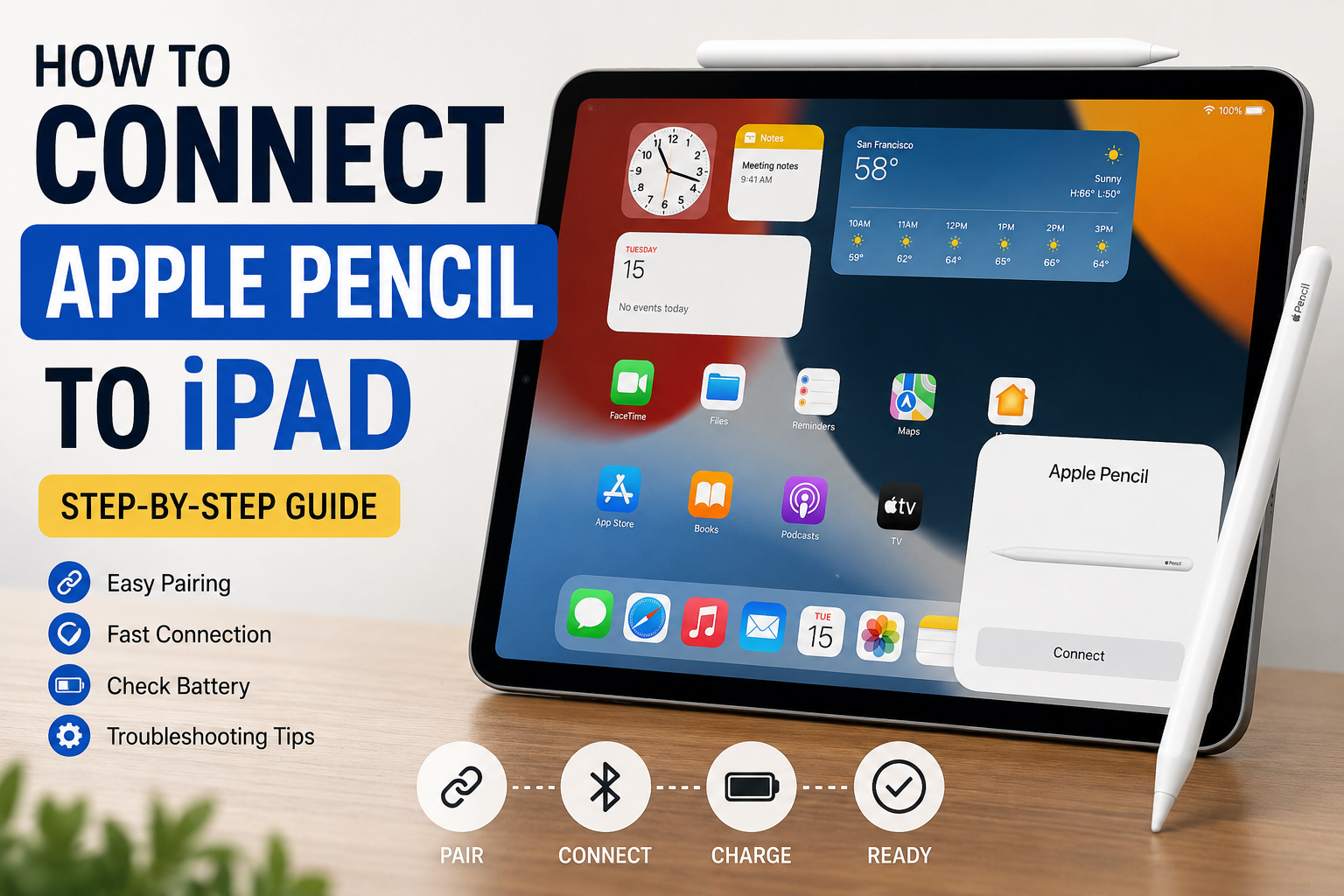
How to Connect Apple Pencil to iPad: Step-by-Step Guide
If you’ve recently purchased an Apple Pencil, the first thing you’ll want to do is pair it with your iPad. Fortunately, Apple has designed the process to be quick and straightforward. However, the exact steps depend on which Apple Pencil and iPad model you own.
This comprehensive guide explains How to Connect Apple Pencil to iPad in simple, easy-to-follow steps. You’ll also learn how to check compatibility, troubleshoot common pairing problems, reconnect after resetting your device, and make the most of your Apple Pencil once it’s connected.
Whether you’re a student taking notes, an artist creating digital illustrations, or a professional marking up documents, this guide will help you get started confidently.
Key Takeaways
- Apple Pencil pairing depends on your Pencil generation and iPad model.
- Checking compatibility before pairing prevents connection issues.
- Bluetooth must be enabled for Apple Pencil to connect.
- Most pairing problems can be solved with simple troubleshooting.
- Once paired, Apple Pencil reconnects automatically when compatible.
Main Article
Understanding Apple Pencil Generations
Before attempting to connect your Apple Pencil, identify which model you own. Apple currently offers multiple versions, each pairing differently.
| Apple Pencil | Pairing Method | Charging Method |
|---|---|---|
| Apple Pencil (1st Generation) | Lightning connector or USB-C adapter | Lightning |
| Apple Pencil (2nd Generation) | Magnetic attachment | Magnetic charging |
| Apple Pencil (USB-C) | USB-C cable | USB-C |
| Apple Pencil Pro | Magnetic attachment | Magnetic charging |
Knowing your Apple Pencil model helps ensure you’re following the correct setup process.
Check iPad Compatibility
Not every Apple Pencil works with every iPad. Apple designs each Pencil for specific iPad models.
Before pairing:
- Open Settings
- Tap General
- Select About
- Note your iPad model
Compare your iPad model with Apple’s compatibility information included with your device or packaging.
Attempting to pair an incompatible Apple Pencil will not work, even if Bluetooth is enabled.
How to Connect Apple Pencil to iPad (Step-by-Step)
The pairing process differs depending on the Apple Pencil version.
Apple Pencil (2nd Generation)
This is the easiest setup method.
- Turn on Bluetooth.
- Unlock your iPad.
- Attach the Apple Pencil to the magnetic connector on the side of the iPad.
- Wait for the pairing notification.
- Tap Pair.
Within seconds, the Apple Pencil becomes ready to use.
Apple Pencil Pro
The Apple Pencil Pro uses the same pairing process.
- Enable Bluetooth.
- Attach the Pencil magnetically.
- Wait for the pairing prompt.
- Confirm pairing.
The Pencil also begins charging automatically while attached.
Apple Pencil (USB-C)
For the USB-C model:
- Connect the Pencil to your iPad using a USB-C cable.
- Unlock the iPad.
- Wait for the pairing message.
- Tap Pair.
- Disconnect the cable once setup is complete.
Future connections usually happen automatically.
Apple Pencil (1st Generation)
The original Apple Pencil pairs differently.
- Remove the Pencil cap.
- Insert the Lightning connector into the iPad.
- Wait for the pairing prompt.
- Tap Pair.
If using a newer USB-C iPad that supports the first-generation Apple Pencil, use Apple’s USB-C adapter during setup.
Turn On Bluetooth Before Pairing
Bluetooth is essential for Apple Pencil communication.
To enable Bluetooth:
- Open Settings.
- Tap Bluetooth.
- Turn Bluetooth on.
If Bluetooth is disabled, your Apple Pencil cannot connect.
How to Check Whether Your Apple Pencil Is Connected
After pairing, you can verify the connection.
Look for:
- Battery percentage widget
- Charging indicator
- Pencil settings within Bluetooth or Apple Pencil settings
- Immediate response when writing on the screen
If your Pencil writes smoothly, it is successfully connected.
Common Reasons Apple Pencil Won’t Connect
Sometimes pairing doesn’t happen immediately.
Common causes include:
- Low battery
- Bluetooth turned off
- Unsupported iPad
- Outdated iPadOS
- Temporary software glitches
- Dirty charging contacts
Fortunately, most issues are easy to resolve.
How to Fix Apple Pencil Pairing Problems
Restart the iPad
A simple restart often fixes temporary connection issues.
- Press and hold the power button.
- Turn off the device.
- Wait 30 seconds.
- Restart the iPad.
Try pairing again afterward.
Charge the Apple Pencil
A completely discharged Apple Pencil may not appear during pairing.
Charge it for at least 15–20 minutes before trying again.
Update iPadOS
Software updates frequently improve accessory compatibility.
To check:
- Open Settings
- Tap General
- Select Software Update
- Install available updates
Forget and Reconnect
If the Pencil previously worked:
- Open Bluetooth settings.
- Remove the Apple Pencil if listed.
- Restart the iPad.
- Pair it again.
Clean the Connectors
Dust or debris can interrupt charging and pairing.
Use a soft, dry microfiber cloth to gently clean:
- Magnetic charging surface
- Lightning connector
- USB-C connector
Avoid liquids or abrasive materials.
What Happens After Pairing?
Once connected, your Apple Pencil becomes much more than a stylus.
You can:
- Handwrite notes
- Draw with pressure sensitivity
- Annotate PDFs
- Edit screenshots
- Mark up documents
- Navigate supported apps
- Use handwriting recognition
- Create digital artwork
Many creative and productivity apps automatically recognize the Apple Pencil.
Apple Pencil Tips for Better Performance
To enjoy a smoother experience:
- Keep the Pencil charged.
- Update iPadOS regularly.
- Store magnetic models on the iPad when not in use.
- Replace worn Pencil tips.
- Avoid exposing the Pencil to excessive heat.
- Use compatible apps for the best experience.
Proper maintenance extends the life of your Apple Pencil.
Apple Pencil vs Finger Input
| Feature | Apple Pencil | Finger |
|---|---|---|
| Precision | Excellent | Moderate |
| Pressure Sensitivity | Yes (supported models) | No |
| Palm Rejection | Yes | No |
| Drawing Accuracy | High | Limited |
| Handwriting | Excellent | Limited |
| Professional Design | Ideal | Not Recommended |
For note-taking and creative work, Apple Pencil provides significantly greater precision than finger input.
Reconnecting After Resetting Your iPad
If you’ve erased or reset your iPad:
- Complete the iPad setup.
- Enable Bluetooth.
- Charge the Apple Pencil.
- Pair it again using the original pairing method.
Most users can reconnect within a minute.
When Should You Replace Your Apple Pencil?
You may need a replacement if:
- It no longer charges.
- Pairing repeatedly fails despite troubleshooting.
- Physical damage affects functionality.
- The battery no longer holds a charge.
- The tip is damaged beyond replacement.
In many cases, replacing only the Pencil tip restores normal performance.
Frequently Asked Questions
1. Why won’t my Apple Pencil connect to my iPad?
Common reasons include an unsupported iPad model, disabled Bluetooth, low battery, outdated software, or temporary connection issues. Verify compatibility first, then try restarting your iPad and pairing again.
2. Does every Apple Pencil work with every iPad?
No. Each Apple Pencil model supports only certain iPad models. Always check compatibility before purchasing or pairing.
3. Do I need Bluetooth to connect Apple Pencil?
Yes. Bluetooth is required for communication between the Apple Pencil and your iPad, even for models that initially pair through a physical connection.
4. How long does Apple Pencil pairing take?
In most cases, pairing takes less than a minute once the correct connection method is used.
5. Can I connect one Apple Pencil to multiple iPads?
Yes, but it can actively pair with only one compatible iPad at a time. To switch devices, pair it with the new iPad.
6. Will Apple Pencil reconnect automatically?
Yes. Once paired, Apple Pencil usually reconnects automatically whenever Bluetooth is enabled and the device is within range.
7. How do I know if my Apple Pencil is charging?
You can check the battery status in the iPad’s Batteries widget or look for the charging indicator that appears when the Pencil is attached or connected.
Conclusion
Learning How to Connect Apple Pencil to iPad is simple once you know which Apple Pencil model you have and whether it’s compatible with your iPad. Most users can complete the setup in just a few minutes by enabling Bluetooth and following the correct pairing method.
If you run into connection issues, basic troubleshooting—such as charging the Pencil, restarting your iPad, updating iPadOS, or cleaning the connectors—usually resolves the problem. After pairing, your Apple Pencil becomes a powerful tool for writing, drawing, note-taking, editing, and creative work, helping you get the most from your iPad.











Leave a Reply