

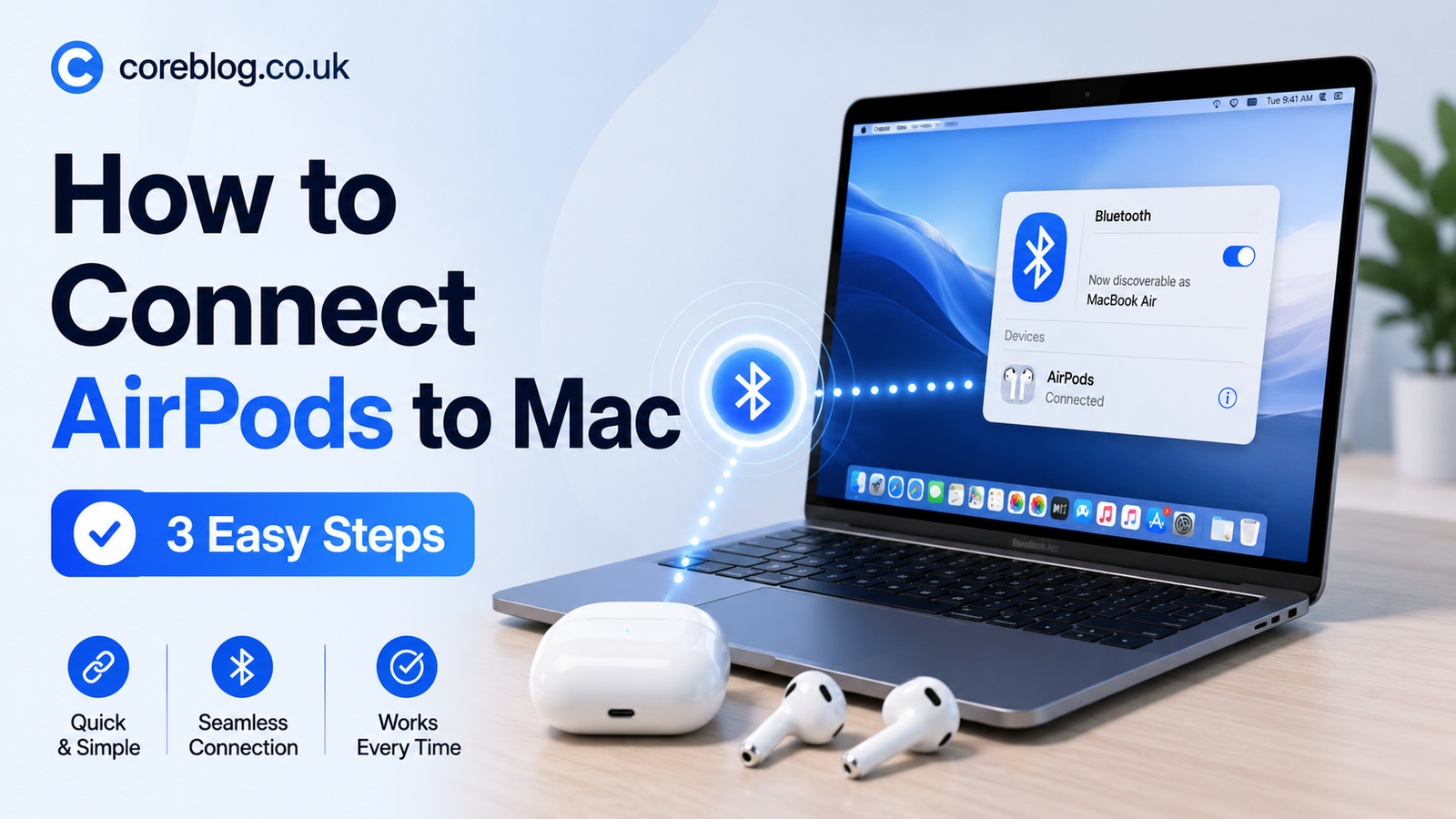
How to Connect AirPods to Mac in 3 Easy Steps
There is something oddly frustrating about opening your Mac, putting AirPods in your ears, and expecting that smooth Apple magic to happen… only to hear nothing. Maybe your Mac speakers keep playing. Maybe your AirPods do not show up. Or maybe they connect for two seconds and then disappear like they changed their mind.
The good news is that learning How to Connect AirPods to Mac is usually very simple. In most cases, it takes less than a minute. Apple designed AirPods, AirPods Pro, and AirPods Max to work smoothly with MacBook Air, MacBook Pro, iMac, Mac mini, and other Mac devices. Still, Bluetooth can be a little moody sometimes, especially if your AirPods are already connected to an iPhone, iPad, or another device nearby.
This guide keeps everything clear and beginner-friendly. No confusing tech talk. No complicated settings. Just a clean step-by-step method you can follow whether you are using AirPods for Zoom calls, music, YouTube, online classes, editing videos, or late-night Netflix on your Mac.
By the end, you will know exactly How to Connect AirPods to Mac, how to switch audio output, what to do when AirPods will not pair, and how to make the connection feel smoother every time.
Why Connect AirPods to a Mac?
Before we get into the steps, let’s quickly talk about why people love using AirPods with a Mac. Yes, your Mac has built-in speakers, and many newer MacBooks sound pretty good. But AirPods give you privacy, focus, and freedom.
You can walk around your room during a video meeting. You can edit a podcast without disturbing anyone. You can listen to music while working without dealing with a cable. Moreover, AirPods Pro and AirPods Max offer useful features like noise control, transparency mode, and spatial audio on supported devices.
AirPods are also handy if you work in cafes, libraries, shared offices, or noisy homes. Once you know How to Connect AirPods properly, your Mac becomes a much better device for calls, entertainment, and daily work.
Things to Check Before You Start
Before you follow the three easy steps, make sure a few basic things are ready. These small checks can save you from unnecessary frustration.
Your AirPods should have enough battery. If the case is dead or the earbuds are not charged, your Mac may not detect them.
Your Mac should have Bluetooth turned on. Since AirPods connect wirelessly through Bluetooth, this is essential.
Your AirPods should be close to your Mac. Bluetooth works best when both devices are nearby.
Your macOS should be updated when possible. An older system can sometimes cause pairing or audio switching problems.
Your AirPods should be inside the charging case if you are pairing them manually. For AirPods Max, you will use the noise control button instead of opening a case lid.
These checks sound simple, but they fix many common issues. So, before thinking something is broken, start here.
How to Connect AirPods to Mac in 3 Easy Steps
Now let’s get to the main part. If you came here searching How to Connect AirPods, this is the simple method most people need.
Step 1: Open Bluetooth Settings on Your Mac
First, click the Apple menu in the top-left corner of your Mac screen. Then choose System Settings. In the sidebar, click Bluetooth.
Make sure Bluetooth is turned on. If it is off, switch it on and wait a few seconds.
On some older macOS versions, you may see System Preferences instead of System Settings. The idea is the same. You just need to open the Bluetooth section where your Mac shows nearby wireless devices.
This is where your AirPods should appear once they are ready to pair.
Step 2: Put Your AirPods in Pairing Mode
Now place both AirPods inside the charging case and open the lid. Keep the case close to your Mac.
Next, press and hold the setup button on the back of the AirPods case. Hold it until the status light starts flashing white. That flashing white light means your AirPods are ready to connect.
If you use AirPods Max, press and hold the noise control button until the status light flashes white.
This step is important because your AirPods need to tell the Mac, “I am available.” Without pairing mode, your Mac may not find them.
Step 3: Click Connect on Your Mac
Look at the Bluetooth device list on your Mac. Your AirPods should appear there. Click Connect next to the AirPods name.
After a moment, your Mac should pair with them. Once connected, audio from your Mac should start playing through your AirPods. You can test this by playing a short video, music track, or system sound.
That is it. This is the easiest answer to How to Connect AirPods to a Mac in 3 simple steps.
Quick Setup Table
| Step | What to Do | Why It Matters |
|---|---|---|
| 1 | Open Bluetooth settings on Mac | Lets your Mac search for nearby devices |
| 2 | Put AirPods in pairing mode | Makes AirPods visible to your Mac |
| 3 | Click Connect | Pairs AirPods and sends audio to them |
How to Connect AirPods If They Are Already Paired With iPhone
Here is where Apple’s ecosystem can feel very smooth. If your AirPods are already connected to your iPhone and both your iPhone and Mac use the same Apple ID, your Mac may already recognize them.
In that case, you may not need to pair them manually. Put your AirPods in your ears, then open Control Center on your Mac. Click Sound or the audio output section. If your AirPods appear there, select them.
This is one reason many Apple users love AirPods. Once they are connected to one Apple device, switching between devices can feel much easier. However, if your Mac does not show them, use the manual Bluetooth method above.
So, when someone asks How to Connect AirPods when they already work with an iPhone, the answer is usually simple: check the Mac audio output first before pairing again.
How to Select AirPods as the Audio Output
Sometimes your AirPods are connected, but the sound still comes from your Mac speakers. This can be confusing because everything looks right, but the audio is going somewhere else.
To fix it, open Control Center on your Mac. Click Sound. Then choose your AirPods from the list of output devices.
You can also go to System Settings, then Sound, then Output. From there, select your AirPods.
This step is useful for music, video calls, screen recordings, online meetings, and browser audio. In addition, it helps when your AirPods connect but do not automatically become the main sound device.
How to Connect AirPods Pro to Mac
If you use AirPods Pro, the process is almost the same. Put both earbuds in the case, open the lid, press and hold the setup button, wait for the white flashing light, then connect through Bluetooth settings on your Mac.
AirPods Pro also give you extra features such as noise cancellation and transparency mode. Once connected, you can control these settings from the menu bar, Control Center, or Bluetooth settings, depending on your macOS version.
For work calls, AirPods Pro can be very useful because they reduce background noise and make listening easier. However, make sure the microphone input is set correctly if people cannot hear you clearly.
How to Connect AirPods Max to Mac
AirPods Max do not use a small charging case like regular AirPods. To pair them with a Mac, press and hold the noise control button until the status light flashes white.
Then open Bluetooth settings on your Mac and click Connect next to AirPods Max.
Once paired, you can use them for music, movies, calls, editing, and more. AirPods Max are especially nice for long listening sessions because of their over-ear design and strong sound quality.
If you searched How to Connect AirPods Max specifically, remember that the main difference is the button. Regular AirPods use the setup button on the case. AirPods Max use the noise control button.
What to Do If AirPods Do Not Show Up on Mac
AirPods not appearing in Bluetooth settings is a common problem. Thankfully, it usually has a simple fix.
First, make sure Bluetooth is on. Then close the AirPods case, wait a few seconds, and open it again. Press and hold the setup button until the light flashes white.
If they still do not appear, restart your Mac. It sounds basic, but restarting clears small system glitches. You can also turn Bluetooth off and back on.
In addition, check whether your AirPods are already connected to another device nearby. For example, if your iPhone grabs the connection first, your Mac may not find them properly. Try turning Bluetooth off on the other device for a moment, then pair with your Mac again.
Common AirPods and Mac Problems
Here is a quick troubleshooting table for the most common issues.
| Problem | Possible Cause | Simple Fix |
|---|---|---|
| AirPods do not appear | Not in pairing mode | Hold setup button until light flashes white |
| AirPods connect but no sound | Wrong audio output | Select AirPods in Sound settings |
| Audio keeps cutting out | Bluetooth interference | Move closer and disconnect extra devices |
| Microphone sounds bad | Wrong input selected | Choose AirPods under Sound Input |
| AirPods connect to iPhone instead | Auto switching | Select AirPods manually on Mac |
| Pairing fails | Low battery or software issue | Charge AirPods and restart Mac |
How to Fix AirPods Connected But No Sound
This issue is more common than people think. Your Mac may show that AirPods are connected, but the audio still plays through Mac speakers or stays silent.
Start by checking the output device. Open Control Center, click Sound, and choose your AirPods. Then raise the volume on your Mac. Also, check the volume inside the app you are using. Some apps, such as video players or meeting tools, have their own audio settings.
Next, remove the AirPods from your ears and put them back in. AirPods use sensors to detect when they are being worn. If the sensor does not detect them properly, playback may pause.
Finally, disconnect and reconnect them. This refreshes the Bluetooth connection and often solves the problem quickly.
How to Use AirPods Microphone on Mac
If you use AirPods for Zoom, Google Meet, FaceTime, Teams, Discord, or voice recording, the microphone matters.
To choose your AirPods microphone, go to System Settings, then Sound, then Input. Select your AirPods as the input device.
After that, speak normally and watch the input level move. If it moves, your Mac is hearing your voice through the AirPods microphone.
However, keep in mind that Bluetooth microphone quality can sound different from a dedicated studio microphone. For casual calls, AirPods work well. For podcasts or professional recordings, you may want a separate mic.
How to Make AirPods Automatically Connect to Mac
If you use your AirPods with your Mac often, automatic connection can save time. In many cases, AirPods will switch between Apple devices when you use the same Apple ID. Still, auto switching can sometimes feel too aggressive.
To manage this, open System Settings and select your AirPods when they are connected. Look for the connection option that controls whether AirPods connect automatically or only when last connected to your Mac.
Choosing the right setting can make daily use smoother. For example, if you mostly use AirPods with your MacBook while working, automatic connection is convenient. However, if you switch between iPhone and Mac often, you may prefer more manual control.
How to Disconnect AirPods From Mac
Sometimes you may want to disconnect your AirPods without forgetting them completely.
Open Control Center, click Bluetooth or Sound, and disconnect your AirPods. You can also go to System Settings, then Bluetooth, and disconnect them from there.
This does not remove the pairing. It only stops the current connection. Next time, you can connect again without repeating the full setup.
How to Forget AirPods on Mac and Pair Again
If your AirPods keep failing, forgetting and reconnecting them can help.
Go to System Settings, then Bluetooth. Find your AirPods in the device list. Click the info button or options menu next to them, then choose Forget This Device or remove them.
After that, put your AirPods back in pairing mode and connect again.
This is a clean reset for the Mac connection. It is useful when your AirPods show strange behavior, keep disconnecting, or refuse to play sound correctly.
How to Reset AirPods Before Connecting Again
If forgetting the device on Mac does not work, you can reset your AirPods.
Place both AirPods in the charging case and close the lid. Wait around 30 seconds. Open the lid. Then press and hold the setup button on the back of the case until the light changes and flashes white again.
After resetting, your AirPods are ready to pair like new. Go back to Bluetooth settings on your Mac and connect them again.
This method is helpful when you have tried everything else. However, remember that resetting may require you to reconnect AirPods to your other devices too.
Best Uses for AirPods on Mac
Once you know How to Connect AirPods, you can use them for more than just casual listening.
For Work and Meetings
AirPods are great for video calls, especially if you move around while talking. They also keep your meeting audio private.
For Studying
If you take online classes, watch lectures, or listen to study playlists, AirPods help you stay focused.
For Content Creation
Video editors, podcasters, and creators can use AirPods for quick audio checks. While they are not a full replacement for studio headphones, they are convenient.
For Entertainment
Movies, music, YouTube, and streaming feel more personal with wireless earbuds. In addition, AirPods Pro and AirPods Max can make the experience more immersive.
Tips for a Smoother AirPods and Mac Experience
Here are a few simple habits that make AirPods work better with Mac:
Keep your AirPods charged before long calls or work sessions.
Clean the earbuds and case gently to avoid charging and sensor issues.
Keep your Mac software updated when possible.
Stay close to your Mac for a stronger Bluetooth signal.
Disconnect AirPods from other devices if your Mac is having trouble pairing.
Select the correct audio output before starting an important call.
Check the microphone input before joining meetings.
These little habits make a big difference. They also reduce the chances of awkward moments, like joining a meeting and realizing your audio is still coming from the laptop speakers.
Why Your AirPods Keep Switching Devices
Automatic switching is useful, but it can also be annoying. Your AirPods may jump from your Mac to your iPhone when you receive a call or play a video. This happens because Apple devices try to predict where you want the audio.
If it bothers you, adjust the AirPods connection settings on your Mac. You can choose whether they connect automatically or only when they were last connected to that Mac.
This gives you more control, especially if you work on your Mac while your iPhone is nearby.
Can You Connect Two AirPods to One Mac?
A Mac can work with Bluetooth audio devices, but using two pairs of AirPods at the same time is not as simple as connecting one pair. Some users use Audio MIDI Setup to create a multi-output device. However, this setup can be tricky and may not work perfectly for every situation.
For most people, one pair of AirPods is the easiest and most stable option. If you need shared listening, an iPhone or iPad may offer a smoother experience with supported AirPods models.
Can AirPods Connect to Older Macs?
Yes, many older Macs can connect to AirPods as long as they support Bluetooth and run a compatible macOS version. However, some newer features may not be available on older systems.
For example, basic audio may work fine, but features like spatial audio, automatic switching, or advanced AirPods settings may depend on your Mac model, macOS version, and AirPods generation.
If you are using an older MacBook, keep expectations realistic. You can still enjoy wireless audio, but the newest features may need newer hardware or software.
How to Connect AirPods Without Stress
The easiest way to remember the process is this:
Turn on Bluetooth, put AirPods in pairing mode, and click Connect.
That is the heart of How to Connect AirPods to a Mac. Everything else is just troubleshooting or fine-tuning.
If your AirPods are already connected to your iPhone with the same Apple ID, check Control Center first. They may already be available as an audio option. If not, use Bluetooth settings and pair manually.
Final Checklist
Before you finish, here is a simple checklist you can follow anytime:
AirPods are charged
Bluetooth is on
AirPods are close to Mac
AirPods are in pairing mode
Mac shows AirPods in Bluetooth list
AirPods are selected as sound output
Microphone input is selected if needed
Other devices are not stealing the connection
This checklist covers most AirPods and Mac connection problems.
Conclusion
Learning How to Connect AirPods to Mac is not difficult once you know the right steps. Open Bluetooth settings, put your AirPods in pairing mode, and click Connect. In many cases, that is all it takes.
However, if your AirPods do not show up, connect without sound, or keep switching to another device, do not panic. Most issues come from low battery, Bluetooth confusion, wrong audio output, or automatic switching. A quick restart, reconnect, or reset usually brings everything back to normal.
AirPods are made to make listening easier, not harder. Once they are set up properly, they can improve your work calls, study sessions, music, movies, and everyday Mac experience.
Now that you know How to Connect AirPods, try pairing them with your Mac and test the sound. If this guide helped, share it with someone who keeps fighting with Bluetooth settings or drop a comment with the issue you faced and the fix that worked for you.













Leave a Reply