

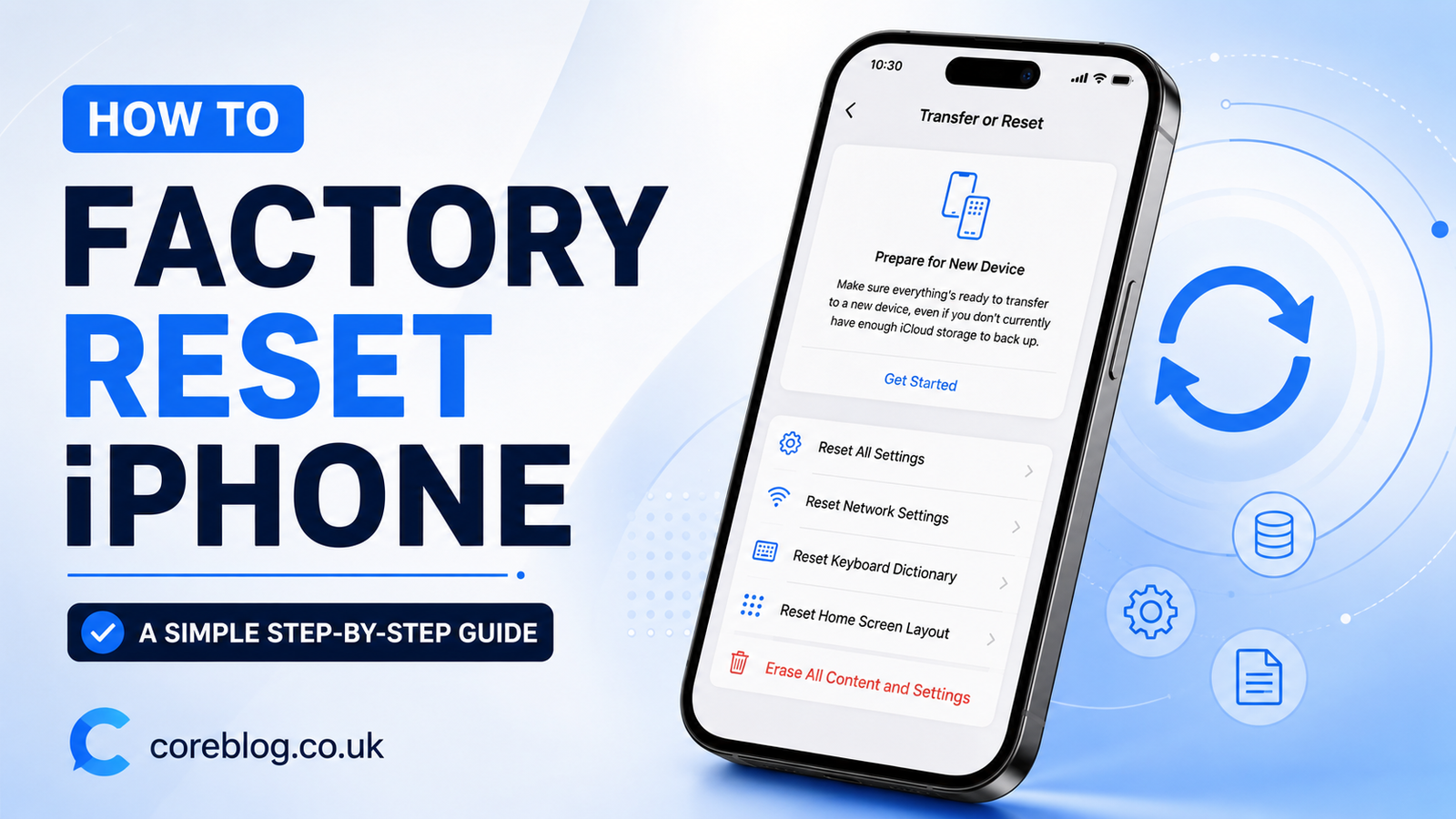
Sometimes Your iPhone Needs a Fresh Start
There comes a point when your iPhone starts acting strange. Maybe it feels slow. Maybe apps keep crashing. Maybe storage is full, even after deleting photos, videos, and old chats. Or maybe you are selling your phone and want to make sure your personal data does not stay behind.
That is when many people search for one thing: how to Factory Reset iPhone.
A factory reset sounds serious, and honestly, it is. It wipes your iPhone and brings it back to a clean state, almost like it was when you first opened the box. But here is the good news: the process is not difficult when you know what to do before, during, and after the reset.
The mistake many users make is rushing into it. They tap erase, enter the passcode, and later realize their photos were not backed up, their Apple ID was still connected, or their eSIM needed extra care. That small hurry can turn into a big headache.
In this guide, I will walk you through everything in plain English. No confusing tech talk. No overcomplicated steps. Just a clear, practical, and safe way to Factory Reset iPhone without losing your peace of mind.
Whether you have an iPhone 15, iPhone 14, iPhone 13, iPhone 12, iPhone 11, iPhone SE, or an older model, this guide will help you understand what a factory reset does, when you should use it, and how to complete it properly.
What Does It Mean to Factory Reset iPhone?
To Factory Reset iPhone means to erase all personal data, settings, apps, files, and saved information from the device. After the reset, the iPhone returns to its default setup screen, where it asks you to choose a language, connect to Wi-Fi, and sign in with an Apple ID.
In simple words, it removes:
- Photos and videos stored on the device
- Downloaded apps
- Messages and call history
- Saved Wi-Fi networks
- Face ID or Touch ID settings
- Apple Pay cards
- iPhone settings and preferences
- Notes, reminders, and local files
- Safari history and saved website data
- Personal accounts added to the phone
However, if your data is backed up to iCloud or a computer, you can restore it later. That is why backup is the most important step before you reset your iPhone.
A factory reset is different from restarting your iPhone. Restarting simply turns the phone off and on. Resetting network settings only removes Wi-Fi and cellular settings. But a full factory reset removes everything from the device.
When Should You Factory Reset iPhone?
You do not need to Factory Reset iPhone for every small problem. Sometimes a simple restart, app update, or iOS update is enough. Still, there are situations where a factory reset makes sense.
You Are Selling or Giving Away Your iPhone
This is the most common reason. If you plan to sell, trade in, or give your device to someone else, you should always erase it first. Your iPhone holds a lot of personal information, including photos, emails, passwords, banking apps, location history, and private messages.
A proper reset helps protect your privacy.
Your iPhone Is Running Very Slow
Over time, an iPhone can feel heavy. Too many apps, old files, full storage, and software glitches can affect performance. If normal fixes do not work, a factory reset can give the device a cleaner start.
You Forgot Some Settings or Want a Clean Setup
Sometimes the phone has too many changed settings, restrictions, permissions, and app issues. Instead of fixing each one manually, many users prefer a fresh setup.
Your iPhone Has Software Bugs
If your iPhone freezes, restarts again and again, crashes apps, or behaves strangely after an update, a reset may help. It removes problematic settings and gives iOS a cleaner environment.
You Are Switching to a New iPhone
Before moving to a new iPhone, you may want to back up your old phone and erase it. This is especially useful when trading in the old device.
You Want to Remove Personal Data
If you used the phone for work, travel, testing, or temporary use, a reset removes stored personal information and accounts.
Important Things to Do Before You Factory Reset iPhone
Before you tap the erase button, slow down for a moment. A few minutes of preparation can save hours of stress later.
1. Back Up Your iPhone
This step matters the most. Once you Factory Reset iPhone, the data on the device is deleted. If you do not have a backup, getting it back may not be possible.
You can back up your iPhone in two main ways:
| Backup Method | Best For | What You Need |
|---|---|---|
| iCloud Backup | Easy wireless backup | Wi-Fi and iCloud storage |
| Computer Backup | Larger local backup | Mac or Windows PC with cable |
iCloud Backup
To back up with iCloud:
- Open Settings.
- Tap your name at the top.
- Tap iCloud.
- Tap iCloud Backup.
- Tap Back Up Now.
- Wait until the backup finishes.
Make sure your iPhone stays connected to Wi-Fi during the process. Also, check the latest backup time before you continue.
Computer Backup
You can also back up your iPhone to a Mac or Windows computer. This is helpful if your iCloud storage is full or your internet is slow.
Connect your iPhone with a cable, open Finder on Mac or Apple Devices/iTunes on Windows, select your iPhone, and choose the backup option. If you want to save passwords, health data, and Wi-Fi settings, choose encrypted backup.
2. Check Your Photos and Videos
Many people think their photos are automatically safe. That is not always true.
If iCloud Photos is turned on, your pictures may already be synced. However, if it is off, your photos may only exist on the iPhone. Open Photos, check recent uploads, and make sure your important memories are saved before you erase anything.
3. Sign Out of Important Apps
Most apps will work again after you reinstall them, but it is still smart to check important accounts first. Banking apps, WhatsApp, email apps, business tools, and password managers may need backup or verification.
For example, if you use WhatsApp, make sure your chat backup is complete. If you use a two-factor authentication app, check that you can restore your codes later.
4. Know Your Apple ID Password
Your Apple ID is important during and after the reset. If Find My iPhone is turned on, you may need your Apple Account password to erase the device or remove Activation Lock.
Before you Factory Reset iPhone, make sure you know your Apple ID email and password. If you are unsure, reset the password first.
5. Understand eSIM Options
If your iPhone uses an eSIM, the reset process may ask whether you want to keep or erase the eSIM. This is important.
If you are keeping the iPhone and only resetting it to fix issues, you may want to keep the eSIM. If you are selling or giving away the iPhone, you should erase it. In some cases, you may need to contact your carrier to reactivate the plan later.
6. Unpair Apple Watch
If you use an Apple Watch, unpair it before erasing your iPhone. This creates a backup of the watch and removes Activation Lock from the watch.
7. Transfer Data to Your New Phone First
If you are moving to a new iPhone, complete the transfer before erasing the old one. Once everything is working on the new device, then reset the old iPhone.
How to Factory Reset iPhone from Settings
This is the easiest and most common method. It works when you can unlock your iPhone and use the Settings app.
Step-by-Step Method
Follow these steps to Factory Reset iPhone:
- Open the Settings app.
- Tap General.
- Scroll down and tap Transfer or Reset iPhone.
- Tap Erase All Content and Settings.
- Tap Continue.
- Enter your iPhone passcode if asked.
- Enter your Apple ID password if required.
- Confirm that you want to erase the iPhone.
- Wait for the process to finish.
Your iPhone may restart during the process. Do not press random buttons or try to force it off. Let it complete the reset.
When the reset is done, the iPhone will show the Hello setup screen. That means the factory reset is complete.
How to Factory Reset iPhone Without a Computer
If your iPhone is working and you remember the passcode, you do not need a computer. The Settings method above is enough.
This is the best option for most people because it is simple, quick, and built into iOS. It also gives you clear warnings before erasing your data.
Use this method if:
- You can unlock your iPhone
- The touchscreen works
- Settings opens normally
- You know your passcode
- You know your Apple ID password
- You want to sell, trade, or clean your device
If your iPhone is frozen, locked, disabled, or stuck on the Apple logo, you may need a computer method instead.
How to Factory Reset iPhone Using a Computer
Sometimes you cannot reset the iPhone from Settings. Maybe the screen is not responding. Maybe you forgot the passcode. Maybe the device is disabled. In that case, you can restore it using a Mac or Windows computer.
What You Need
Before starting, prepare:
- A Mac or Windows PC
- A USB or USB-C cable
- Finder on Mac, or Apple Devices/iTunes on Windows
- A stable internet connection
- Enough time for the software restore
Basic Computer Reset Steps
- Connect your iPhone to the computer.
- Open Finder on Mac or Apple Devices/iTunes on Windows.
- Select your iPhone when it appears.
- Choose Restore iPhone.
- Confirm the restore.
- Wait while the computer downloads and installs iOS.
- Set up the iPhone when the process is done.
This method erases the iPhone and installs a fresh version of iOS. It is useful for deeper software problems.
How to Factory Reset iPhone If You Forgot the Passcode
Forgetting the iPhone passcode can feel stressful. But you still have options. If you cannot unlock the phone, you usually need to put the iPhone into recovery mode and restore it using a computer.
The exact button steps depend on your iPhone model.
For iPhone 8 or Later
- Connect the iPhone to your computer.
- Press and quickly release Volume Up.
- Press and quickly release Volume Down.
- Press and hold the Side button.
- Keep holding until the recovery mode screen appears.
- Use the computer to restore the iPhone.
For iPhone 7 and iPhone 7 Plus
- Connect the iPhone to your computer.
- Press and hold the Side button and Volume Down button together.
- Keep holding until the recovery mode screen appears.
- Restore the iPhone from the computer.
For iPhone 6s or Earlier
- Connect the iPhone to your computer.
- Press and hold the Home button and Top or Side button together.
- Keep holding until the recovery mode screen appears.
- Restore the iPhone from the computer.
After the restore, your iPhone will restart. If Activation Lock is enabled, you may still need the Apple ID that was used on the device.
How to Factory Reset iPhone Before Selling It
If you are selling your iPhone, do not just delete photos manually. That is not enough. A proper reset protects your data and makes the phone ready for the next owner.
Selling Checklist
Before you hand over the phone, do this:
- Back up your iPhone
- Transfer data to your new phone
- Sign out of iCloud if needed
- Turn off Find My iPhone
- Unpair Apple Watch
- Remove cards from Apple Wallet
- Deregister iMessage if switching to Android
- Erase all content and settings
- Remove the device from your Apple account
- Remove SIM card if your phone uses a physical SIM
This checklist gives you peace of mind. It also helps the buyer set up the iPhone without problems.
What Happens After You Factory Reset iPhone?
After you Factory Reset iPhone, the device no longer has your personal content on it. It will restart and show the setup screen.
From there, you can:
- Set it up as a new iPhone
- Restore from iCloud Backup
- Restore from a computer backup
- Transfer data from another iPhone
- Give or sell it to someone else
If you are keeping the iPhone, you can sign in with your Apple ID and restore your apps, photos, contacts, messages, and settings from backup.
If you are giving it away, leave it on the Hello screen. Do not sign in again.
Factory Reset iPhone vs Reset All Settings
Many users mix these two options, but they are not the same.
| Option | What It Does | Does It Delete Data? |
|---|---|---|
| Reset All Settings | Resets system settings only | No |
| Erase All Content and Settings | Fully factory resets iPhone | Yes |
| Reset Network Settings | Removes Wi-Fi, VPN, and cellular settings | No personal files deleted |
| Reset Keyboard Dictionary | Clears saved typing words | No |
| Reset Home Screen Layout | Restores app layout | No |
If you only have a small issue, such as Wi-Fi not connecting, try Reset Network Settings first. If the phone has bigger problems or you are selling it, use Erase All Content and Settings.
Common Problems During iPhone Factory Reset
A factory reset usually goes smoothly. Still, a few problems can happen.
iPhone Asks for Apple ID Password
This is normal when Find My iPhone is enabled. Enter the Apple ID password connected to the device. This helps protect stolen iPhones from being erased and reused.
iPhone Gets Stuck on Apple Logo
Give it some time first. If it stays stuck for too long, connect it to a computer and use recovery mode.
iPhone Says Erase Failed
Check your internet connection, charge the device, restart it, and try again. If it still fails, use the computer restore method.
You Forgot Apple ID Details
You may need to recover your Apple account before the phone can be used again. This is especially important if Activation Lock appears after the reset.
eSIM Is Missing After Reset
If you erased your eSIM, contact your mobile carrier. They may need to issue a new eSIM activation code or help you reactivate your plan.
Tips to Factory Reset iPhone Safely
Here are some practical tips that make the process smoother:
- Charge your iPhone above 50% before starting.
- Use Wi-Fi for iCloud backup.
- Do not reset until your backup is complete.
- Save important passwords before erasing.
- Check WhatsApp, Google Photos, and other app backups.
- Remove personal accounts if selling the phone.
- Keep your Apple ID password ready.
- Do not interrupt the reset process.
- Keep the iPhone connected if restoring through a computer.
- Confirm your new phone works before erasing the old one.
These steps may look small, but they matter. A factory reset is simple only when your data is safe first.
Does Factory Reset Remove iCloud?
A factory reset removes iCloud data from the iPhone, but it does not delete the data stored in your iCloud account. For example, if your photos, contacts, notes, and files are synced to iCloud, they remain in iCloud.
However, if data exists only on your iPhone and was never backed up or synced, it may be lost after the reset.
That is why checking iCloud backup and iCloud sync matters before you Factory Reset iPhone.
Does Factory Reset Remove Viruses or Malware?
iPhones are generally secure, but software glitches, strange pop-ups, spam calendars, suspicious profiles, or unwanted apps can still create problems.
A full factory reset can remove many software-related issues because it deletes apps, profiles, and settings from the device. However, after resetting, be careful when restoring apps or files. If the issue came from a suspicious configuration profile or app behavior, avoid reinstalling the same problem.
Also, keep iOS updated. Updates often include security improvements and bug fixes.
Will Factory Reset iPhone Make It Faster?
In many cases, yes. A factory reset can improve performance, especially if your iPhone has been full of apps, old files, cached data, and messy settings for years.
However, it is not magic. If your iPhone has an aging battery, limited storage, or very old hardware, the improvement may be limited. Still, a clean setup can make the phone feel lighter and more organized.
For older models, I usually recommend restoring only the things you truly need. Do not reinstall every old app just because it was there before. A fresh start works best when you keep it clean.
Should You Factory Reset iPhone Often?
No, you do not need to Factory Reset iPhone often. It is not a weekly or monthly maintenance task. iPhones are designed to run well without regular full resets.
Use a factory reset when there is a clear reason, such as selling the phone, fixing serious software issues, removing personal data, or starting fresh after years of use.
For normal maintenance, you can:
- Restart the iPhone
- Update iOS
- Delete unused apps
- Clear large files
- Manage photos and videos
- Review battery health
- Reset network settings if needed
A factory reset should be a strong fix, not your first fix.
Quick Step-by-Step Summary
If you want the short version, here it is:
- Back up your iPhone to iCloud or a computer.
- Check photos, messages, and important apps.
- Know your Apple ID password.
- Open Settings.
- Tap General.
- Tap Transfer or Reset iPhone.
- Tap Erase All Content and Settings.
- Enter your passcode and Apple ID password if asked.
- Confirm the reset.
- Wait until the Hello screen appears.
That is the safest way to Factory Reset iPhone from Settings.
Frequently Asked Questions
Will I lose everything if I Factory Reset iPhone?
Yes, the data on the iPhone will be erased. However, if you have a backup in iCloud or on a computer, you can restore your data later.
Can I Factory Reset iPhone without Apple ID password?
You may be able to erase the device in some cases, but Activation Lock can still ask for the original Apple ID after reset. If Find My iPhone is turned on, the Apple ID password is very important.
How long does it take to Factory Reset iPhone?
The reset itself often takes only a few minutes. However, backup, restore, and iOS download times can take longer depending on your internet speed and data size.
Is factory reset good before selling an iPhone?
Yes. It is strongly recommended. It removes your personal data and prepares the phone for the new owner.
Can I cancel a factory reset once it starts?
Once the erase process begins, you should not interrupt it. That is why you must back up your data before starting.
Does factory reset remove iOS updates?
No. A factory reset does not normally take your iPhone back to an older iOS version. It keeps or installs the current supported iOS version during restore.
Final Thoughts: Reset Smart, Not Fast
Learning how to Factory Reset iPhone is useful for every iPhone owner. Whether you are fixing a slow device, preparing it for sale, or starting fresh, the process can save time and protect your privacy.
The key is not to rush. Back up your data, check your Apple ID, think about your eSIM, and make sure your important apps are safe. Once that is done, the reset itself is simple.
A Factory Reset iPhone process should feel like a clean fresh start, not a stressful surprise. So take your time, follow the steps carefully, and your iPhone will be ready for whatever comes next.
If this guide helped you, share it with someone who is about to sell, trade, or reset their iPhone. A few careful steps today can save someone from losing important data tomorrow.













Leave a Reply