

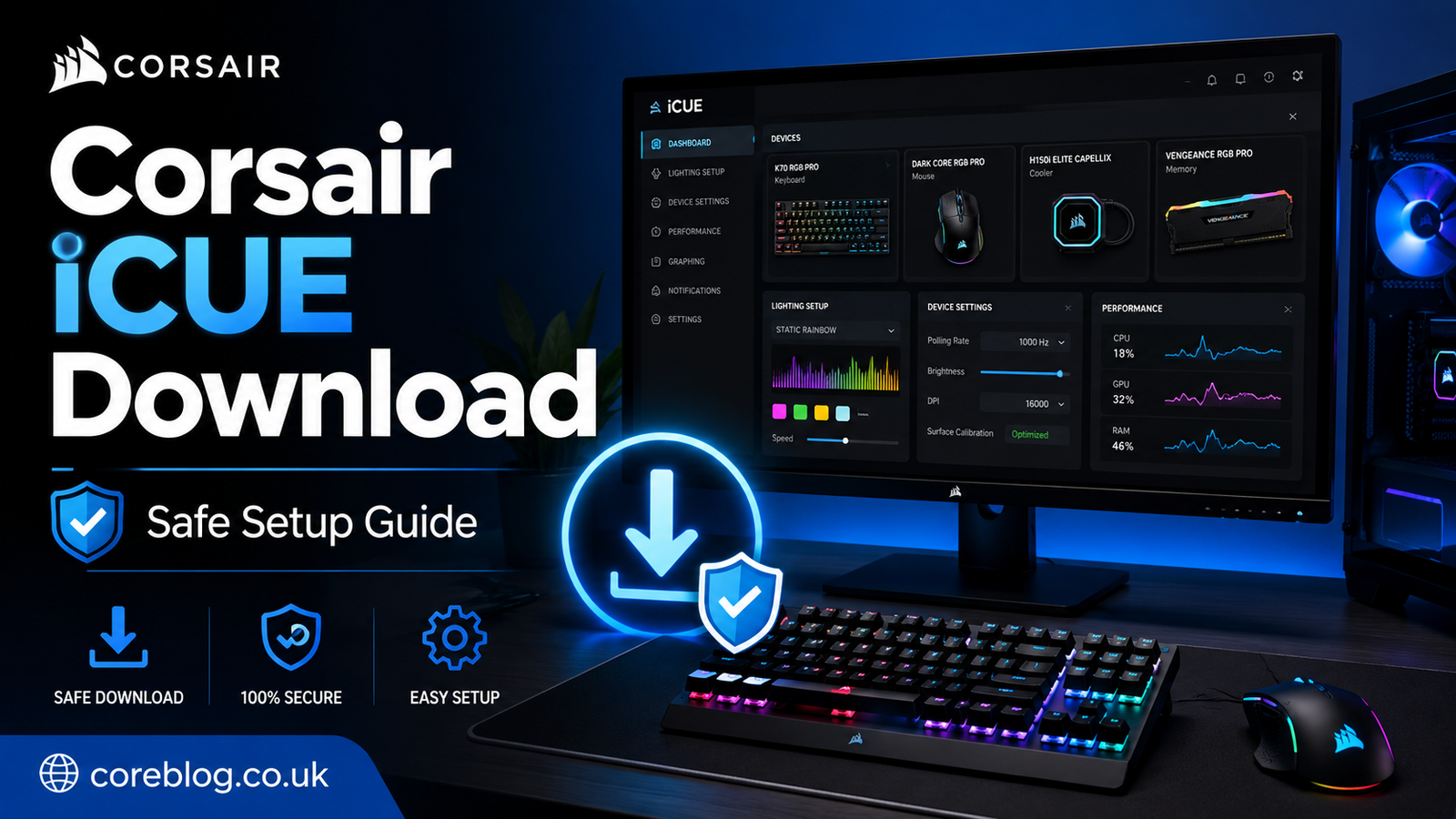
Corsair iCUE Download: Safe Setup Guide
A gaming setup can look impressive straight out of the box, but the real magic begins when every device works together. Your keyboard reacts to the game on screen, your mouse buttons match your play style, your cooling fans follow a sensible curve, and the lighting across your desk feels like one connected system.
That is where Corsair iCUE comes in.
The Corsair iCUE Download gives compatible Corsair device owners one central place to control lighting, performance settings, cooling, macros, profiles, and firmware. However, downloading the software from the wrong page or rushing through the setup can lead to installation errors, missing devices, and confusing settings.
This guide explains how to download Corsair iCUE safely, install it correctly, configure your devices, and solve the most common problems. Whether you are building your first gaming PC or refreshing an older setup, the steps are easy to follow.
What Is Corsair iCUE?
Corsair iCUE is a device management application made for compatible Corsair products. It acts as a central control panel for gaming peripherals and selected PC components.
Depending on your hardware, you may use it to manage:
- RGB lighting effects
- Keyboard key assignments
- Mouse button remapping
- Custom macros
- Headset equalizer settings
- Cooling fan speeds
- Pump performance
- Temperature monitoring
- Device profiles
- Onboard memory
- Firmware updates
- System sensors
- Lighting synchronization
The software is especially useful when several Corsair devices are connected to the same computer. Instead of opening a different application for every product, you can manage supported hardware from one dashboard.
For example, you might create a blue lighting profile for daily work, a red profile for gaming, and a simple static effect for watching films. You can also assign different mouse actions or keyboard shortcuts to individual profiles.
That flexibility is the main reason many users search for the Corsair iCUE Download after buying a Corsair keyboard, mouse, headset, cooler, memory kit, or RGB controller.
Why You Should Download iCUE Safely
Downloading software may feel routine, but it deserves a little care. Search results sometimes contain advertisements, unofficial mirrors, outdated installers, and pages designed to look like a real manufacturer’s website.
A safe download protects your computer from modified setup files and unwanted programs. It also helps you install the newest stable release available for your operating system.
Before starting the Corsair iCUE Download, check the following:
- You are visiting the official Corsair website.
- The page belongs to Corsair and uses a secure connection.
- The installer matches your operating system.
- Your computer meets the basic installation requirements.
- You have enough free storage space.
- Windows or macOS is fully updated.
- Your internet connection is stable.
Avoid websites that bundle iCUE with “download managers,” browser extensions, cleanup tools, or unrelated applications. Corsair provides its own installer, so you should not need a third-party program.
Corsair iCUE System Requirements
It is worth checking compatibility before installation. A system that does not meet the basic requirements may experience failed installations, missing modules, crashes, or poor performance.
Basic Compatibility Overview
| Platform | General Requirement | Suggested Free Space |
|---|---|---|
| Windows | Windows 10 64-bit or newer | At least 1.5 GB |
| macOS | A supported Mac from 2015 or newer with macOS 12.7 or later | At least 500 MB |
| Linux | Not officially supported | Not applicable |
Requirements can change as new iCUE releases arrive. Therefore, check the information shown on the official download page before installing the software.
Windows Users
For Windows, a 64-bit operating system is required. Windows 10 and Windows 11 users should install all pending system updates first.
You should also make sure that your motherboard chipset drivers, USB drivers, and other important system drivers are current. Old drivers do not always cause problems, but updating them can reduce the chance of device detection errors.
Mac Users
A Corsair iCUE Download is also available for supported Mac computers. However, features and device compatibility may differ from the Windows edition.
Some Corsair products may provide fewer controls on macOS. Before installing, confirm that your exact keyboard, mouse, headset, or other device is listed as compatible.
Linux Users
Corsair does not provide an official iCUE application for Linux. Third-party tools may exist, but they are not the same as the official software and may not support every feature.
How to Complete the Corsair iCUE Download Safely
The download process is simple when you begin from the correct place.
Step 1: Visit the Official Corsair Website
Open your preferred web browser and search for the official Corsair downloads area. Check the domain carefully before continuing.
The page should display Corsair software, device drivers, utilities, and firmware-related resources. Find the current iCUE option for your operating system.
Step 2: Select the Correct Operating System
Choose the Windows or macOS edition that matches your computer. Do not download a Windows installer for a Mac or a macOS package for a Windows PC.
You may also see legacy versions. These can be useful for older products, but most people should begin with the latest supported release.
Step 3: Save the Installer
Select the download button and save the installer to a location you can find easily, such as the Downloads folder.
Wait until the download finishes. Opening an incomplete file may cause an error or force you to start again.
Step 4: Check the File Before Opening It
Confirm that the filename and file type look correct. You can also scan the installer with your computer’s built-in security software.
This small step is especially useful when you have reached the download page through a search engine rather than typing the Corsair website address directly.
How to Install Corsair iCUE on Windows
After completing the Corsair iCUE Download, you can begin the installation.
Step 1: Close Other Control Software
Before opening the installer, close other RGB, fan-control, hardware-monitoring, or peripheral-management applications.
Programs from different hardware manufacturers can sometimes compete for control of the same device, lighting service, or system sensor. You do not always need to uninstall them, but closing them during setup may prevent conflicts.
Step 2: Run the Installer
Find the downloaded installer, right-click it, and choose the option to run it as an administrator when needed.
Running the installer with administrator permission can help it create services, install required modules, and access the correct system folders.
Step 3: Choose Your Language
Select your preferred language and continue. Read each screen rather than clicking through the installation too quickly.
The installer may download additional components based on your system and connected devices. Keep your internet connection active during this stage.
Step 4: Complete the Installation
Follow the prompts until the installer confirms that setup is complete. The process may take several minutes, especially if extra modules are required.
Avoid restarting, shutting down, or disconnecting devices while important components are being installed.
Step 5: Restart Your Computer
Restart the PC after installation, even when the software appears ready to open.
A reboot allows background services, drivers, and hardware connections to load correctly. In my view, this is one of the easiest ways to avoid the classic “installed but not detecting anything” problem.
How to Install Corsair iCUE on a Mac
The macOS process is similar, although your Mac may request extra security permissions.
After completing the Corsair iCUE Download for macOS:
- Open the downloaded installer.
- Follow the instructions shown on screen.
- Enter your Mac password when requested.
- Allow required system extensions or permissions.
- Open Privacy & Security settings if macOS blocks a component.
- Restart the Mac after installation.
- Reconnect the Corsair device and open iCUE.
If a device does not appear, check whether iCUE has permission to access input devices or load required system software. macOS security settings can block hardware-management features until the user approves them.
First-Time iCUE Setup
The first launch can feel busy because the dashboard may show several products, sensors, alerts, and setup choices. There is no need to configure everything at once.
Start with one device and learn its main options.
Check Your Detected Devices
The home screen should show tiles for compatible Corsair hardware. These may include a keyboard, mouse, headset, memory modules, cooling controller, liquid cooler, lighting hub, or power supply.
If every connected product appears, the installation has probably worked correctly.
Install Available Modules
Modern iCUE releases may use device-based modules. The application can download the components needed for your connected hardware instead of installing support for every Corsair product.
Let these modules finish installing before changing device settings.
Check for Software Updates
Open the application settings and check whether a newer iCUE update is available. Installing current updates can improve compatibility, fix known bugs, and add support for newer products.
Restart iCUE or the computer when an update requests it.
Check Device Firmware
Software updates and device firmware updates are not the same thing. iCUE updates the application, while firmware updates the software stored inside a keyboard, mouse, headset receiver, controller, or other device.
Select the device settings and check for firmware updates. During an update:
- Connect the device directly to the computer.
- Avoid USB hubs where possible.
- Keep wireless devices charged.
- Connect both the device and receiver when instructed.
- Do not unplug the product.
- Do not close iCUE.
- Do not turn off the computer.
Interrupting a firmware update may cause serious device problems, so let the process finish fully.
Customizing RGB Lighting in iCUE
Lighting control is one of the most popular reasons for installing the Corsair iCUE Download.
Select a compatible device and open its lighting section. The available effects depend on the product, but common choices may include:
- Static color
- Color shift
- Color pulse
- Rainbow wave
- Spiral rainbow
- Ripple
- Reactive typing
- Temperature-based color
- Custom layered effects
Start With a Simple Effect
It is tempting to create a complicated show on the first day. However, a simple effect makes it easier to understand lighting zones, speed, direction, brightness, and color selection.
Try a static color first. Then add a second layer or reactive effect.
Synchronize Multiple Devices
When several compatible products are connected, you can create a matching theme across them. For example, your keyboard, mouse, RAM, fans, and light strips can share the same color pattern.
A synchronized setup often looks cleaner than giving every device a different animation.
Use Lighting for Useful Feedback
RGB does not need to be purely decorative. You may be able to connect colors to temperatures, profiles, or device states.
For instance, a cooling component could display a cooler color at normal temperatures and change as the temperature rises. This gives you quick visual feedback without keeping a monitoring window open.
Creating Profiles, Macros, and Key Assignments
Profiles let iCUE store different settings for different activities.
You might create profiles for:
- Competitive gaming
- Casual gaming
- Office work
- Video editing
- Streaming
- Music
- Night-time use
- Individual games
A profile can include lighting effects, button assignments, macros, sensitivity settings, equalizer adjustments, and cooling preferences.
Setting Up Key Assignments
Choose your keyboard or mouse, open the key assignment area, and select the button you want to change.
Possible assignments may include:
- A different keyboard key
- A mouse action
- A media command
- Application launch
- Text input
- Profile switching
- A recorded macro
Keep important actions easy to remember. Changing too many controls at once can make the device harder to use.
Creating a Macro
A macro records a sequence of inputs and plays them back through one assigned key or button.
Macros can save time in productivity applications and supported games. However, always follow the rules of the game or service you are using. Some competitive platforms restrict automated input sequences.
Test Every Macro Carefully
After recording a macro, test it in a safe environment. Check the delays between actions and make sure it does not repeat endlessly unless that is your goal.
A poorly configured repeating macro can make the computer appear unresponsive because it continues sending commands.
Using Device Memory Mode
Some Corsair products include onboard memory. This allows supported settings to remain available when iCUE is not running or when the device is connected to another computer.
In newer iCUE versions, this feature may appear as Device Memory Mode.
You can use it to save supported settings such as:
- Hardware lighting
- Key assignments
- DPI stages
- Performance preferences
- Onboard profiles
Open the device, enable Device Memory Mode, configure the available options, and save the profile to an onboard slot.
Not every software-based effect can run from device memory. Advanced lighting and integrations may require iCUE to stay open in the background.
Back Up Your iCUE Profiles
Once you have spent time creating profiles, back them up. This is particularly important before reinstalling Windows, replacing a storage drive, resetting iCUE, or moving to a new PC.
iCUE can export profiles as profile files that you can store in a safe folder or backup drive.
A profile backup may preserve settings such as:
- Lighting effects
- Macros
- Key assignments
- Device actions
- Profile preferences
Some settings can vary between devices and software versions. Therefore, test imported profiles after restoring them.
A profile created in a much older release may not work perfectly in the newest version. If an imported profile causes crashes or missing effects, rebuild the profile manually.
Common Corsair iCUE Download and Installation Problems
Even a correct installation can occasionally run into trouble. Fortunately, most problems have simple causes.
The Installer Will Not Open
Try these steps:
- Restart the computer.
- Download a fresh copy from Corsair.
- Run the installer as an administrator.
- Install pending operating system updates.
- Temporarily close other RGB and monitoring programs.
- Check whether security software blocked the installer.
- Confirm that enough storage space is available.
Do not disable antivirus protection permanently. When security software blocks a genuine file, verify that the installer came directly from the official Corsair website before allowing it.
Required Modules Fail to Install
A module error may be linked to network restrictions, a damaged previous installation, conflicting services, a VPN, or blocked installer permissions.
First, close the installer and restart the PC. Then turn off any active VPN or tunneling service and run a fresh installer as an administrator.
If the problem continues, use the official repair or removal method before reinstalling.
iCUE Does Not Detect a Device
A missing device is one of the most common complaints after a Corsair iCUE Download and installation.
Work through these checks:
- Disconnect and reconnect the device.
- Use a direct USB port on the computer.
- Avoid USB hubs, switches, and pass-through ports.
- Test a different USB port.
- Restart iCUE.
- Restart the computer.
- Check Device Manager on Windows.
- Update motherboard USB and chipset drivers.
- Close competing RGB software.
- Repair the iCUE installation.
- Confirm that the product supports your iCUE version.
Wireless products may require both the USB receiver and the device to be connected during updates or pairing.
Lighting Effects Do Not Apply
Make sure the correct profile is active. Then check whether another application is taking control of the lighting.
Some games and integrations can temporarily change RGB effects. Disable software or game integrations one at a time to identify the cause.
Also check whether Device Memory Mode is active. Hardware lighting and software lighting can behave differently.
iCUE Uses Too Many System Resources
Hardware monitoring and animated lighting require some processing power. Still, unusually high usage may indicate a problem.
Try reducing complex lighting layers, removing dashboard sensors you do not need, closing unused integrations, and updating iCUE.
You can also restart the Corsair service or repair the installation. If resource usage remains unusually high, perform a clean reinstall.
iCUE Crashes or Freezes
Crashes may be caused by damaged files, incompatible imported profiles, conflicting monitoring tools, outdated drivers, or an incomplete update.
Begin with a repair:
- Open Windows Settings.
- Go to the installed applications list.
- Find Corsair iCUE.
- Select the modify or repair option.
- Allow the repair to finish.
- Restart the computer.
A repair keeps the process simpler than a full removal and often fixes missing or damaged application files.
How to Perform a Clean iCUE Reinstall
Use a clean reinstall when normal repair steps do not solve the problem.
Before removing the software, export any profiles you want to keep.
Clean Reinstall Checklist
- Back up important iCUE profiles.
- Uninstall Corsair iCUE through Windows settings or Control Panel.
- Use Corsair’s official removal method when recommended.
- Remove leftover iCUE settings only when performing a full reset.
- Restart the computer.
- Complete a fresh Corsair iCUE Download from the official website.
- Run the installer as an administrator.
- Restart the PC again.
- Connect and test one device at a time.
- Import your saved profiles after confirming that iCUE is stable.
Be careful when deleting leftover folders or settings manually. Removing the wrong files can affect other Corsair applications or erase profiles that were not backed up.
Tips for a Smoother iCUE Experience
A few habits can make the software easier to manage.
Keep the Setup Simple
Do not create ten profiles, dozens of macros, and several lighting layers on the first day. Begin with the controls you actually need.
A clean setup is easier to troubleshoot.
Avoid Running Several Hardware Tools Together
Multiple programs may try to read the same sensors or control the same lighting hardware. This can cause flickering, lost settings, high CPU usage, or missing devices.
Close unnecessary control applications and keep only the tools you use regularly.
Update Carefully
Updates are useful, but firmware updates require special care. Read the prompts, connect devices directly, and never interrupt an update.
Export Profiles Regularly
Back up profiles after making major changes. A tiny profile file can save hours of rebuilding macros and lighting effects.
Use Direct USB Connections
Direct motherboard USB ports are usually the best choice for setup, detection, pairing, and firmware updates.
A hub may work perfectly during normal use, yet still cause trouble during an update.
Frequently Asked Questions
Is Corsair iCUE Free?
Yes. Corsair provides iCUE as a free software application for managing supported products.
Is the Corsair iCUE Download Safe?
The Corsair iCUE Download is safe when obtained from the official Corsair website. Avoid unofficial mirrors, modified installers, and pages that bundle additional software.
Does iCUE Work Without Corsair Hardware?
The application is mainly designed for compatible Corsair products and selected supported integrations. Its useful features will be limited when no compatible hardware is present.
Does iCUE Need to Run All the Time?
It depends on the settings you use. Advanced software lighting, monitoring, integrations, and certain macros may require iCUE to remain active.
Supported devices with onboard memory can store some settings for use when the application is closed.
Can I Use iCUE on Windows 11?
Yes, current iCUE releases support compatible 64-bit Windows systems, including Windows 11. Keep Windows updated before installation.
Can I Download Corsair iCUE on a Mac?
Yes, Corsair provides a macOS version. However, product support and available features can differ from Windows.
Does Corsair iCUE Work on Linux?
There is no official Linux version of iCUE. Users should not assume that third-party control tools provide complete compatibility.
Why Is My Corsair Device Not Showing in iCUE?
The device may be connected through an unsupported hub, controlled by another application, using outdated firmware, or unsupported by the installed iCUE version. Reconnect it directly, restart the software, repair iCUE, and check compatibility.
Should I Install an Older Version of iCUE?
Most users should install the latest supported version. An older release may be useful for legacy hardware or a specific compatibility issue, but it should only be downloaded from Corsair.
Can I Save My Lighting Profile to the Device?
Some compatible products support onboard profiles through Device Memory Mode. The settings available in hardware memory vary by device.
Final Thoughts
The Corsair iCUE Download is more than a basic driver package. It can turn a collection of separate gaming products into a coordinated and personal setup.
The safest approach is simple: download iCUE from Corsair, choose the correct operating system, install it with the right permissions, restart the computer, and configure one device at a time. After that, you can explore RGB synchronization, custom profiles, button assignments, macros, cooling controls, onboard memory, and firmware updates at your own pace.
Most iCUE problems come from outdated system software, indirect USB connections, conflicting control programs, damaged installations, or interrupted updates. Working through the troubleshooting steps in order will solve many of these issues without unnecessary changes.
Complete the Corsair iCUE Download, back up your profiles, and start with a clean, practical configuration. Once everything is working smoothly, you can build a setup that looks better, responds faster, and feels genuinely yours.
Have you installed iCUE successfully, or did you face a device detection problem? Share your experience in the comments and pass this guide along to another Corsair user who may need help.















Leave a Reply