

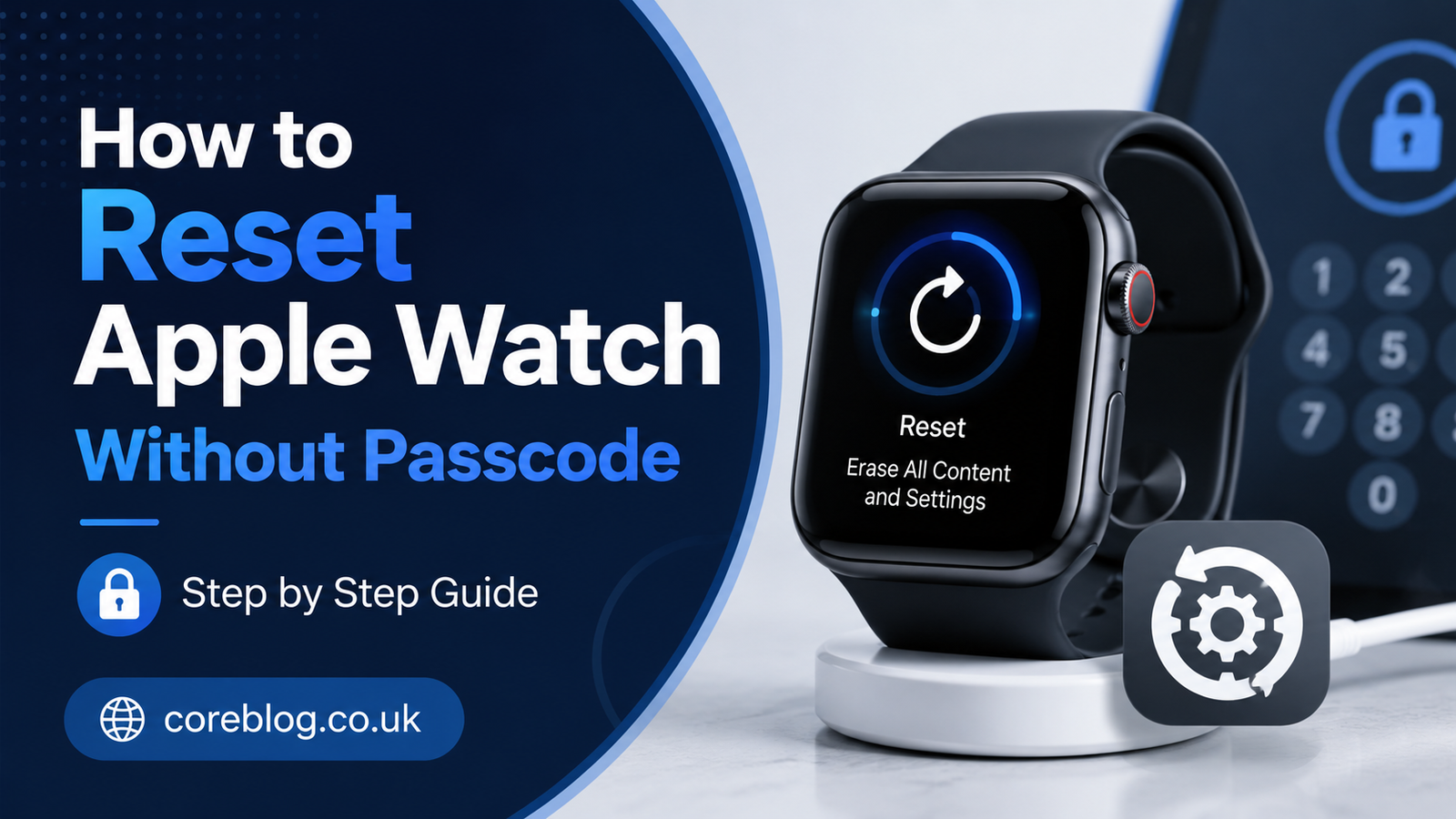
How to Reset Apple Watch Without Passcode Step by Step
Forgetting your Apple Watch passcode feels annoying because the watch is right there on your wrist, yet you cannot get inside it. You may remember your iPhone passcode. You may remember your Apple Account password. But that tiny Apple Watch passcode? Gone. It happens more often than people admit.
The good news is that you can reset Apple Watch Without Passcode, but there is one important thing to understand first. Resetting the watch does not magically unlock a lost, stolen, or unknown device. It simply erases the Apple Watch and returns it to a fresh setup screen. If Activation Lock is turned on, you will still need the Apple Account connected to the watch before you can use it again.
That is a good thing. It protects your personal data, your health records, your Apple Pay cards, your messages, and the device itself. So, in this guide, we are going to keep everything clean, safe, and practical.
If this is your own watch and you forgot the passcode, this step-by-step guide will help you reset Apple Watch Without Passcode the right way. I will walk you through what happens before, during, and after the reset. I will also explain what to do if your paired iPhone is nearby, what to do if it is not, and how to avoid common mistakes that can waste your time.
What Does It Mean to Reset Apple Watch Without Passcode?
When people search for Apple Watch Without Passcode, they usually want one of three things. Some forgot the passcode and just want to use the watch again. Some bought a second-hand Apple Watch and cannot get past the lock screen. Others are trying to erase an old watch before selling or gifting it.
A reset means the Apple Watch will erase its content and settings. This includes apps, watch faces, downloaded music, cards in Apple Pay, settings, and local data stored on the device. After the reset, the watch starts like a new device and asks to be paired again.
However, resetting is not the same as removing Activation Lock. If Find My was enabled on the Apple Watch, the watch may still ask for the original Apple Account during setup. This is normal. It is part of Apple’s security system.
So, before you reset Apple Watch Without Passcode, remember this simple rule:
A reset removes the passcode from the device, but it does not remove ownership protection.
That one line can save you a lot of confusion.
Important Things to Know Before You Start
Before you press any buttons, take a moment to check a few things. It may feel tempting to rush, especially when the watch is locked, but a calm approach is better.
You Will Lose Data Stored Only on the Watch
Most Apple Watch data is synced with your iPhone and iCloud, but not everything may be fully backed up at the exact moment you reset. If your Apple Watch was recently used for workouts, music, messages, or app data, some items may not return unless they were already synced.
You Need the Watch Charger
To reset Apple Watch Without Passcode directly from the watch, the device should stay on its charger during the process. This helps prevent the reset from stopping halfway due to low battery.
Activation Lock May Still Appear
If the Apple Watch is linked to an Apple Account, you may need that Apple Account password after the reset. This is especially important if you bought the watch used. If the previous owner did not remove it from their account, you may not be able to set it up.
This Guide Is for Your Own Device
This method is meant for users who own the Apple Watch or have permission to reset it. It is not a way to bypass Apple security, remove someone else’s account, or unlock a stolen device.
Quick Overview: Best Reset Methods
| Situation | Best Method | What You Need |
|---|---|---|
| Forgot passcode but have the watch | Reset from Apple Watch | Charger and watch |
| Have paired iPhone nearby | Erase from Watch app | iPhone and Apple Account password |
| Selling or gifting the watch | Unpair from iPhone | iPhone and Apple Account password |
| Bought used watch with Activation Lock | Ask previous owner to remove it | Original owner’s Apple Account |
| Watch is not responding | Force restart first, then reset | Watch charger and patience |
Method 1: Reset Apple Watch Without Passcode from the Watch
This is the most useful method when you cannot open the Apple Watch because you forgot the passcode. You do not need to enter the watch passcode for this process.
Step 1: Put Your Apple Watch on Its Charger
Place the Apple Watch on its charger and keep it there. Do not remove it until the reset process is complete.
This matters because the Apple Watch needs stable power while erasing data. If the battery dies during the reset, you may end up with extra problems.
Step 2: Press and Hold the Side Button
Press and hold the side button on your Apple Watch. This is the flat button below the Digital Crown.
Keep holding it until the power screen appears. On newer watchOS versions, you may see a power button icon in the top-right corner.
Step 3: Press and Hold the Digital Crown
Now press and hold the Digital Crown. This is the round button on the side of the watch.
After a few seconds, you should see the option to erase all content and settings. This is the key step that lets you reset Apple Watch Without Passcode.
Step 4: Tap Reset
Tap Reset. Then tap Reset again to confirm.
The Apple Watch will begin erasing itself. This may take a little time, so do not press random buttons or remove it from the charger.
Step 5: Set Up the Apple Watch Again
Once the reset is complete, the Apple Watch will restart and show the setup screen. You can now pair it with your iPhone again.
However, if Activation Lock is active, you will need the Apple Account previously linked to the watch. Enter your Apple Account details when asked.
This method is simple, but it works best when the Apple Watch belongs to you and you still have access to the correct Apple Account.
Method 2: Reset Apple Watch Using the Paired iPhone
If your Apple Watch is still connected to your iPhone, the Watch app is often the cleaner option. This method is especially helpful if you plan to sell, trade, or give away the watch.
Step 1: Keep Apple Watch and iPhone Close
Place both devices near each other. Bluetooth and Wi-Fi connection help the process run smoothly.
Step 2: Open the Watch App
On your iPhone, open the Watch app. Tap the My Watch tab if it is not already open.
Step 3: Go to All Watches
Tap All Watches at the top. You should see your Apple Watch listed there.
Step 4: Tap the Info Button
Tap the small information button next to your Apple Watch name. This opens more options for that specific watch.
Step 5: Choose Unpair Apple Watch
Tap Unpair Apple Watch. Confirm your choice when asked.
You may need to enter your Apple Account password. This step is important because it removes Activation Lock when done properly.
Step 6: Wait for the Process to Finish
Your iPhone will create a backup of your Apple Watch before erasing it. After that, the watch returns to factory settings.
This method is often better than resetting directly from the watch because it handles unpairing and Activation Lock properly. So, if your iPhone is available, use this method first.
Which Method Should You Choose?
If your only problem is a forgotten passcode and the watch is locked, use the reset method from the watch charger. It is direct and does not require entering the passcode.
If you are preparing the Apple Watch for someone else, use the paired iPhone method. It is cleaner because it unpairs the watch, backs it up, erases it, and removes Activation Lock when you enter the Apple Account password.
Here is a simple way to decide:
| Your Goal | Recommended Option |
|---|---|
| Use your own watch again | Reset from the watch |
| Sell your watch | Unpair from iPhone |
| Give watch to a family member | Unpair from iPhone |
| Remove passcode only | Reset from the watch |
| Remove Activation Lock | Use Apple Account or previous owner |
What Happens After You Reset Apple Watch Without Passcode?
After you reset Apple Watch Without Passcode, the device returns to its setup screen. It will no longer ask for the old watch passcode. That part is gone.
But during setup, the Apple Watch may still ask for the Apple Account linked to it. This is where many people get stuck. They think the reset failed, but it did not. The watch was erased. Activation Lock is simply doing its job.
If you are the owner, enter your Apple Account email and password. Then continue pairing with your iPhone.
If you do not know the Apple Account, you need to contact the original owner. They must remove the Apple Watch from their account before you can use it.
Can You Reset Apple Watch Without Apple ID?
This is where you need to be careful. You can erase Apple Watch Without Passcode, but you cannot fully set it up again if Activation Lock asks for an Apple Account you do not know.
Apple designed this system to stop theft and protect owners. Because of that, there is no honest shortcut around Activation Lock.
If the watch belongs to you, recover your Apple Account password first. If it belongs to someone else, ask them to remove it from their account. If you bought it second-hand and the seller cannot help, you may have a serious problem with that purchase.
What If You Bought a Used Apple Watch Without Passcode?
Buying a used Apple Watch can be a great deal, but only if the previous owner erased it correctly. If you see Activation Lock during setup, the watch is still connected to someone else’s Apple Account.
In that case, ask the seller to remove the device from Find My. They do not need to give you their password. They simply need to remove the Apple Watch from their Apple Account.
Here is what you should ask before buying a used Apple Watch:
- Is the Apple Watch fully erased?
- Has Activation Lock been removed?
- Can it reach the pairing screen?
- Is it still linked to the previous owner’s iPhone?
- Can the seller show proof that it is ready for setup?
A clean Apple Watch should pair with your iPhone without asking for another person’s Apple Account.
Common Problems and Easy Fixes
The Reset Option Does Not Appear
Make sure the Apple Watch is on its charger. Then try holding the side button again until the power screen appears. After that, press and hold the Digital Crown.
The Watch Battery Is Too Low
Charge the watch for at least 30 minutes before trying again. A weak battery can interrupt the process.
Apple Watch Still Asks for Apple Account
That is Activation Lock. Use the Apple Account that was connected to the watch. If you bought it used, contact the previous owner.
iPhone Cannot Find the Watch
Restart both devices. Keep them close together. Also, make sure Bluetooth and Wi-Fi are enabled on the iPhone.
Reset Takes Too Long
Give it time. Apple Watch resets can feel slow, especially on older models. Keep it on the charger and avoid pressing buttons repeatedly.
Safety Tips Before Erasing Your Apple Watch
Resetting Apple Watch Without Passcode is safe when you understand what it does. Still, you should follow a few smart habits.
First, confirm that the device is yours. Second, make sure you know your Apple Account password. Third, keep your iPhone nearby if possible. Fourth, do not use random third-party unlock tools. Many of them are unsafe, expensive, or misleading.
In addition, avoid putting anything into the tiny holes on the Apple Watch case. Those are not reset buttons. Apple Watch does not have a physical reset hole like some older gadgets.
A little caution can protect your device and your personal data.
How to Set Up Apple Watch After Reset
Once the reset is done, bring your iPhone close to the Apple Watch. A pairing screen should appear on the iPhone. Tap Continue and follow the setup steps.
You can choose to restore from a backup or set up as a new Apple Watch. If you had a recent backup, restoring can bring back your settings, apps, and preferences. However, if the watch had problems before, setting it up as new may feel cleaner.
During setup, you may choose options for:
- Wrist preference
- Passcode
- Apple Pay
- App installation
- Fitness tracking
- Emergency SOS
- Health features
- Watch faces
- Notifications
When creating a new passcode, choose something you can remember but others cannot guess easily. Avoid simple patterns like 1111, 1234, or your birth year.
Should You Use a Passcode Again?
Yes, you should. Even if forgetting the passcode was frustrating, using no passcode is not a good idea.
Your Apple Watch can hold private information. It may show messages, calls, health details, workout history, wallet cards, and app notifications. A passcode helps protect all of that.
Moreover, some features require a passcode. Apple Pay, for example, needs security protection. So, after you reset Apple Watch Without Passcode, create a new passcode and store it somewhere safe.
You do not need a complicated code that you forget again. A simple but unique code is usually enough for daily use.
How to Avoid Forgetting Your Apple Watch Passcode Again
Forgetting once is understandable. Forgetting twice is painful. So, here are a few practical tips.
Use a passcode that is easy for you but hard for strangers. Do not use the same code as every other device if security matters to you. You can also write a hint in a secure password manager, not on a sticky note next to your desk.
Also, wear the watch regularly. Many people forget the passcode when they stop using the Apple Watch for weeks or months. Regular use keeps the code fresh in your memory.
If you manage devices for family members, write down which Apple Account is connected to each Apple Watch. This is very helpful when resetting, selling, or passing the watch to someone else.
Is Resetting Apple Watch Without Passcode Legal?
Yes, if it is your device or you have permission from the owner. There is nothing wrong with erasing your own watch after forgetting the passcode.
However, trying to bypass someone else’s Apple Account, remove Activation Lock without permission, or unlock a device that is not yours is not okay. It may also be illegal depending on the situation.
That is why trusted guides focus on safe reset methods, not shady bypass tricks. A proper reset protects both the user and the device.
Apple Watch Without Passcode: What You Can and Cannot Do
Let’s make this extra clear.
You can reset Apple Watch Without Passcode if you forgot the watch passcode. You can erase the device from the watch while it is charging. You can also unpair and erase it from the iPhone if it is still paired.
However, you cannot use this method to remove Activation Lock without the correct Apple Account. You also cannot access the old data after erasing the watch. The reset is final.
This is why it is smart to think before tapping Reset. If you only forgot the passcode, the reset is helpful. If you need old data that was never synced, the reset may remove it.
Best Practices for Selling or Giving Away Apple Watch
If you plan to sell or gift your Apple Watch, do not simply reset it from the watch screen. Instead, unpair it from your iPhone through the Watch app.
This does three useful things. It creates a backup, erases the watch, and removes Activation Lock when you enter your Apple Account password.
After unpairing, the new owner should be able to set it up without trouble. This also protects you because your personal data is removed from the device.
Before handing it over, check that the Apple Watch shows the setup screen. That is usually a good sign that it is ready for the next person.
Final Checklist Before You Reset
Before you reset Apple Watch Without Passcode, run through this quick checklist:
- Apple Watch is on its charger
- You understand the reset will erase data
- You know your Apple Account password
- Your paired iPhone is nearby if available
- You are not trying to bypass Activation Lock
- You are ready to set up the watch again
- Battery is not critically low
- You have tried unpairing from iPhone if selling the watch
This small checklist can prevent most reset headaches.
Conclusion
Resetting an Apple Watch Without Passcode is not as scary as it first seems. If you forgot the code, you can erase the watch from the charger screen and set it up again. If your paired iPhone is available, you can unpair and erase it through the Watch app for a cleaner reset.
The main thing to remember is this: resetting removes the passcode, but Activation Lock may still require the correct Apple Account. That security step protects your device, your data, and your privacy.
So, take your time, follow the steps carefully, and avoid risky third-party tools. Once the reset is complete, set a new passcode you can remember and keep your Apple Account details safe.
If this guide helped you reset Apple Watch Without Passcode, share it with someone who may be stuck on the same problem. And if you have faced a different Apple Watch reset issue, leave a comment so others can learn from your experience too.













Leave a Reply