

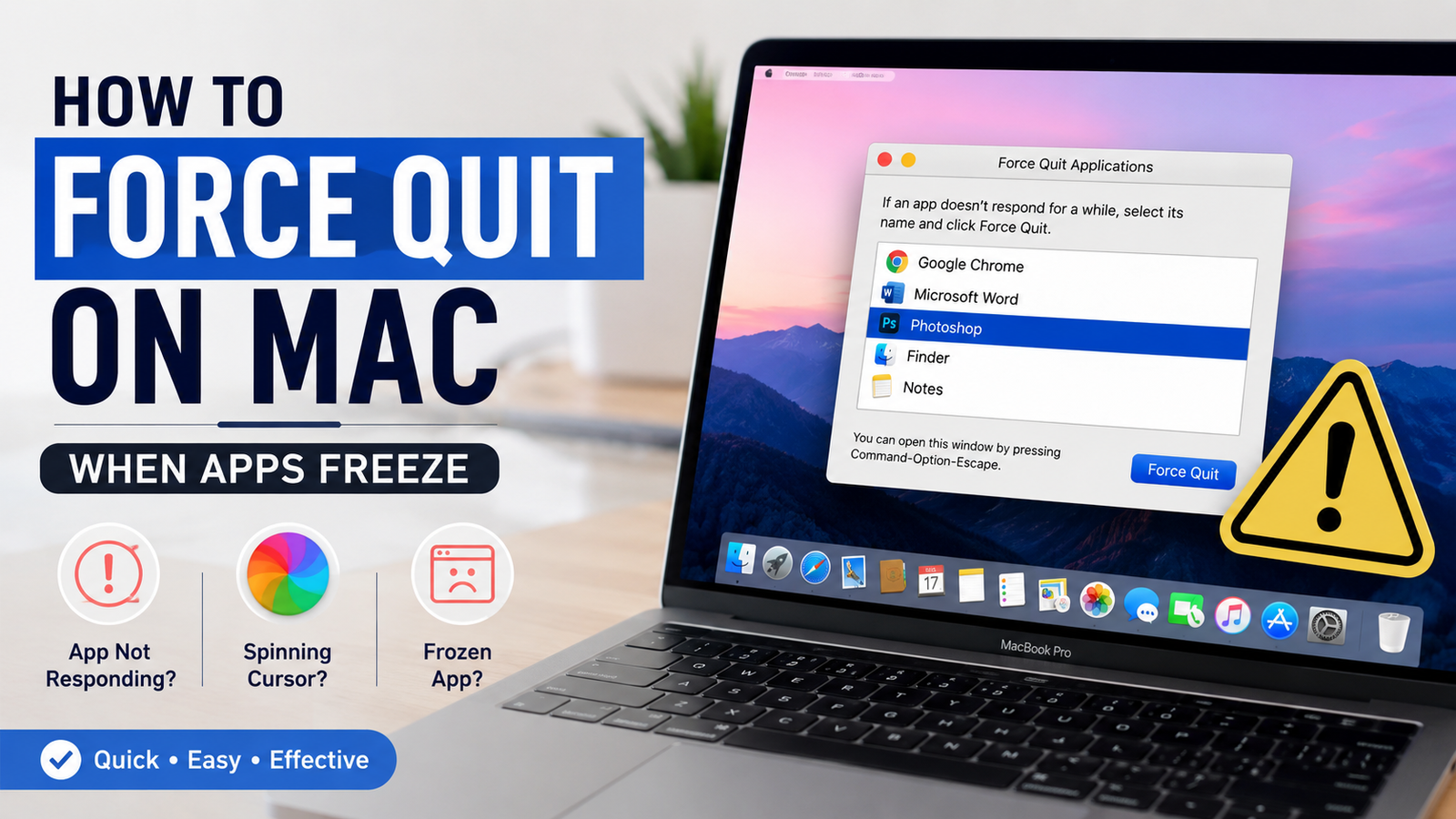
How to Force Quit on Mac When Apps Stop Responding
A frozen app can interrupt your workflow, slow down your Mac, and leave you wondering what to do next. Whether you are working on an important document, browsing the web, or using creative software, an unresponsive application can become frustrating quickly.
Knowing how to force quit on Mac gives you a quick way to close problematic apps and regain control of your computer. macOS includes several built-in methods for shutting down frozen applications, from simple keyboard shortcuts to advanced tools like Activity Monitor.
In this guide, you will learn the safest and most effective ways to force quit apps on a Mac, understand why applications freeze, and discover troubleshooting steps to prevent the issue from happening repeatedly.
Key Takeaways
- The fastest way to force quit an app on Mac is by using the Command + Option + Escape keyboard shortcut.
- macOS provides multiple ways to close frozen applications, including the Apple menu and Activity Monitor.
- Force quitting closes an application immediately, so unsaved work may be lost.
- Regular software updates and proper system maintenance can reduce app crashes.
- Activity Monitor helps identify apps that consume excessive system resources.
What Does Force Quit Mean on Mac?
Force quitting is a macOS feature that immediately closes an application that is no longer responding to normal commands. Unlike a regular app shutdown, where the program has time to save data and complete background tasks, a force quit ends the process instantly.
When an app freezes, you may notice symptoms such as:
- The app window stops responding.
- The spinning beach ball appears continuously.
- Menus and buttons do not work.
- Keyboard shortcuts inside the app stop functioning.
- Your Mac becomes slower than usual.
In these situations, learning how to force quit on Mac can help you quickly close the problematic program without restarting your entire computer.
Why Do Apps Stop Responding on Mac?
Applications can freeze for many different reasons. Understanding the cause can help you prevent future problems.
High Memory Usage
Some applications require large amounts of RAM, especially:
- Video editing software
- Graphic design tools
- Games
- Web browsers with many open tabs
When your Mac runs low on available memory, applications may become slow or completely unresponsive.
Software Bugs
An application may freeze because of a programming error. Even well-developed apps can experience occasional crashes due to compatibility issues or unexpected errors.
Outdated Applications
Older versions of software may not work properly with newer versions of macOS. Keeping applications updated often improves stability and performance.
Too Many Background Processes
Multiple apps running at the same time can overload your Mac’s processor or memory. Background tasks may also affect how quickly applications respond.
How to Force Quit on Mac Using Keyboard Shortcut
The quickest method for how to force quit on Mac is through a keyboard shortcut.
Follow these steps:
- Press and hold Command (⌘) + Option (⌥) + Escape (Esc) keys together.
- A window called Force Quit Applications will appear.
- Select the frozen application from the list.
- Click Force Quit.
- Confirm your choice when prompted.
The application will close immediately.
This method works in most situations and is usually the first solution Mac users should try when an app stops responding.
How to Force Quit on Mac Through the Apple Menu
If your keyboard shortcut does not work, you can use the Apple menu.
Follow these steps:
- Click the Apple logo in the top-left corner of your screen.
- Select Force Quit.
- Choose the unresponsive application.
- Click Force Quit.
- Confirm the action.
This option is useful when your keyboard is working but you prefer navigating through macOS menus.
How to Force Quit on Mac Using Activity Monitor
Activity Monitor provides more control over running applications and background processes.
It works similarly to Task Manager on Windows and allows you to see which programs are using system resources.
Steps to Force Quit an App Using Activity Monitor
- Open Activity Monitor.
- Press Command + Space to open Spotlight Search.
- Type “Activity Monitor.”
- Press Enter.
- Find the application causing problems.
- Click the app name.
- Select the stop button at the top of the window.
- Choose Force Quit.
Activity Monitor is especially helpful when an app does not appear in the standard Force Quit menu or when you want to investigate performance problems.
How to Force Quit on Mac When the App Will Not Close
Sometimes an application refuses to close even after using the normal force quit option.
Try these additional solutions:
Restart Your Mac
A restart can clear temporary system problems and close all running processes.
To restart:
- Click the Apple menu.
- Select Restart.
- Confirm the restart.
Restarting should be used when multiple applications are frozen or your Mac is generally unstable.
Check for Software Updates
An outdated app or macOS version may cause repeated freezing.
To check for updates:
- Open System Settings.
- Select General.
- Choose Software Update.
Updating your system can improve compatibility and fix known problems.
Free Up Storage Space
A Mac with very limited storage may experience performance issues.
Remove unnecessary:
- Large files
- Old downloads
- Unused applications
- Temporary files
Keeping enough free storage helps macOS operate more efficiently.
Difference Between Closing and Force Quitting an App
Many users confuse normal closing with force quitting. They work differently.
| Normal Closing | Force Quit |
|---|---|
| Allows the app to save and shut down properly | Immediately ends the app process |
| Best for everyday use | Used when an app freezes |
| Reduces risk of losing data | May cause unsaved work loss |
| Gives apps time to complete tasks | Stops the app instantly |
You should always try normal closing first. Use force quit only when the application becomes unresponsive.
How to Avoid Apps Freezing on Mac
While force quitting is useful, preventing crashes is even better.
Keep macOS Updated
Apple regularly releases updates that improve security, compatibility, and system performance.
Update Your Applications
Developers release updates to fix bugs and improve reliability. Using outdated apps increases the chance of crashes.
Avoid Running Too Many Apps at Once
Closing unused applications can free memory and improve system performance.
Restart Your Mac Regularly
Restarting clears temporary files and refreshes system processes.
Monitor Resource Usage
Activity Monitor can help identify applications that constantly consume excessive CPU or memory.
Common Force Quit Keyboard Shortcuts on Mac
| Action | Shortcut |
|---|---|
| Open Force Quit window | Command + Option + Escape |
| Open Spotlight Search | Command + Space |
| Close current window | Command + W |
| Restart Mac menu | Control + Command + Power button |
The most important shortcut for how to force quit on Mac is Command + Option + Escape because it directly opens the Force Quit menu.
Is Force Quitting Safe on Mac?
Force quitting is generally safe when an application freezes. It is a built-in macOS feature designed for situations where normal closing does not work.
However, there are some risks:
- Unsaved changes may be lost.
- Files being edited may not recover.
- Repeated crashes may indicate a deeper software issue.
If the same application freezes frequently, investigate the cause instead of relying only on force quitting.
Frequently Asked Questions
How do I force quit an app on Mac quickly?
The fastest way is to press Command + Option + Escape, select the frozen app, and choose Force Quit.
Why is my Mac app not responding?
A Mac app may stop responding because of software bugs, high memory usage, outdated software, too many running processes, or insufficient storage space.
Can I force quit Finder on Mac?
Yes. Open the Force Quit Applications window, select Finder, and click Relaunch. Finder will restart instead of fully closing.
Will force quitting delete my files?
No, force quitting does not delete files. However, any unsaved changes inside the application may be lost.
What should I do if force quit does not work?
Try using Activity Monitor to end the process, restart your Mac, or check for software and system updates.
How often should I force quit apps on Mac?
You should only force quit apps when they become unresponsive. Frequent force quitting may indicate that an app, system setting, or hardware issue needs attention.
Does force quitting damage a Mac?
No. Force quitting is a normal macOS feature and does not damage your Mac. It simply stops a frozen application.
Conclusion
Knowing how to force quit on Mac is an essential skill for every Mac user. Frozen applications can happen occasionally, but you do not need to restart your entire computer every time something stops responding.
The Command + Option + Escape shortcut is the quickest solution, while options like Activity Monitor provide deeper control when problems continue. Understanding why apps freeze and maintaining your Mac properly can also reduce future interruptions.
By using these methods correctly, you can handle unresponsive applications safely, protect your workflow, and keep your Mac running smoothly.















Leave a Reply