

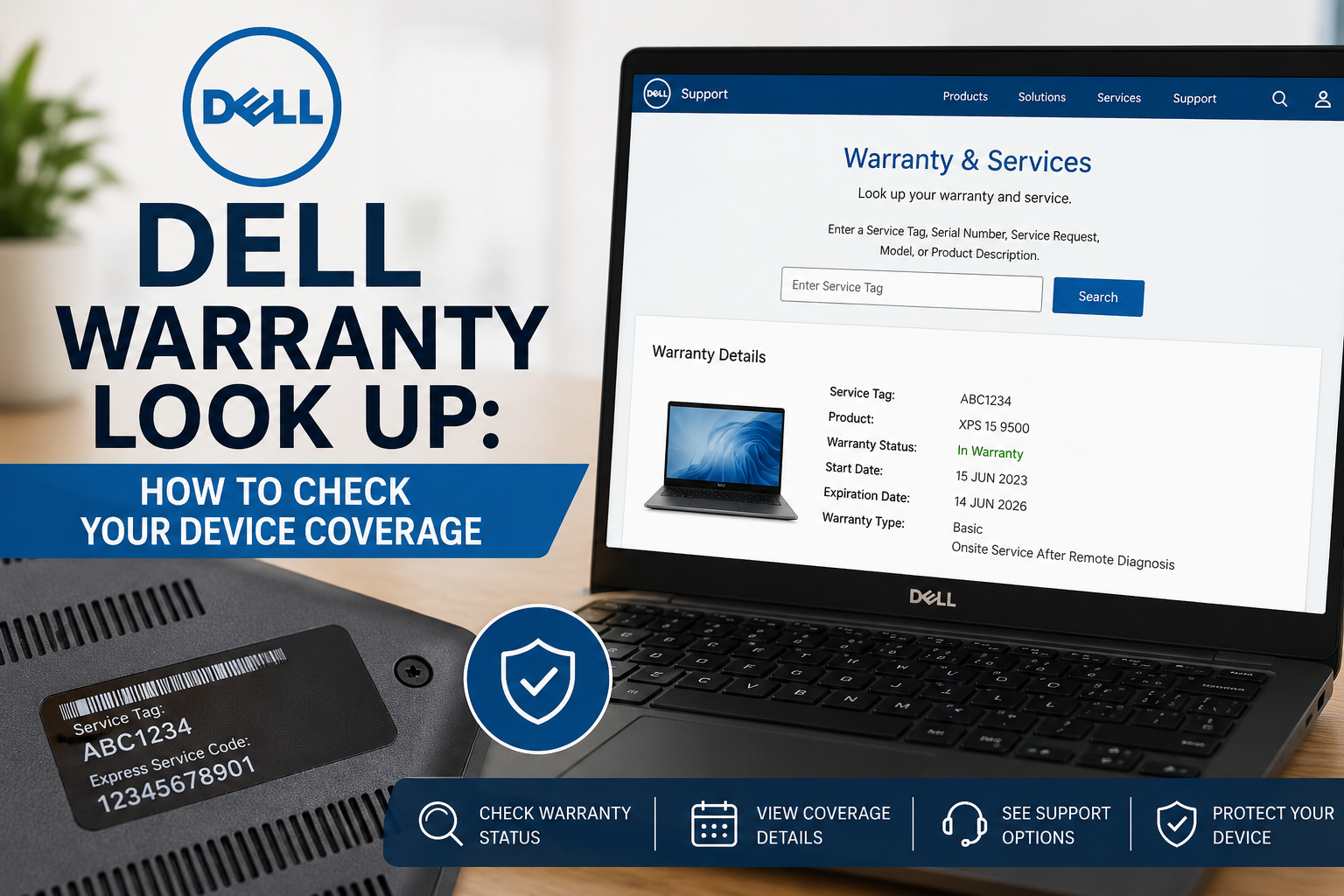
Dell Warranty Look Up: How to Check Your Device Coverage
If you own a Dell laptop, desktop, monitor, or accessory, knowing whether it’s still under warranty can save you time and money when problems arise. A Dell Warranty Look Up allows you to verify your device’s warranty status, understand what services are included, and determine whether you’re eligible for repairs or technical support.
Whether you’re troubleshooting a hardware issue, planning to purchase a used Dell computer, or simply keeping track of your device’s protection, checking your warranty is an important step. Fortunately, Dell makes the process straightforward by providing an online warranty lookup tool that works with your device’s unique Service Tag or Express Service Code.
In this guide, you’ll learn how to perform a Dell Warranty Look Up, what information you’ll need, how to interpret your warranty details, common issues you may encounter, and answers to frequently asked questions.
Key Takeaways
- A Dell Warranty Look Up helps you verify your device’s warranty coverage in minutes.
- Your Dell Service Tag is the easiest way to check warranty information.
- Warranty details include coverage type, expiration date, and available support services.
- Checking warranty status before repairs can prevent unexpected costs.
- Used Dell devices should always have their warranty verified before purchase.
Main Article
What Is Dell Warranty Look Up?
A Dell Warranty Look Up is the process of checking the warranty status of a Dell product using Dell’s warranty lookup service. It allows users to see important information about their device, including:
- Warranty start date
- Warranty expiration date
- Type of warranty coverage
- Eligible repair services
- Technical support availability
- On-site service eligibility (if applicable)
This information helps customers understand whether repairs or support may be covered without additional charges.
Why Checking Your Dell Warranty Matters
Many users only think about warranty coverage after their device develops a problem. However, checking your warranty regularly has several benefits.
Avoid Unexpected Repair Costs
Knowing your warranty status helps determine whether Dell may cover repairs, replacement parts, or labor.
Plan Hardware Upgrades
If your warranty is close to expiring, you can decide whether to purchase an extended warranty or support plan.
Verify Used Devices
If you’re buying a pre-owned Dell laptop or desktop, checking the warranty confirms whether any manufacturer coverage remains.
Speed Up Technical Support
Dell representatives often request your Service Tag before providing assistance. Having warranty information ready makes the support process faster.
What Information Do You Need?
Before performing a Dell Warranty Look Up, you’ll need one of the following identifiers.
| Information | Description |
|---|---|
| Service Tag | A unique 7-character code assigned to every Dell device |
| Express Service Code | A longer numeric code linked to the Service Tag |
| Product Identifier | Available for certain Dell accessories |
The Service Tag is the most commonly used option.
How to Find Your Dell Service Tag
Finding your Service Tag depends on the device you own.
On a Dell Laptop
Look for a label on the bottom of the laptop.
On a Desktop Computer
Check the back, top, or side panel for a sticker.
Inside BIOS
Restart the computer and enter BIOS setup. The Service Tag usually appears on the main information screen.
Using Dell Software
Many Dell computers include built-in applications that automatically display your Service Tag.
On Product Packaging
The original box often includes the Service Tag on the shipping label.
How to Perform a Dell Warranty Look Up
Checking your warranty only takes a few minutes.
Step 1: Locate Your Service Tag
Find the Service Tag using one of the methods above.
Step 2: Enter the Warranty Lookup Tool
Visit Dell’s warranty lookup page.
Step 3: Enter Your Service Tag
Type the Service Tag exactly as it appears on your device.
Step 4: View Warranty Information
The system displays your warranty details, including:
- Warranty type
- Coverage period
- Expiration date
- Device model
- Available support options
Understanding Dell Warranty Types
Not every Dell product includes the same warranty coverage.
Basic Hardware Warranty
Usually covers manufacturing defects in hardware components for a limited period.
Premium Support
Offers enhanced technical support with faster response times.
Premium Support Plus
Includes additional services such as accidental damage protection and proactive support on eligible products.
ProSupport
Designed primarily for businesses with advanced support needs.
Accidental Damage Coverage
Protects against certain accidental incidents, such as spills or drops, depending on your service agreement.
What Is Covered Under a Dell Warranty?
Coverage depends on the warranty purchased with the device.
Commonly covered items include:
- Motherboard failures
- Hard drive defects
- SSD failures
- Display issues caused by hardware defects
- Power supply problems
- Keyboard failures
- Internal hardware components
Coverage varies by product and warranty plan.
What Is Not Usually Covered?
Most manufacturer warranties do not cover:
- Physical abuse
- Theft
- Loss
- Cosmetic damage
- Unauthorized repairs
- Damage caused by liquids (unless accidental damage coverage applies)
- Software problems unrelated to hardware
- Virus or malware infections
Always review your warranty details to understand your specific coverage.
Common Problems During Dell Warranty Look Up
Sometimes users experience issues when checking warranty information.
Service Tag Not Found
Possible causes include:
- Incorrect entry
- Typing errors
- Recently manufactured device not yet registered
- International registration delays
Double-check every character before trying again.
Warranty Information Missing
Occasionally, newly purchased devices may require additional time before warranty details appear.
Incorrect Expiration Date
If your purchase date differs from Dell’s records, you may need to submit proof of purchase for correction.
Dell Warranty vs Extended Warranty
Many buyers wonder whether an extended warranty is worthwhile.
| Feature | Standard Warranty | Extended Warranty |
|---|---|---|
| Included with purchase | Yes | Optional |
| Coverage period | Limited | Longer duration |
| Technical support | Yes | Yes |
| Repair coverage | Yes | Yes |
| Additional services | Limited | Often includes extra protection |
Extended warranties may provide additional peace of mind for users who rely heavily on their devices.
Tips for Protecting Your Dell Warranty
Following a few simple practices can help preserve your warranty.
- Keep your purchase receipt.
- Record your Service Tag.
- Avoid unauthorized repairs.
- Install official Dell updates.
- Handle your device carefully.
- Register your device after purchase.
- Back up important files regularly.
Checking Warranty Before Buying a Used Dell Device
Buying a second-hand Dell computer can save money, but verifying warranty status is essential.
Before purchasing:
- Ask the seller for the Service Tag.
- Perform a Dell Warranty Look Up.
- Confirm warranty expiration.
- Verify the model specifications.
- Check whether ownership transfer is required.
This simple step can prevent unpleasant surprises after purchase.
Can You Transfer a Dell Warranty?
In many cases, Dell allows warranty ownership transfers when a device changes hands.
The process generally involves:
- Providing the Service Tag
- Confirming ownership information
- Updating contact details
Some warranty plans or regions may have different transfer requirements.
When Should You Contact Dell Support?
You should contact Dell support if:
- Hardware problems occur during the warranty period.
- Your warranty information appears incorrect.
- The Service Tag cannot be recognized.
- You need replacement parts.
- Your system requires repair or diagnosis.
Having your Service Tag available makes the support process much smoother.
Best Practices for Managing Device Warranty
To make future support easier:
- Save your Service Tag digitally.
- Keep warranty purchase records.
- Check warranty status once or twice a year.
- Renew coverage before expiration if needed.
- Back up important files before requesting repairs.
These habits can help reduce downtime and simplify future service requests.
Frequently Asked Questions
1. What is a Dell Service Tag?
A Dell Service Tag is a unique identifier assigned to every Dell device. It allows Dell to identify your product and display its warranty information.
2. Can I check my Dell warranty without a Service Tag?
The Service Tag is the most reliable way to perform a Dell Warranty Look Up. Some accessories may use different identifiers, but most computers require the Service Tag.
3. Does Dell warranty cover accidental damage?
Standard warranties generally do not. Accidental damage protection is available only with eligible service plans that include this feature.
4. How long does a standard Dell warranty last?
Many Dell products include a one-year limited hardware warranty, although coverage varies depending on the product and the support plan selected during purchase.
5. Can I extend my Dell warranty?
Yes. Depending on your device and region, Dell may offer extended warranty and support plans before your current coverage expires.
6. Is Dell warranty transferable?
In many cases, yes. Ownership transfers are often available for eligible devices, though requirements may vary by country and warranty type.
7. What should I do if my warranty information is incorrect?
Contact Dell customer support and provide proof of purchase if necessary. They can update the warranty information to reflect the correct purchase date.
Conclusion
Performing a Dell Warranty Look Up is one of the easiest ways to stay informed about your device’s protection. By checking your warranty status, you can confirm repair eligibility, understand available support options, and avoid unexpected repair costs. Whether you’re maintaining your current Dell computer, purchasing a used device, or preparing for future support, keeping track of your warranty is a smart habit.
With your Service Tag in hand, the process takes only a few minutes and provides valuable information that can save both time and money. Regularly reviewing your warranty details ensures you’re ready whenever technical issues arise and helps you make informed decisions about repairs, upgrades, or extended coverage.















Leave a Reply