

Introduction
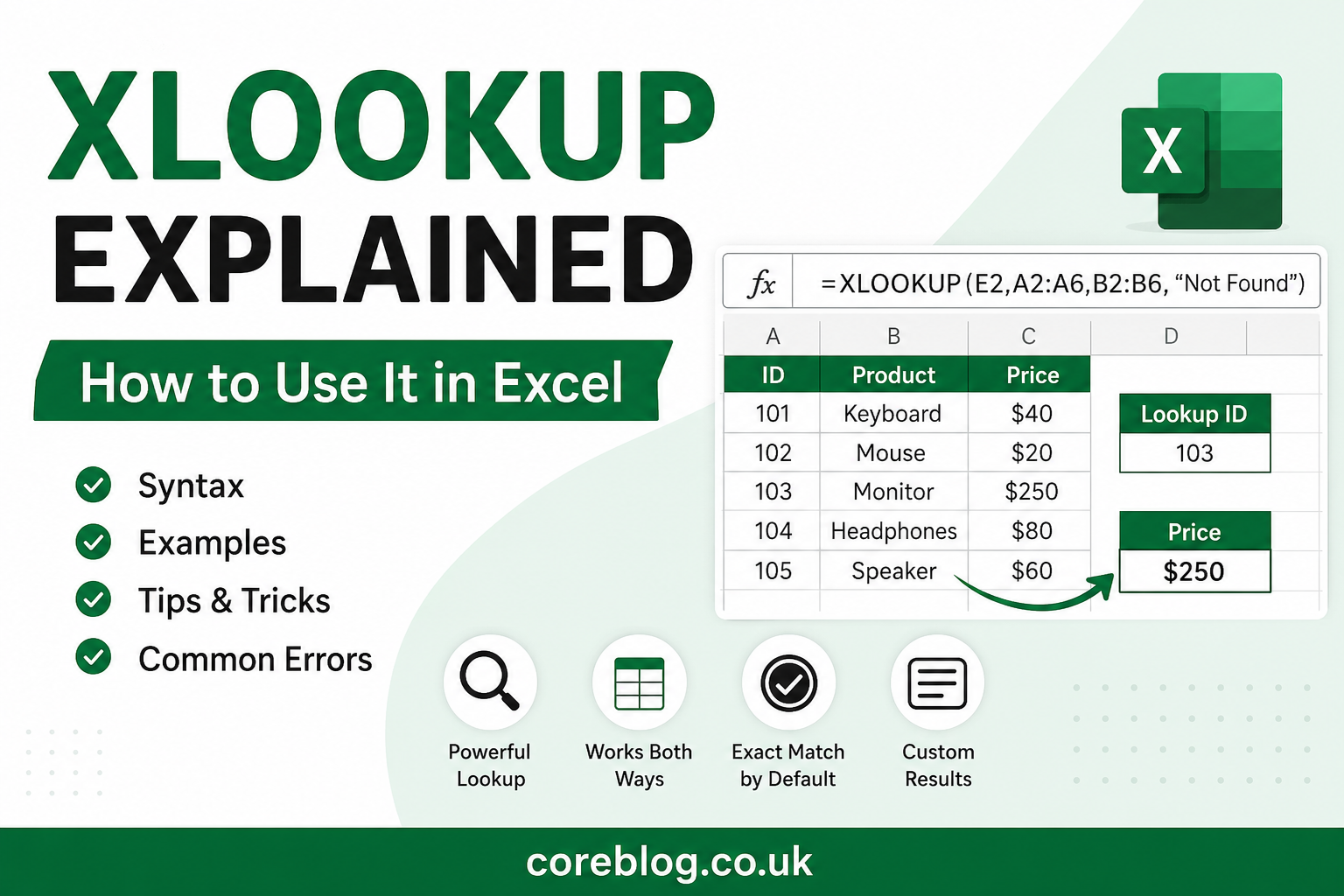
XLOOKUP Explained is one of the most useful topics for anyone working with Microsoft Excel. Whether you manage business reports, analyze sales data, maintain inventory lists, or organize personal spreadsheets, finding information quickly is essential. XLOOKUP is a modern lookup function that simplifies many of the limitations found in older Excel functions such as VLOOKUP and HLOOKUP.
Unlike earlier lookup functions, XLOOKUP is more flexible, easier to read, and capable of searching both vertically and horizontally. It can return exact matches by default, search from top to bottom or bottom to top, and even return custom messages when no result is found.
This guide explains how XLOOKUP works, its syntax, practical examples, common mistakes, and best practices. By the end, you’ll have the confidence to use XLOOKUP efficiently in your own spreadsheets.
Key Takeaways
- XLOOKUP replaces many traditional lookup formulas with a simpler approach.
- It searches both vertically and horizontally without separate functions.
- Exact matching is the default behavior, reducing common lookup errors.
- It can return custom messages instead of error values.
- XLOOKUP improves spreadsheet accuracy and productivity.
Main Article
What Is XLOOKUP?
XLOOKUP is an Excel function designed to search for a value within a row or column and return a related value from another row or column.
Microsoft introduced XLOOKUP to replace older lookup functions like:
- VLOOKUP
- HLOOKUP
- LOOKUP
Its design removes many of the restrictions users experienced with earlier formulas.
For example, instead of counting column numbers manually, XLOOKUP directly references the return range, making formulas easier to understand and maintain.
Why XLOOKUP Is Better Than Older Lookup Functions
Many Excel users relied on VLOOKUP for years, but it has several limitations.
| Feature | XLOOKUP | VLOOKUP |
|---|---|---|
| Searches left and right | Yes | No |
| Exact match by default | Yes | No |
| Horizontal lookups | Yes | No |
| Custom error message | Yes | No |
| Flexible return arrays | Yes | Limited |
| Easier formula structure | Yes | Moderate |
These improvements make XLOOKUP the preferred choice for modern Excel users.
XLOOKUP Syntax
The basic syntax is:
=XLOOKUP(lookup_value, lookup_array, return_array)A more complete version is:
=XLOOKUP(
lookup_value,
lookup_array,
return_array,
[if_not_found],
[match_mode],
[search_mode]
)
Understanding Each Argument
| Argument | Purpose |
|---|---|
| lookup_value | The value you want to find |
| lookup_array | The column or row containing the lookup value |
| return_array | The data you want returned |
| if_not_found | Optional custom message |
| match_mode | Controls exact or approximate matching |
| search_mode | Determines search direction |
Only the first three arguments are required for most tasks.
Simple XLOOKUP Example
Imagine this table.
| Product ID | Product | Price |
|---|---|---|
| 101 | Keyboard | $40 |
| 102 | Mouse | $20 |
| 103 | Monitor | $250 |
Formula:
=XLOOKUP(102,A2:A4,C2:C4)Result:
$20Excel searches for 102 in the Product ID column and returns the corresponding price.
Returning Text Instead of Numbers
XLOOKUP works equally well with text.
Example:
| Employee ID | Employee |
|---|---|
| 2001 | Sarah |
| 2002 | John |
| 2003 | Emily |
Formula:
=XLOOKUP(2003,A2:A4,B2:B4)Result:
EmilyUsing a Custom “Not Found” Message
Instead of displaying:
#N/AUse:
=XLOOKUP(E2,A2:A10,B2:B10,"Employee Not Found")Result:
Employee Not FoundThis creates cleaner, more user-friendly spreadsheets.
Exact Match vs Approximate Match
One major advantage of XLOOKUP is that exact matching is automatic.
Exact Match
=XLOOKUP(A2,D2:D20,E2:E20)Returns only an exact match.
Approximate Match
Use:
=XLOOKUP(A2,D2:D20,E2:E20,,-1)or
=XLOOKUP(A2,D2:D20,E2:E20,,1)Approximate matches are useful for:
- Tax brackets
- Grade scales
- Pricing tiers
- Commission tables
Searching from Bottom to Top
Suppose duplicate values exist.
You want the most recent result.
Use:
=XLOOKUP(A2,B2:B20,C2:C20,,, -1)Excel searches from the bottom upward.
This is especially useful for:
- Transaction histories
- Attendance logs
- Inventory records
Looking Left Instead of Right
One of VLOOKUP’s biggest weaknesses was its inability to search left.
Example:
| Price | Product |
|---|---|
| 50 | Speaker |
| 80 | Headphones |
Formula:
=XLOOKUP("Speaker",B2:B3,A2:A3)Result:
50This flexibility eliminates the need to rearrange columns.
Horizontal Lookups
XLOOKUP also replaces HLOOKUP.
Example:
| Jan | Feb | Mar |
|---|---|---|
| 120 | 135 | 140 |
Formula:
=XLOOKUP("Feb",A1:C1,A2:C2)Result:
135The same function works vertically and horizontally.
Returning Multiple Columns
XLOOKUP can return more than one column simultaneously.
Example:
| ID | Name | Department | Salary |
|---|
Formula:
=XLOOKUP(E2,A2:A10,B2:D10)Instead of returning one value, Excel spills multiple related values into adjacent cells.
This is useful for dashboards and reports.
Common XLOOKUP Errors
#N/A
Cause:
The lookup value doesn’t exist.
Solution:
Use the optional if_not_found argument.
Incorrect Lookup Range
Always ensure:
- Lookup array contains the search value.
- Return array has the same dimensions.
Data Type Mismatch
Numbers stored as text often prevent successful matches.
Check formatting before troubleshooting.
Hidden Spaces
Extra spaces may stop XLOOKUP from finding matches.
Functions like TRIM can clean imported data.
Practical Uses of XLOOKUP
Businesses and individuals use XLOOKUP for many everyday tasks.
Examples include:
- Employee databases
- Sales reporting
- Inventory management
- Customer records
- Student grades
- Financial analysis
- Budget tracking
- Product catalogs
- Invoice management
- CRM systems
Its versatility makes it one of Excel’s most valuable functions.
XLOOKUP vs INDEX and MATCH
Before XLOOKUP, many advanced users combined INDEX and MATCH.
| Feature | XLOOKUP | INDEX + MATCH |
|---|---|---|
| Easy to learn | Yes | Moderate |
| Formula length | Short | Longer |
| Left lookup | Yes | Yes |
| Dynamic arrays | Yes | Limited |
| Readability | Excellent | Moderate |
INDEX and MATCH remain useful in some advanced scenarios, but XLOOKUP is simpler for most users.
Best Practices for Using XLOOKUP
To get the best results:
- Use structured tables whenever possible.
- Keep lookup values consistent.
- Avoid duplicate identifiers when unique results are required.
- Use custom error messages for cleaner reports.
- Name ranges for improved readability.
- Test formulas with sample data before using them in large workbooks.
- Document complex formulas for team collaboration.
Following these practices makes spreadsheets easier to maintain over time.
When XLOOKUP May Not Be Available
XLOOKUP is available in:
- Microsoft 365
- Excel 2021
- Excel 2024 and later
Older versions such as Excel 2016 or Excel 2019 do not include XLOOKUP. In those versions, VLOOKUP or INDEX and MATCH remain the primary alternatives.
Frequently Asked Questions
1. What does XLOOKUP do in Excel?
XLOOKUP searches for a value in a row or column and returns a matching value from another row or column, making data retrieval simpler and more flexible than older lookup functions.
2. Is XLOOKUP better than VLOOKUP?
Yes. XLOOKUP supports left and right lookups, exact matches by default, custom error messages, and both vertical and horizontal searches.
3. Does XLOOKUP replace HLOOKUP?
Yes. XLOOKUP can perform both vertical and horizontal lookups, eliminating the need for separate lookup functions.
4. Why does XLOOKUP return #N/A?
This usually means the lookup value cannot be found or the data types between the lookup value and lookup array do not match.
5. Can XLOOKUP return multiple values?
Yes. XLOOKUP can return multiple adjacent columns when the return array includes more than one column.
6. Which Excel versions support XLOOKUP?
XLOOKUP is available in Microsoft 365, Excel 2021, Excel 2024, and newer releases. It is not included in Excel 2019 or earlier versions.
7. Can XLOOKUP search from the bottom of a list?
Yes. By changing the search mode argument, XLOOKUP can search from the last record upward, making it useful for finding the most recent matching entry.
Conclusion
Understanding XLOOKUP Explained is an excellent investment for anyone who works with Excel regularly. It simplifies data retrieval, reduces formula errors, and offers capabilities that older lookup functions cannot match. From basic lookups to advanced reporting, XLOOKUP helps create cleaner, more reliable spreadsheets while saving valuable time.
Whether you’re a beginner learning Excel or an experienced professional optimizing complex workbooks, mastering XLOOKUP can significantly improve your productivity. By practicing the examples and best practices covered in this guide, you’ll be well prepared to use this powerful function confidently in your everyday work.














Leave a Reply