

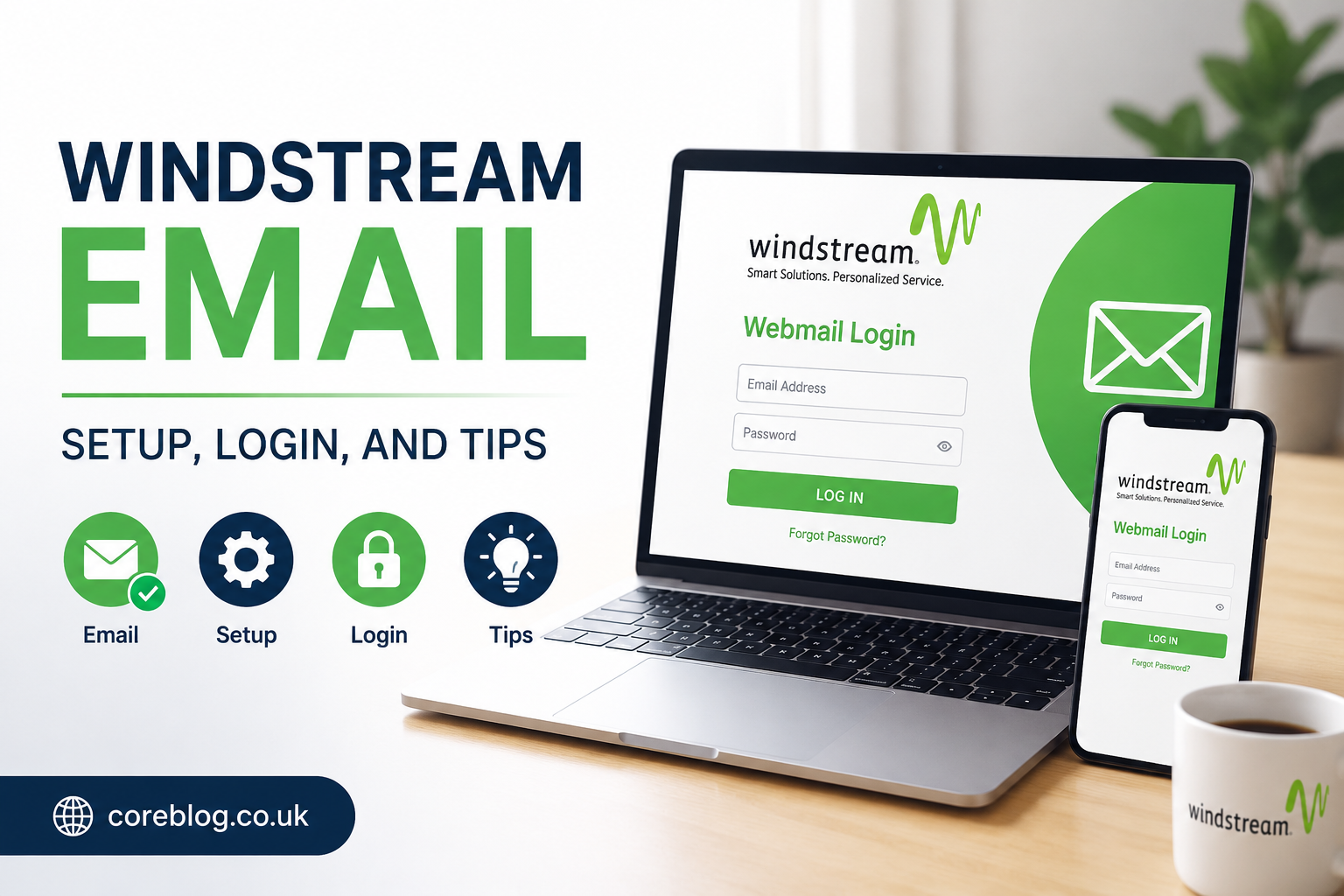
Email still feels simple until it stops working. One minute you are checking a bill, opening a work message, or sending a quick reply. The next minute, the login page will not load, your password seems wrong, or your phone refuses to sync new messages. That is exactly why a clear Windstream Email Guide can save you time, stress, and a lot of guesswork.
Windstream email, also known by many users as Windstream.net email or Kinetic email, is used by customers who want a direct, familiar inbox connected to their internet service. It can be opened through webmail, added to a phone, connected with Outlook, or managed through other email apps. However, setup can feel confusing when you are looking at server names, ports, SSL settings, passwords, and account options.
This Windstream Email Guide walks you through the basics in plain English. You will learn how to access your inbox, set up your account on different devices, understand common email settings, fix login issues, protect your account, and keep your mailbox running smoothly. No confusing tech talk. No overcomplicated steps. Just a practical guide written for real users.
What Is Windstream Email?
Windstream email is an email service connected with Windstream, now commonly branded with Kinetic for many residential services. Users may still call it Windstream email because their address, login habit, or old setup uses the Windstream name.
For many customers, it works like any other email account. You can send and receive messages, organize folders, manage contacts, reset passwords, and use it from a browser or mail app. The main difference is that you need the correct Windstream email settings when adding it to a device manually.
A good Windstream Email Guide matters because not every user checks email the same way. Some people prefer webmail. Others want messages inside Apple Mail, Gmail app, Outlook, Thunderbird, or a built-in Android email app. Each method works, but the setup process can vary.
Why People Still Use Windstream Email
Many users keep their Windstream email because it is already connected to important accounts. For example, it may be linked to bank alerts, utility bills, online shopping receipts, business contacts, school messages, or family communication.
In addition, some users prefer an internet-provider email because it feels stable and personal. It may not have all the flashy features of larger email platforms, but it gets the job done when it is set up correctly.
Windstream Email Guide for Login
The easiest way to check your Windstream email is through webmail. Webmail lets you open your inbox from a browser without setting up any app. This is useful when you are using a new computer, traveling, or checking whether the account itself is working.
Basic Login Steps
To log in to your Windstream email, follow these simple steps:
- Open your browser on a computer, tablet, or phone.
- Go to the official Windstream or Kinetic webmail login page.
- Enter your full Windstream email address.
- Type your password carefully.
- Click the sign-in or login button.
- Wait for your inbox to load.
That sounds simple, but small mistakes can block access. Make sure you type the complete email address, not only the username. Also, check that Caps Lock is off before entering your password.
Common Login Problems
Login issues are common, and they do not always mean your account is broken. In many cases, the cause is small and easy to fix.
Common reasons include:
- Wrong password
- Poor internet connection
- Browser cache problems
- Outdated saved password
- Account security check
- Temporary service issue
- Incorrect email address
- Old bookmark opening the wrong page
If your password worked before but suddenly fails, try logging in from another browser. For example, if you use Chrome, test it in Edge or Firefox. In addition, clear your browser cache and try again.
How to Set Up Windstream Email on a Phone
A phone is where most people check email now. So, this Windstream Email Guide would not be complete without mobile setup tips.
You can usually add Windstream email to your phone by opening your mail app and choosing to add a new account. If automatic setup works, you only need your email address and password. However, if automatic setup fails, you may need manual settings.
Windstream Email Setup on Android
Most Android phones include a default email app, although many users prefer Gmail. You can add a Windstream email account to either one.
Steps for Android
- Open your email app.
- Tap Add Account.
- Choose Other or Personal email.
- Enter your full Windstream email address.
- Enter your password.
- Select IMAP if asked.
- Add incoming and outgoing server details if needed.
- Save the account.
- Send a test email to confirm it works.
IMAP is usually the better choice because it keeps your inbox synced across devices. If you read an email on your phone, it should also show as read on your computer.
Windstream Email Setup on iPhone
Setting up Windstream email on an iPhone is also simple when you have the right details.
Steps for iPhone
- Open Settings.
- Tap Mail.
- Select Accounts.
- Tap Add Account.
- Choose Other.
- Tap Add Mail Account.
- Enter your name, email address, password, and account description.
- Choose IMAP.
- Enter the incoming and outgoing server information.
- Save and test your inbox.
If your iPhone says it cannot verify the account, do not panic. Recheck the server name, email address, password, and SSL settings. One wrong character can stop the setup.
Windstream Email Guide for Manual Server Settings
Sometimes email apps cannot find the settings automatically. In that case, you can enter them by hand. This table gives you a simple view of the common Windstream email settings.
| Setting Type | Recommended Detail |
|---|---|
| Account Type | IMAP |
| Incoming Server | imap.windstream.net |
| Incoming SSL Port | 993 |
| Outgoing Server | smtp.windstream.net |
| Outgoing SSL Port | 465 |
| Alternative SMTP Port | 587 |
| Username | Full Windstream email address |
| Password | Your email password |
| Authentication | Required for outgoing server |
These settings are important because email has two sides. Incoming mail brings messages into your inbox. Outgoing mail sends your messages to other people. If only one side is correct, your email may partly work. For example, you may receive messages but not send them.
IMAP vs POP: Which One Should You Choose?
A strong Windstream Email Guide should explain this clearly because many users get stuck here.
IMAP keeps your emails synced on the server. This means you can use the same inbox on your phone, laptop, tablet, and webmail. If you delete or read a message on one device, the change appears on the others.
POP downloads emails to one device. It can be useful for older setups, but it is not ideal if you check mail on multiple devices.
For most users, IMAP is the smarter choice. It is easier, cleaner, and better for modern email habits.
How to Set Up Windstream Email in Outlook
Outlook is popular for both home and business users. It gives you folders, calendar tools, search, contacts, and a more professional inbox layout. However, Outlook can be picky if the settings are not correct.
Outlook Setup Steps
- Open Outlook.
- Go to File.
- Select Add Account.
- Enter your Windstream email address.
- Choose manual setup if automatic setup fails.
- Select IMAP.
- Add the incoming server as imap.windstream.net.
- Add the outgoing server as smtp.windstream.net.
- Use SSL settings and the correct ports.
- Enter your full email address as the username.
- Save and test the account.
If Outlook keeps asking for your password, remove the saved password from your computer’s credential manager and enter it again. Also, make sure the outgoing server requires authentication.
Windstream Email Tips for Better Inbox Management
Once your account is working, the next step is keeping it clean. A messy inbox can hide important messages and make email feel harder than it needs to be.
Use Folders for Important Messages
Create folders for bills, family, work, receipts, travel, and personal records. This helps you find messages faster later.
For example, you can create folders like:
- Bank Alerts
- Online Orders
- Internet Bills
- Family Messages
- Work Notes
- Travel Plans
- Password Resets
This small habit makes a big difference over time.
Delete Junk Regularly
Old newsletters, spam messages, and useless promotions can fill your mailbox. Delete what you do not need. In addition, unsubscribe from emails you never read.
However, be careful with suspicious unsubscribe links. If an email looks fake, do not click anything inside it. Mark it as spam instead.
Search Before You Scroll
Most email users waste time scrolling. Use the search box instead. Search by sender name, subject, date, or keyword. For example, type “invoice,” “password,” “appointment,” or “tracking” to find messages faster.
Windstream Email Guide for Password Reset
Forgetting an email password is normal. It happens to everyone. The important thing is to reset it safely.
When You Should Reset Your Password
You should reset your password if:
- You cannot log in.
- Your saved password stopped working.
- You notice strange emails in your sent folder.
- You think someone else accessed your account.
- You reused the same password on another website.
- You have not updated it in a long time.
Password Safety Tips
A secure password should be hard to guess but easy enough for you to manage. Avoid using your name, birthday, phone number, pet name, or simple words like “password123.”
A better password includes:
- Uppercase letters
- Lowercase letters
- Numbers
- Symbols
- At least 12 characters
- No obvious personal details
You can also use a password manager to store it safely.
How to Fix Windstream Email Not Working
Email problems can happen for many reasons. The good news is that most issues follow a pattern. This part of the Windstream Email Guide gives you quick fixes before you contact support.
Problem: Email Will Not Load
Try these fixes:
- Check your internet connection.
- Refresh the page.
- Open webmail in another browser.
- Clear browser cache.
- Restart your device.
- Disable browser extensions temporarily.
- Try a private browsing window.
If webmail works in one browser but not another, the issue is probably browser-related.
Problem: Cannot Send Emails
If you can receive emails but cannot send them, the outgoing SMTP settings may be wrong.
Check these items:
- Outgoing server is smtp.windstream.net.
- SMTP authentication is enabled.
- Your full email address is used as the username.
- SSL is enabled.
- Port 465 or 587 is selected.
- Password is correct.
Also, check your Outbox. A large stuck email attachment can block other messages from sending.
Problem: Cannot Receive Emails
If new messages are not arriving, check your incoming server settings. Also, open webmail and see whether messages appear there. If they appear in webmail but not in your app, the problem is likely with your device setup.
Try removing the account from the app and adding it again with IMAP.
Problem: Email Sync Is Slow
Slow syncing can happen when your mailbox is full, your phone is low on storage, or your app has not updated in a while.
To improve syncing:
- Delete old messages.
- Empty trash and spam folders.
- Update your email app.
- Restart your phone.
- Check sync frequency settings.
- Use Wi-Fi for large inbox updates.
Windstream Email Security Tips
Security should never be an afterthought. Your inbox can hold password resets, bills, bank alerts, personal contacts, and private files. So, protecting it matters.
Watch Out for Phishing Emails
Phishing emails pretend to be from real companies. They may ask you to verify your account, update payment details, or click a fake login link.
Common warning signs include:
- Urgent threats
- Poor spelling
- Strange sender address
- Unexpected attachments
- Requests for passwords
- Fake prize claims
- Links that look unusual
When in doubt, do not click. Open the official website yourself and log in from there.
Keep Recovery Details Updated
Make sure your recovery phone number and backup email are current if your account offers those options. This helps you recover your account faster if you forget your password or get locked out.
Avoid Public Wi-Fi for Sensitive Email
Public Wi-Fi in cafes, airports, hotels, and malls can be risky. If you must check email on public Wi-Fi, avoid opening sensitive files or entering private information unless you trust the connection.
Best Practices for Daily Windstream Email Use
A helpful Windstream Email Guide is not only about setup. It is also about better habits. Once your inbox works, these small routines can keep it smooth.
Check Email at Set Times
Instead of checking email every few minutes, choose a few times during the day. This helps you stay focused and avoid inbox stress.
Keep Your Inbox Light
Do not let thousands of old emails pile up. Archive or delete messages you no longer need. A lighter inbox loads faster and feels easier to manage.
Use Clear Subject Lines
When sending emails, write simple subject lines. For example, “Internet Bill Question” is better than “Hello.” Clear subject lines help both you and the receiver find messages later.
Be Careful with Attachments
Large attachments can slow down sending and receiving. Compress files when possible. Also, never open attachments from unknown senders.
Quick Troubleshooting Table
Here is a simple table you can use when Windstream email gives you trouble.
| Issue | Likely Cause | Quick Fix |
|---|---|---|
| Cannot log in | Wrong password or browser issue | Reset password or try another browser |
| Cannot send mail | SMTP setting problem | Check outgoing server and port |
| Cannot receive mail | IMAP setting problem | Check incoming server and SSL |
| Password popup repeats | Saved password is outdated | Remove saved password and enter again |
| Inbox not syncing | App or storage issue | Update app and clear space |
| Webmail loads slowly | Browser cache or connection | Clear cache and test internet |
| Emails go to spam | Filter or sender issue | Mark sender as safe |
Windstream Email Guide for Beginners
If you are new to Windstream email, start simple. Use webmail first. Once you confirm your email address and password work there, move on to phone or Outlook setup. This way, you know whether the problem is with the account or the device.
Here is the beginner-friendly order:
- Log in through webmail.
- Confirm your password works.
- Send yourself a test message.
- Add the account to your phone.
- Choose IMAP.
- Enter manual settings only if needed.
- Test sending and receiving.
- Save your password securely.
This step-by-step flow keeps things easy and avoids confusion.
Mistakes to Avoid During Setup
Many email problems come from tiny mistakes. Before you get frustrated, check these common errors.
Using Only the Username
Some apps ask for a username. Use your full email address, not just the part before the @ symbol.
Choosing POP by Accident
POP may work, but it can make syncing harder. IMAP is usually better for phones, tablets, and computers.
Forgetting SMTP Authentication
Outgoing mail often needs authentication. Without it, you may receive emails but fail to send them.
Entering the Wrong Port
Ports matter. If the port is wrong, the email app may not connect. Always double-check the number before saving.
Ignoring SSL Settings
SSL helps secure the connection between your device and the mail server. Keep SSL enabled when using secure ports.
When Should You Contact Support?
Sometimes, you do everything right and email still does not work. In that case, it may be time to contact support.
You should ask for help if:
- Webmail does not open at all.
- Password reset does not work.
- Your account appears locked.
- You see missing emails in webmail.
- Your account may be hacked.
- Server settings are correct but the app still fails.
- You get repeated error messages you do not understand.
Before contacting support, write down the error message. Also, note your device type, email app, and whether webmail works. This makes the support process faster.
Final Thoughts
A good Windstream Email Guide should make email feel less confusing, and that is the goal here. Whether you are logging in through webmail, adding your account to Android, setting it up on iPhone, connecting it with Outlook, or fixing a sending issue, the process becomes much easier when you know what to check.
The key points are simple. Use your full email address, choose IMAP for better syncing, enter the correct incoming and outgoing server settings, keep SSL enabled, protect your password, and clean your inbox regularly. Most problems come from small setup errors, outdated passwords, browser issues, or incorrect SMTP settings.
Hopefully, this Windstream Email Guide helped you understand setup, login, and daily email management in a clear way. If it helped, share it with someone who uses Windstream email and might be stuck with login or setup problems. You can also leave a comment with your own email issue or tip, because sometimes one small fix can save another reader a lot of time.










Leave a Reply