

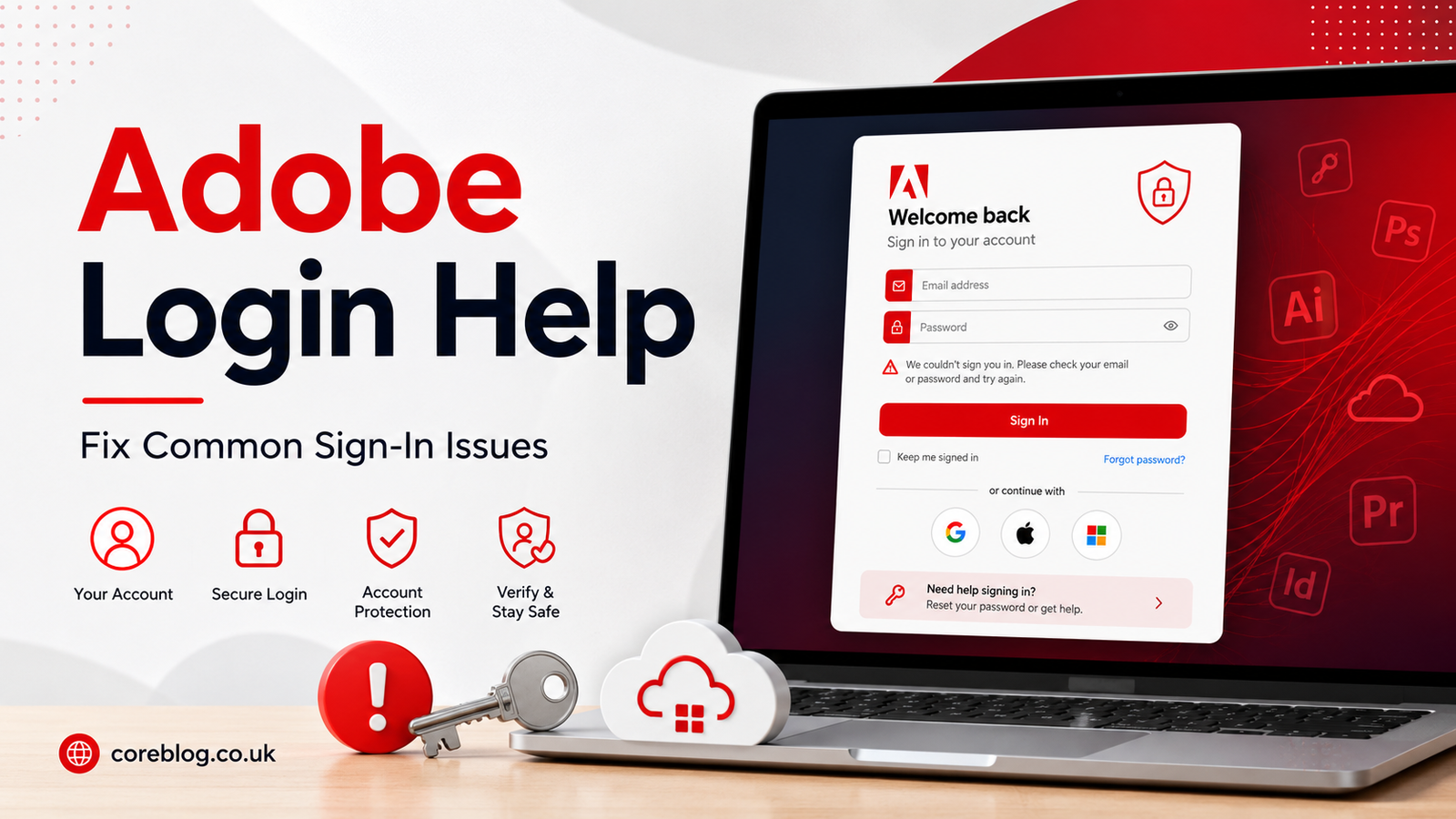
Trying to sign in to Adobe should be simple. You open the page, enter your email, type your password, and get back to your work. But anyone who has used Creative Cloud, Photoshop, Acrobat, Lightroom, Illustrator, or Adobe Express knows that login problems can appear at the worst possible time.
Maybe your password suddenly does not work. Maybe the verification code never arrives. Maybe Adobe keeps asking you to sign in again and again. Or maybe you are stuck because your account is linked to Google, Apple, Facebook, Microsoft, or a school email.
That is exactly where good Adobe Login Help becomes useful.
The truth is, most Adobe sign-in problems are not serious. They usually come from small things like a wrong email address, browser cache, expired sessions, two-step verification, subscription issues, or a password reset delay. However, when you are in the middle of editing a design, exporting a PDF, or opening a client project, even a small login issue can feel like a big problem.
This guide walks you through the most common Adobe login issues in plain English. No confusing tech talk. No unnecessary drama. Just practical fixes that can help you get back into your Adobe account safely and quickly.
What Is Adobe Login Help?
Adobe Login Help means troubleshooting support for problems related to signing in to your Adobe account. Your Adobe account is the main doorway to many Adobe products and services, including Creative Cloud apps, Acrobat, Adobe Stock, Adobe Fonts, Adobe Express, Lightroom, Photoshop, Premiere Pro, and more.
When your Adobe account sign-in fails, you may lose access to:
- Creative Cloud desktop app
- Paid subscription plans
- Cloud documents
- Adobe Fonts
- Saved projects
- Billing settings
- Downloaded apps
- Account security settings
- Adobe Express designs
- Acrobat online tools
That is why Adobe Login Help is not just about entering a password. It is about restoring smooth access to your creative tools, files, plans, and personal account settings.
Common Adobe Login Problems Users Face
Before fixing anything, it helps to know what kind of issue you are dealing with. Adobe login problems can look different depending on your account type, device, browser, app version, or security setup.
Here are the most common issues:
| Adobe Login Issue | Possible Reason | Quick Fix |
|---|---|---|
| Password not working | Wrong password or case error | Reset password carefully |
| Verification code not received | Email delay or phone issue | Check spam, resend code |
| Login page keeps loading | Browser cache or cookies | Clear cache or switch browser |
| Creative Cloud keeps signing out | Session or app conflict | Update Creative Cloud app |
| Social login not working | Google, Apple, or Microsoft issue | Try email login or reconnect account |
| Account locked | Too many failed attempts | Wait and reset password |
| School or work account issue | Admin settings | Contact IT admin |
| Subscription not showing | Wrong Adobe ID | Sign in with the correct email |
A simple mistake, such as using the wrong email address, can make it seem like your plan disappeared. So, before you panic, check the basics first.
Adobe Login Help: Start With the Basics
The first step in Adobe Login Help is not complicated. In fact, it is usually the simple checks that solve the problem fastest.
Check Your Email Address
Many people have more than one email address. You may have used a personal email, work email, school email, Google account, Apple ID, or Microsoft account to create your Adobe account.
If you sign in with the wrong email, Adobe may show a free account instead of your paid subscription. This can make it look like your apps or plan are missing.
Before trying advanced fixes, ask yourself:
- Did I buy Adobe with this email?
- Did I use Google or Apple sign-in before?
- Is this my work or school Adobe account?
- Do I have another email linked to Adobe?
- Did I recently change my email address?
This one check can save a lot of time.
Type Your Password Carefully
Passwords are case-sensitive. That means “Creative123” and “creative123” are not the same. Check if Caps Lock is on. Also, make sure your keyboard language has not changed.
If you copy and paste your password from a password manager, make sure there is no extra space at the beginning or end. It sounds small, but it happens more often than people think.
Try a Different Browser
Sometimes the Adobe login page may not work because of browser cookies, extensions, privacy settings, or old cached data. If you are using Chrome, try Edge, Firefox, or Safari. If the login works there, your original browser probably needs a cleanup.
How to Fix Adobe Password Problems
One of the most searched topics under Adobe Login Help is password trouble. Maybe you forgot your password, entered it wrong too many times, or changed it recently and still cannot sign in.
Reset Your Adobe Password
If your password is not working, use the password reset option on the Adobe sign-in page. Enter your Adobe account email, follow the instructions, and create a strong new password.
A good password should include:
- Uppercase letters
- Lowercase letters
- Numbers
- Symbols
- At least 12 characters
- No obvious personal details
Avoid using your name, birthday, website name, phone number, or simple words like “password123.” A strong password protects your Adobe account, payment details, projects, and cloud files.
Check Your Email Inbox
After requesting a password reset, check your inbox. If you do not see the email, look in:
- Spam folder
- Junk folder
- Promotions tab
- Updates tab
- Work email quarantine folder
Sometimes password reset emails take a few minutes. Do not request too many reset links at once, because the newest link may cancel the older one.
Use a Password Manager
If you often forget passwords, a trusted password manager can help. It stores your login details securely and reduces the chance of typing errors. In addition, it can help you create stronger passwords for your Adobe ID and other online accounts.
Adobe Login Help for Two-Step Verification Issues
Two-step verification adds extra security to your Adobe account. It usually asks for a code after you enter your password. This code may be sent to your phone, email, or authentication app.
However, two-step verification can become frustrating when the code does not arrive or your device is not available.
If You Do Not Receive the Code
First, wait a minute or two. Then try these steps:
- Select the resend code option
- Check your spam or junk folder
- Make sure your phone has signal
- Confirm your email address is correct
- Restart your phone
- Try another verification method if available
- Check if your inbox is full
If you use a work or school Adobe account, your organization may control some security settings. In that case, your IT admin may need to help.
If Your Phone Is Lost or Changed
This is one of the most stressful Adobe login problems. If your two-step verification code goes to a phone you no longer have, try another recovery option linked to your account. This may include your email address, mobile number, or authentication app.
For future safety, always keep your recovery email and phone number updated inside your Adobe account settings.
Fix Adobe Account Access App Problems
Adobe Account Access app can make sign-in easier because it lets you approve login requests from your phone. It is useful, but it can also cause problems if notifications are blocked or the app is outdated.
When the App Notification Does Not Appear
If you do not get the approval notification, open the Adobe Account Access app manually. Sometimes the notification is delayed, but the approval request may still be waiting inside the app.
You can also check:
- Phone notification settings
- Battery saver settings
- App permissions
- Internet connection
- App updates
- Phone security updates
If the app still does not work, choose another sign-in method from the Adobe login page.
When Your Device Is Not Supported
Some security apps need modern device features, such as screen lock, PIN, fingerprint, or face unlock. If your phone does not support these features, the app may not work correctly.
In that case, use a different verification method or update your device settings.
Adobe Login Help for Social Sign-In Problems
Many users create an Adobe account using Google, Apple, Facebook, Microsoft, LINE, or Kakao. Social login is convenient, but it can confuse things when the connected account changes.
For example, if you used Google sign-in before but now try to sign in with only your email and password, Adobe may not recognize the login the same way.
Try the Same Sign-In Method You Used Before
If you created your account with Google, use Google again. If you used Apple, use Apple again. This keeps the login path consistent and avoids account mismatch problems.
Check Your Social Account
Sometimes the issue is not Adobe at all. It may be your Google, Apple, or Microsoft account. Make sure you can sign in to that account first. If your social account is locked or needs verification, fix that before trying Adobe again.
Avoid Creating a Duplicate Account
If Adobe asks you to create a new account, pause for a moment. You may be using the wrong login method. Creating another account can make your subscription harder to find.
This is why Adobe Login Help often starts with one simple question: which email or sign-in method did you originally use?
What to Do If Creative Cloud Keeps Signing You Out
A common Adobe login complaint is this: “Creative Cloud keeps asking me to sign in.” This can happen on Windows, Mac, or mobile devices.
Here are practical fixes:
- Update the Creative Cloud desktop app
- Restart your computer
- Check your internet connection
- Sign out and sign back in
- Make sure your subscription is active
- Disable VPN temporarily
- Check firewall settings
- Clear Adobe app cache if needed
- Update your operating system
- Avoid using multiple Adobe IDs on one device
If you use Adobe apps for work, this issue may also happen because your company manages licenses through an admin console.
Adobe Login Help for Work or School Accounts
Work and school Adobe accounts can behave differently from personal accounts. Your organization may control access, password rules, two-step verification, app permissions, and product licenses.
Personal Account vs Company or School Account
Sometimes Adobe asks you to choose between a personal profile and a business or school profile. Pick the profile connected to your subscription or license.
If you choose the wrong profile, your apps may look missing even though your account is active.
Contact Your Admin
If your account belongs to an organization, your admin may control:
- Password reset rules
- Two-step verification
- App access
- License assignment
- Email changes
- Account recovery
- Security settings
In this case, Adobe Login Help may require help from your school, company, or IT department.
Browser Fixes for Adobe Login Errors
Browser problems are very common. A login page may freeze, reload, show a blank screen, or fail after entering the password.
Try these fixes one by one.
Clear Cache and Cookies
Old cookies can cause sign-in loops. Clear your browser cache and cookies, then open the Adobe login page again. This gives your browser a fresh start.
Disable Extensions
Some ad blockers, privacy extensions, script blockers, and security plugins may stop the Adobe login page from loading properly. Try turning extensions off temporarily and sign in again.
Use Incognito or Private Mode
Private browsing can help you test whether cookies or saved sessions are causing the issue. If Adobe login works in private mode, your normal browser settings need attention.
Update Your Browser
An outdated browser may not support modern sign-in features. Keep your browser updated for better security and smoother account access.
Adobe Login Help for Account Locked Issues
If you enter the wrong password too many times, your Adobe account may temporarily block sign-in attempts. This protects your account from unauthorized access.
If this happens:
- Wait before trying again
- Reset your password
- Do not keep guessing
- Check your email for security alerts
- Use a trusted device
- Avoid public Wi-Fi during recovery
Trying too many passwords quickly can make the problem worse. It is better to reset your password calmly and follow the recovery steps.
How to Keep Your Adobe Account Secure
Fixing login problems is important, but preventing them is even better. A secure Adobe account protects your designs, documents, billing details, cloud files, and creative work.
Use Strong Account Security
Here are smart habits:
- Use a unique password
- Turn on two-step verification
- Keep your recovery email updated
- Add a current phone number
- Review signed-in devices
- Avoid sharing your Adobe ID
- Sign out on public computers
- Watch for phishing emails
- Keep apps updated
Good security does not have to be complicated. A few simple habits can prevent most account access problems.
Be Careful With Fake Login Pages
Always make sure you are signing in through Adobe’s official account page or trusted Adobe apps. Fake login pages can steal your email and password.
Be careful if an email says your Adobe account will be closed, your payment failed, or your files will be deleted. Scammers often use fear to make people click quickly.
Before entering your Adobe login details, check the page carefully.
Quick Adobe Login Troubleshooting Checklist
If you want a fast solution, follow this simple checklist.
Basic Checks
- Confirm the correct email address
- Check Caps Lock
- Use the same sign-in method as before
- Reset your password if needed
- Check spam or junk folders
- Try another browser
- Clear cache and cookies
- Disable browser extensions
- Update Creative Cloud
- Restart your device
Security Checks
- Resend the verification code
- Check phone signal
- Open the Account Access app manually
- Try another verification method
- Update recovery details
- Contact your admin for work or school accounts
This checklist covers most Adobe Login Help situations without making the process feel overwhelming.
Mistakes to Avoid During Adobe Login Problems
When people get locked out, they often rush. That is understandable, but rushing can create more confusion.
Avoid these mistakes:
- Creating multiple Adobe accounts
- Guessing passwords repeatedly
- Ignoring the original sign-in method
- Using an old email address without checking
- Skipping spam or junk folders
- Turning off security without understanding it
- Sharing login details with others
- Clicking unknown password reset links
- Assuming your subscription disappeared
- Forgetting to check work or school account settings
A calm approach usually works better. Take one step at a time and check the simple things first.
Why Adobe Login Help Matters for Creators and Businesses
Adobe tools are part of daily work for millions of creators, designers, marketers, photographers, editors, students, agencies, and business owners. A login problem can slow down projects, delay client work, and interrupt creative flow.
For a freelancer, being locked out of Photoshop or Acrobat can mean missing a deadline. For a marketing team, Creative Cloud sign-in issues can delay campaign assets. For a student, account access trouble can affect assignments.
That is why Adobe Login Help is more than a basic tech topic. It is about productivity, security, and peace of mind.
When your Adobe account works smoothly, you can focus on the real job: creating, editing, designing, writing, exporting, sharing, and delivering your work.
When Should You Contact Adobe Support?
Most login issues can be fixed with password resets, browser changes, verification checks, or account recovery steps. However, some situations may need direct support.
You may need extra help if:
- Your account was hacked
- Your email no longer exists
- Your subscription is missing
- You cannot access any recovery method
- Your account belongs to a company or school
- You see billing issues after signing in
- You created duplicate accounts by mistake
- You cannot reactivate a deleted account
- Your apps still show trial mode after login
Before contacting support, collect useful details such as your Adobe ID email, device type, browser name, app name, error message, and payment receipt if needed. This can make the support process faster.
Final Thoughts
Adobe login problems can be annoying, especially when you need quick access to your files, apps, or subscription. However, most issues have simple causes. A wrong email, expired password, blocked verification code, browser cache, social sign-in mismatch, or work account setting can stop you from getting in.
The good news is that Adobe Login Help does not have to be confusing. Start with the basics. Check your email, reset your password, review your verification method, clear your browser data, update Creative Cloud, and make sure you are using the same sign-in method you used when you created the account.
Also, protect your account before trouble starts. Use a strong password, keep two-step verification active, update your recovery details, and stay alert for fake login pages.
If this guide helped you understand Adobe Login Help better, share it with someone who uses Adobe apps regularly. And if you have faced a strange Adobe sign-in issue before, leave a comment with your experience so other readers can learn from it too.










Leave a Reply