

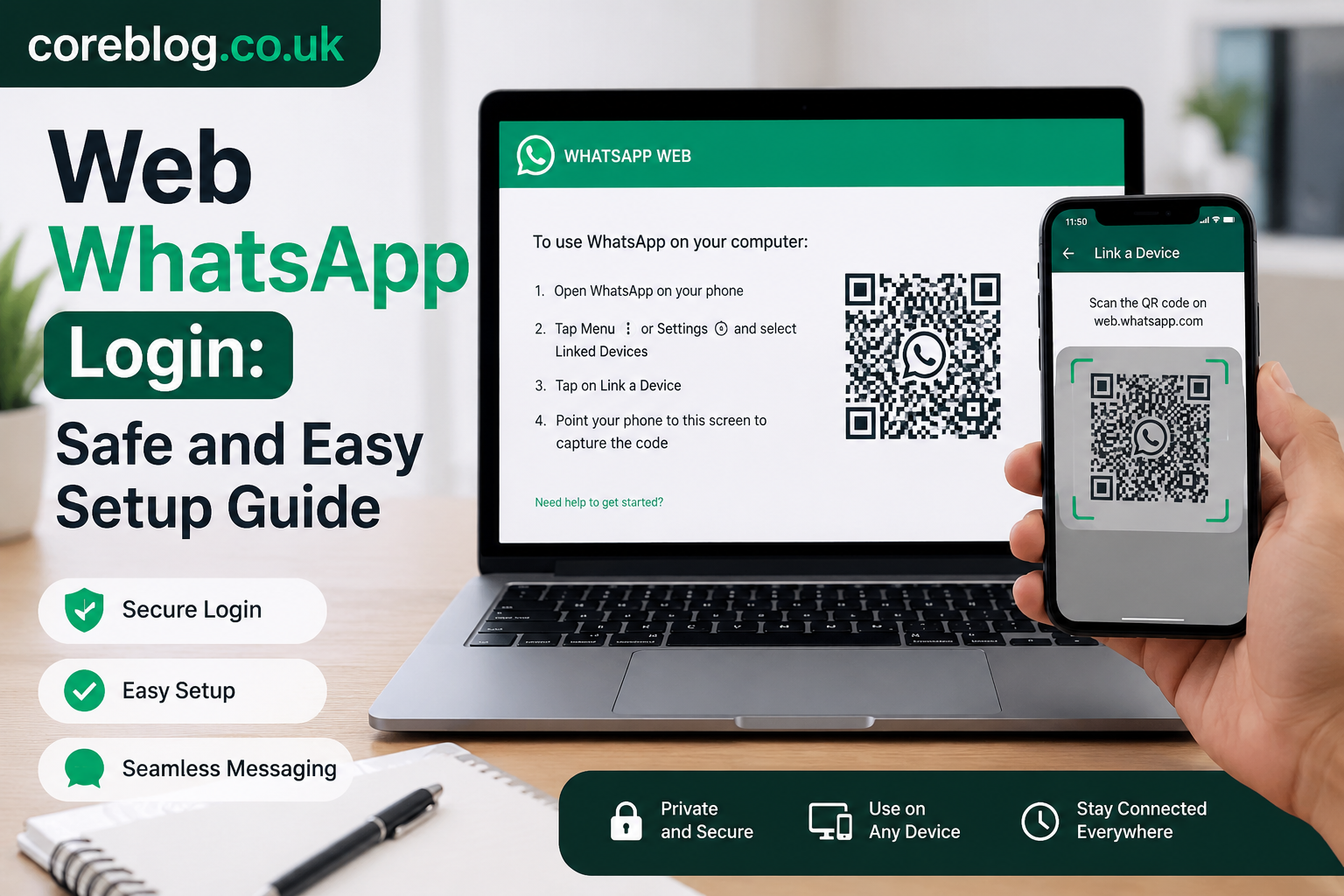
Web WhatsApp Login: Safe and Easy Setup Guide
Why Web WhatsApp Makes Daily Chatting Easier
There is something quietly satisfying about replying to messages from a full keyboard. No tiny screen. No constant switching between your phone and laptop. No typing long replies with your thumbs while trying to work, study, or manage a busy day. That is exactly why Web WhatsApp has become such a useful tool for millions of people.
Whether you are answering family messages, handling business chats, sharing documents, or keeping up with a group conversation, Web WhatsApp gives you a simple way to use WhatsApp from your desktop browser. You do not need to be a tech expert. You do not need to install complicated software. In most cases, you open the WhatsApp Web page, scan a QR code, and your chats appear on your computer.
However, many users still feel unsure about the login process. Is it safe? Can someone else access your account? What happens if the QR code does not load? Can you use it without keeping your phone online all the time? These are fair questions, especially because messaging apps carry personal conversations, photos, files, voice notes, and sometimes business details.
This guide explains Web WhatsApp in a clear, practical, and beginner-friendly way. You will learn how to log in safely, how linked devices work, how to protect your account, and how to fix common problems without stress.
What Is Web WhatsApp?
Web WhatsApp is the browser-based version of WhatsApp. It lets you access your WhatsApp chats from a desktop or laptop browser instead of only using the mobile app. You can send messages, receive files, view media, manage chats, and continue conversations from a bigger screen.
In simple words, it connects your WhatsApp account to your computer through a linked device system. WhatsApp officially explains that users can link devices by scanning a QR code or using a phone number method on supported devices, and linked devices allow WhatsApp use beyond the primary phone.
For everyday users, this means one thing: you can continue your chats on a desktop while your phone stays in your pocket.
Why People Prefer Web WhatsApp
People use Web WhatsApp because it feels faster and more comfortable, especially during work hours. Typing on a keyboard is easier than typing on a mobile screen. Sharing files from a computer is quicker. Reading long messages also feels less tiring.
Some common reasons people use it include:
| Use Case | Why Web WhatsApp Helps |
|---|---|
| Office communication | Faster typing and easier file sharing |
| Online classes | Simple chat access while studying |
| Customer support | Quick replies to clients and customers |
| Personal messaging | Convenient chatting on a larger screen |
| File sharing | Easy upload of PDFs, images, and documents |
| Group chats | Better control over busy conversations |
How Web WhatsApp Login Works
The Web WhatsApp login process is based on device linking. Instead of entering a password, you connect your browser to your WhatsApp account using your phone. The most common method is QR code scanning.
When you open WhatsApp Web in your browser, a QR code appears on the screen. Then you open WhatsApp on your phone, go to linked devices, and scan the code. Once the code is verified, your chats appear on the browser.
WhatsApp also supports linking through a phone number and one-time code in some cases, which gives users another way to connect a device without scanning a QR code.
Is Web WhatsApp a Separate Account?
No. Web WhatsApp is not a new WhatsApp account. It is a linked version of your existing WhatsApp account. Your phone number stays the same. Your contacts remain the same. Your chats are connected to the account you already use.
That is why you should never scan a QR code from a random website or unknown screen. Only use the official WhatsApp Web login page and your own device.
Step-by-Step Guide to Web WhatsApp Login
Logging in to Web WhatsApp is simple once you know the steps. Here is the safe and easy method.
Step 1: Open WhatsApp Web on Your Computer
Open your desktop browser and go to the official WhatsApp Web page. You should see a QR code on the screen. Use a trusted browser such as Chrome, Edge, Safari, Firefox, or another updated browser.
Avoid searching randomly and clicking unknown websites that pretend to offer WhatsApp login. Fake pages can be used to trick users.
Step 2: Open WhatsApp on Your Phone
Now pick up your phone and open the WhatsApp app. Make sure your app is updated. An outdated app can sometimes cause login issues, QR scan problems, or syncing delays.
Step 3: Go to Linked Devices
On Android, tap the menu icon and choose Linked devices.
On iPhone, go to Settings and choose Linked Devices.
This area shows devices currently connected to your WhatsApp account. It is also where you can remove old sessions.
Step 4: Tap Link a Device
Tap Link a Device. Your phone may ask for fingerprint, face unlock, PIN, or another security check. This is a good thing because it helps prevent someone else from linking your WhatsApp without permission.
Step 5: Scan the QR Code
Point your phone camera toward the QR code shown on your computer screen. Keep the phone steady for a second. Once the scan is successful, Web WhatsApp will load your chats in the browser.
Step 6: Start Messaging Safely
After login, you can send messages, open chats, search conversations, share files, download media, and reply faster from your computer.
Web WhatsApp Login With Phone Number
Some users may see an option to link with a phone number instead of a QR code. This method can be useful when the camera is not working or the QR code is difficult to scan.
The basic process usually works like this:
- Open Web WhatsApp on your desktop browser.
- Choose the option to link with phone number if available.
- Enter your phone number.
- A one-time code appears.
- Open WhatsApp on your phone.
- Go to linked devices.
- Enter or confirm the code.
This method is designed to make login more accessible. However, you should still use it carefully. Never share one-time codes with anyone. If someone asks for your code, treat it as a warning sign.
Is Web WhatsApp Safe?
Yes, Web WhatsApp is safe when used correctly. WhatsApp says personal messages and calls on linked devices remain end-to-end encrypted, and linked devices connect independently while staying tied to your main account.
However, safety also depends on user habits. If you log in on a public computer and forget to log out, someone else may see your chats. If you scan a fake QR code, your account privacy can be at risk. If your computer has malware, your information may not be safe.
So, the real answer is this: Web WhatsApp is secure, but you must use it responsibly.
Smart Safety Tips for Web WhatsApp
Here are simple habits that make a big difference:
- Always use the official WhatsApp Web page.
- Do not scan QR codes from unknown websites.
- Log out from shared or public computers.
- Check linked devices regularly.
- Keep your phone and browser updated.
- Use screen lock on your phone and computer.
- Avoid downloading suspicious files from chats.
- Never share login codes or verification codes.
- Do not leave your desktop unlocked.
- Remove devices you no longer use.
These steps may sound basic, but they protect your private messages better than most people realize.
How to Check Linked Devices
One of the best security habits is checking your linked devices. This only takes a few seconds.
Open WhatsApp on your phone, go to Linked Devices, and review the list. If you see a browser, computer, location, or session you do not recognize, remove it immediately.
This is especially important if you use Web WhatsApp at work, school, a cyber cafe, or on someone else’s laptop.
When Should You Log Out?
You should log out when:
- You used a public computer.
- You borrowed someone’s laptop.
- You no longer use that device.
- You notice strange activity.
- You changed your phone.
- You are selling or giving away your computer.
- You feel unsure about account privacy.
Logging out is not a big task, but it can prevent a serious privacy problem.
Web WhatsApp Features You Should Know
Many people use Web WhatsApp only for basic chatting, but it can do much more. Once you understand the features, your daily messaging becomes smoother.
1. Fast Typing With Keyboard
This is the biggest benefit. If you write long messages, handle clients, or reply to many people, a full keyboard saves time. It also reduces typing mistakes.
2. Easy File Sharing
You can send files directly from your desktop. This is helpful for documents, images, PDFs, spreadsheets, videos, and work files.
3. Chat Search
Need to find an old message? Use the search feature. It is much easier to search conversations on a large screen.
4. Voice Notes and Media
You can listen to voice notes, view images, download files, and manage media from your computer.
5. Notifications
Browser notifications help you stay updated without checking your phone every minute. However, you should turn them off if you share your screen or work in a public space.
6. Multiple Linked Devices
WhatsApp supports linked devices, allowing users to access the same account across supported devices. This is helpful for people who switch between computers or use WhatsApp for business communication.
Common Web WhatsApp Login Problems and Fixes
Even though Web WhatsApp is simple, small issues can happen. The good news is that most problems are easy to fix.
QR Code Not Loading
If the QR code does not appear, try these fixes:
- Refresh the page.
- Check your internet connection.
- Clear browser cache.
- Disable browser extensions temporarily.
- Try another browser.
- Restart your computer.
- Make sure WhatsApp Web is not blocked by your network.
Sometimes office or school networks block messaging websites. If that happens, try a different network.
QR Code Not Scanning
If your phone cannot scan the QR code:
- Clean your phone camera.
- Increase screen brightness.
- Move your phone closer or farther.
- Refresh the QR code.
- Make sure your camera permission works.
- Update WhatsApp on your phone.
A blurry screen, dirty camera lens, or low brightness can make scanning harder than expected.
Chats Not Syncing
If chats take time to appear, wait a moment. Large chat histories, weak internet, or browser issues can slow syncing.
Try:
- Checking your internet connection.
- Restarting your browser.
- Updating WhatsApp.
- Logging out and linking again.
- Checking if WhatsApp is working properly on your phone.
Web WhatsApp Keeps Disconnecting
This can happen because of poor internet, browser sleep settings, VPN issues, or outdated software.
To fix it:
- Use a stable Wi-Fi connection.
- Keep your browser updated.
- Avoid aggressive battery-saving settings.
- Disable unnecessary VPN or proxy tools.
- Re-link the device if needed.
Notifications Not Working
If you do not receive desktop notifications:
- Allow browser notifications.
- Check system notification settings.
- Make sure Do Not Disturb mode is off.
- Keep the WhatsApp Web tab open.
- Check browser permission settings.
Web WhatsApp vs WhatsApp Desktop
Some people wonder whether they should use Web WhatsApp or the desktop app. Both are useful, but they suit different needs.
| Feature | Web WhatsApp | WhatsApp Desktop App |
|---|---|---|
| Installation | No install needed | Requires installation |
| Access | Browser-based | App-based |
| Best For | Quick use, shared computers, light users | Daily users, work setup |
| Updates | Browser refresh | App updates |
| Convenience | Very easy | More permanent |
| Performance | Depends on browser | Often smoother |
| Storage | Minimal | Uses app storage |
If you only use WhatsApp on your computer sometimes, Web WhatsApp is enough. If you use it all day for work, the desktop app may feel better.
Best Browsers for Web WhatsApp
Web WhatsApp works best on modern, updated browsers. For a smooth experience, use a browser that is fast, secure, and regularly updated.
Good browser choices include:
- Google Chrome
- Microsoft Edge
- Mozilla Firefox
- Safari
- Opera
Avoid old browsers because they may create login errors, display issues, or security risks.
Web WhatsApp for Business Users
For small business owners, Web WhatsApp can be a real time-saver. Imagine running an online store and answering customer questions from your laptop. It feels faster, more organized, and more professional.
You can use it to:
- Reply to customer messages.
- Share product photos.
- Send invoices or PDFs.
- Handle order updates.
- Manage support conversations.
- Coordinate with team members.
- Save time during busy hours.
If you use WhatsApp Business, linked device support can help multiple people manage communication more easily, depending on your setup and account type. This makes Web WhatsApp useful for shops, freelancers, agencies, consultants, and service providers.
Business Safety Advice
If your team uses Web WhatsApp, set simple rules:
- Only trusted staff should access the account.
- Remove old devices when employees leave.
- Do not open unknown files.
- Keep customer data private.
- Use a secure office computer.
- Check linked devices weekly.
Customer trust is valuable. Protect it carefully.
Privacy Tips for Web WhatsApp Users
Privacy matters. Your chats may include personal messages, bank screenshots, family photos, business deals, client details, or private documents. So, do not treat Web WhatsApp casually.
Use It Carefully in Public Places
If you are sitting in a cafe, office, library, or classroom, people around you may see your screen. Be careful when opening private chats.
Turn Off Message Previews
Desktop notifications can reveal message content. If you work around others, adjust notification settings to protect your privacy.
Lock Your Computer
This is simple but powerful. If you leave your desk, lock your screen. Do not depend only on WhatsApp security.
Avoid Shared Computers
Using Web WhatsApp on shared computers is risky. If you must use one, log out before leaving.
Review Devices Often
Make it a habit. Once a week, open linked devices and check what is connected.
Web WhatsApp Keyboard Shortcuts and Productivity Tips
A few small habits can make Web WhatsApp feel much faster.
Use Search Before Scrolling
Instead of scrolling through hundreds of messages, search by keyword. It saves time and reduces frustration.
Pin Important Chats
Pin chats you use often. This helps you keep important conversations at the top.
Archive Less Important Chats
Archiving helps reduce clutter. A cleaner chat list makes communication easier.
Download Files Carefully
Only download files from people you trust. Strange attachments can create security risks.
Keep Work and Personal Chats Organized
If you use Web WhatsApp for both work and personal life, be careful before sending messages. It is easy to reply in the wrong chat when many conversations are open.
Mistakes to Avoid With Web WhatsApp
Many users make small mistakes that can create big problems. Here are the most common ones.
Mistake 1: Staying Logged In on Public Computers
This is the biggest mistake. Always log out after using a shared device.
Mistake 2: Scanning Unknown QR Codes
Only scan QR codes from the official WhatsApp Web login screen. Unknown QR codes can be dangerous.
Mistake 3: Ignoring Linked Devices
If you never check linked devices, you may not notice unwanted access.
Mistake 4: Sharing Verification Codes
Never share WhatsApp codes. Not with friends. Not with strangers. Not with someone pretending to be support.
Mistake 5: Using Outdated Browsers
An old browser can cause errors and may be less secure.
Is Web WhatsApp Good for Students?
Yes, Web WhatsApp can be very useful for students. It helps with group projects, class updates, file sharing, and quick communication. Students can download notes, send assignments, and discuss study plans from a laptop.
However, it can also become distracting. If you are studying, mute unnecessary groups and keep only important chats active.
Is Web WhatsApp Good for Office Work?
Absolutely. For office users, Web WhatsApp is one of the easiest ways to manage communication. It works well for quick updates, team coordination, client replies, and document sharing.
Still, companies should be careful with sensitive data. Not every business conversation belongs on a messaging app. Use good judgment, especially with legal, financial, or private customer information.
Quick Troubleshooting Table
| Problem | Possible Cause | Easy Fix |
|---|---|---|
| QR code not loading | Browser or internet issue | Refresh page or change browser |
| QR code not scanning | Camera or brightness issue | Clean camera and increase brightness |
| Chats not syncing | Weak connection | Check internet and wait |
| Notifications missing | Permission blocked | Allow notifications |
| Keeps logging out | Browser or device issue | Re-link device |
| Unknown linked device | Possible unauthorized access | Log it out immediately |
Final Safety Checklist for Web WhatsApp Login
Before using Web WhatsApp, remember this simple checklist:
- Use the official login page.
- Scan only trusted QR codes.
- Keep WhatsApp updated.
- Check linked devices.
- Log out from shared computers.
- Lock your desktop screen.
- Never share one-time codes.
- Avoid suspicious downloads.
- Review privacy settings.
- Stay alert when using public Wi-Fi.
This checklist is easy, but it gives you strong protection.
Conclusion: Use Web WhatsApp the Smart and Safe Way
Web WhatsApp is one of those tools that feels simple but makes daily life much easier. It helps you type faster, share files quickly, manage chats on a bigger screen, and stay connected while working or studying. For personal users, it adds comfort. For business users, it saves time. For students, it makes group communication easier.
Still, convenience should never replace caution. The safest way to use Web WhatsApp is to log in only through the official page, scan QR codes carefully, review linked devices, and log out when using shared computers. These small habits protect your chats, your privacy, and your peace of mind.
If you use Web WhatsApp often, take a minute today to check your linked devices and update your app. And if this guide helped you, share it with someone who still struggles with WhatsApp Web login or worries about using it safely.












Leave a Reply