

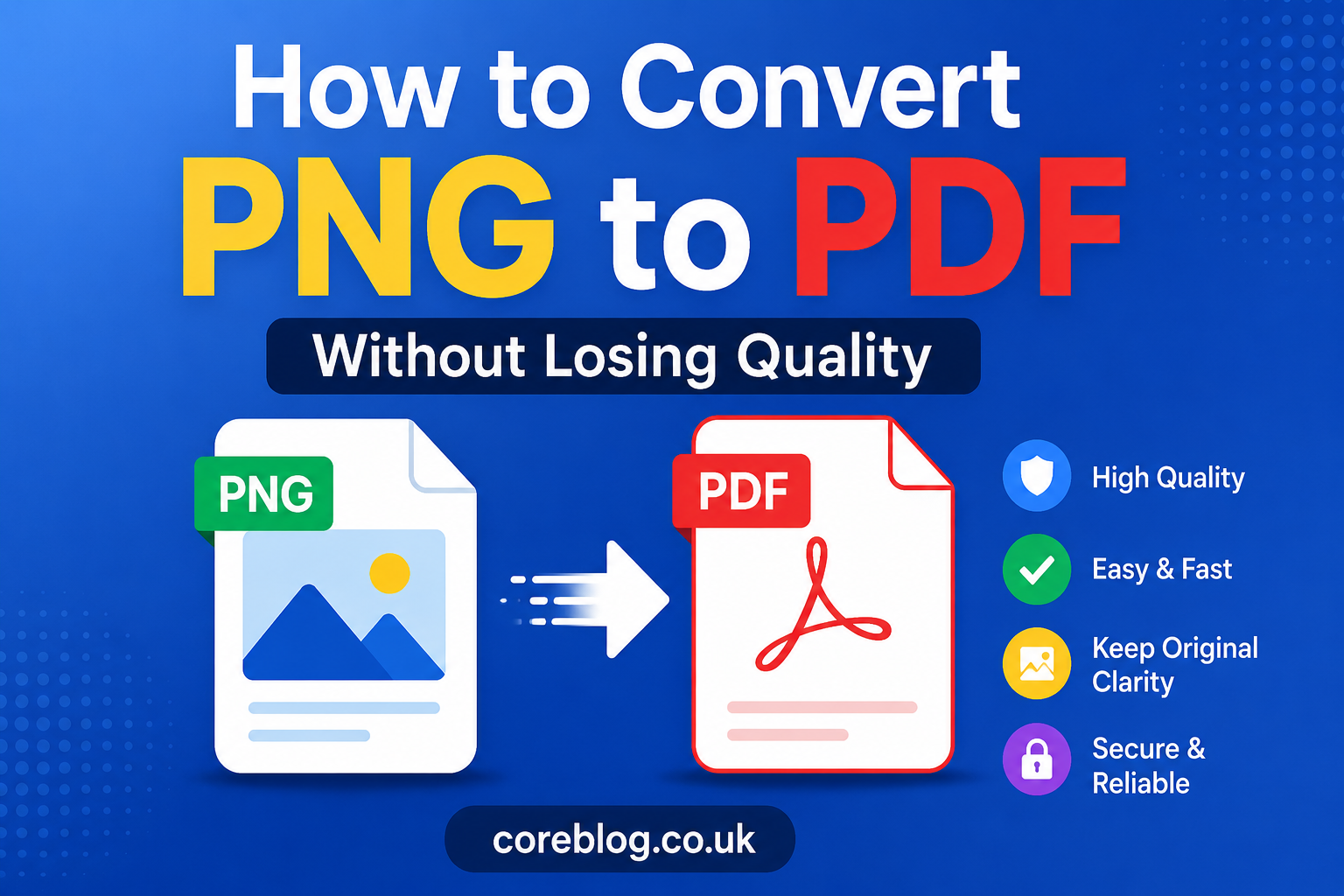
How to Convert PNG to PDF Without Losing Quality
Converting an image sounds simple until the final file looks blurry, stretched, or strangely compressed. Maybe you scanned a document, designed a graphic, saved a screenshot, or received a set of PNG images that need to be shared as one clean file. Then you try to convert PNG to PDF, and suddenly the sharp text turns soft, the colors look dull, or the page size feels wrong.
Annoying, right?
The good news is that you can convert PNG to PDF without losing quality if you understand a few basic rules. You do not need to be a designer or a tech expert. You only need to know how image resolution, compression, page size, and PDF settings work together.
In this guide, I’ll walk you through everything in a simple, practical way. We’ll cover the best methods, common mistakes, quality-saving tips, and smart settings that help you turn PNG images into professional PDF documents without ruining the original look.
What Does PNG to PDF Mean?
PNG to PDF simply means changing a PNG image file into a PDF document. PNG stands for Portable Network Graphics. It is a popular image format known for sharp details, transparent backgrounds, and clean quality.
PDF stands for Portable Document Format. It is widely used for documents because it keeps formatting stable across different devices, browsers, printers, and operating systems.
So, when you convert PNG to PDF, you are placing your image inside a document format that is easier to share, print, upload, archive, or email.
For example, you may convert:
- A scanned ID card into a PDF file
- A screenshot into a printable document
- Multiple PNG images into one PDF
- A design mockup into a client-ready file
- A digital certificate into a secure document
- A photo-based form into an uploadable PDF
The real goal is not just conversion. The goal is keeping the image clear, readable, and professional.
Why Convert PNG to PDF?
There are many reasons people choose PNG to PDF conversion. PNG files are great for images, but PDF files are often better for documents.
Here is why PDF is useful:
| Reason | Why It Matters |
|---|---|
| Easy sharing | PDF opens on almost every device |
| Fixed layout | Text, image size, and page format stay stable |
| Better printing | PDF handles page size more accurately |
| Multiple files | You can combine many PNG images into one PDF |
| Professional look | PDF feels more formal for work or school |
| Upload friendly | Many websites accept PDF instead of image files |
| Document storage | PDF is better for records and archives |
Let’s say you have five PNG screenshots of a report. Sending them one by one feels messy. But when you convert those PNG images into a single PDF, it looks organized and easy to read.
That is why PNG to PDF is useful for students, freelancers, office workers, designers, teachers, business owners, and anyone who handles digital documents.
Does Converting PNG to PDF Reduce Quality?
It can, but it does not have to.
A simple PNG to PDF conversion should not automatically destroy image quality. In many cases, the PDF can keep the original sharpness. However, quality loss happens when the tool or software compresses the image too much, resizes it incorrectly, or changes the resolution.
The most common reasons for poor quality are:
- Low-resolution PNG image
- Heavy PDF compression
- Wrong page size
- Image stretching
- Poor online converter settings
- Converting screenshots with small text
- Saving as “small file size” instead of “high quality”
- Repeated conversions from one format to another
Think of it this way: if your original PNG is already blurry, the PDF cannot magically fix it. But if your PNG is clear, you can usually keep that clarity with the right settings.
How to Convert PNG to PDF Without Losing Quality
The best way to convert PNG to PDF depends on your device, purpose, and number of images. Below are simple methods that work well for most users.
Method 1: Convert PNG to PDF on Windows
Windows makes this process fairly easy because it has a built-in print-to-PDF feature.
Steps for Windows
- Open the folder where your PNG image is saved.
- Right-click the PNG file.
- Select Print.
- Choose Microsoft Print to PDF as the printer.
- Select the correct paper size.
- Choose image quality and fit settings carefully.
- Click Print.
- Save the new PDF file.
Quality Tip for Windows
Avoid choosing settings that shrink or stretch the image too much. If your PNG contains text, select a page layout that keeps the image close to its original size.
If you are converting multiple images, select all PNG files first, right-click, and choose print. Windows can place them into one PDF, but you should check the preview before saving.
Method 2: Convert PNG to PDF on Mac
Mac users can convert PNG to PDF using Preview, which is already built into macOS.
Steps for Mac
- Open the PNG image in Preview.
- Click File.
- Choose Export as PDF or Print.
- Select PDF from the save options.
- Choose the destination folder.
- Save the file.
For Multiple PNG Images
Open all images in Preview, arrange them in the right order, then export or print them as a single PDF. This is very useful for scanned pages, receipts, notes, or image-based reports.
Quality Tip for Mac
Do not reduce file size unless you really need a smaller PDF. The “reduce file size” option can compress images and make text less sharp.
Method 3: Convert PNG to PDF Online
Online converters are probably the fastest way to convert PNG to PDF. You upload the PNG file, click convert, and download the PDF.
However, choose carefully. Not every online PNG converter handles quality the same way.
What to Look for in an Online Converter
A good online tool should offer:
- High-quality conversion
- No watermark
- Multiple image upload
- Page size options
- Image order control
- Secure file handling
- Fast download
- Clear preview
- Compression control
When Online Conversion Works Best
Online tools are useful when:
- You need a quick conversion
- You are not using your own computer
- You want to convert multiple PNG files
- You do not want to install software
- The file is not private or sensitive
Privacy Note
If your PNG contains personal documents, financial details, ID cards, contracts, or private business data, use offline software instead. It is safer.
Method 4: Convert PNG to PDF on Mobile
Many people now handle documents directly from their phones. Whether you use Android or iPhone, converting PNG to PDF is easy.
On iPhone
You can use the Photos app and the print option.
- Open the PNG image.
- Tap the share button.
- Choose Print.
- Zoom out on the preview to create a PDF view.
- Share or save it as a PDF.
You can also use the Files app to create PDFs from images.
On Android
Android options depend on the phone brand, but most devices allow image-to-PDF conversion through Gallery, Files, Google Drive, or built-in print options.
Basic steps usually look like this:
- Open the PNG image.
- Tap Share or Print.
- Choose Save as PDF.
- Select page size and orientation.
- Save the file.
Mobile Quality Tip
Do not use low-quality scanner apps that over-compress the image. Also, avoid cropping too much if the PNG includes important edges, text, or design elements.
Best Settings for High-Quality PNG to PDF Conversion
If you want clean results, settings matter. A poor setting can make even a sharp PNG look average.
Here are the most important settings to check.
1. Resolution
Resolution affects sharpness. For documents and printing, 300 DPI is often a good standard. For screen viewing, 150 DPI can work, but 300 DPI gives a cleaner result.
If the PNG has small text, fine lines, charts, signatures, or logos, use higher resolution.
2. Page Size
Choose the right PDF page size. Common options include:
- A4
- Letter
- Legal
- Custom size
- Original image size
For business documents, A4 or Letter is usually best. For design work, original image size may preserve the layout better.
3. Orientation
Use portrait for vertical images and landscape for wide images. A wrong orientation can add white space or shrink your image.
4. Compression
Compression reduces file size, but too much compression reduces quality. If your goal is clarity, choose high quality instead of maximum compression.
5. Margins
Margins can change how your image appears on the PDF page. If you want the PNG to fill the page, choose borderless or fit-to-page carefully. If you need a clean document look, standard margins are fine.
PNG to PDF Without Blurry Text
One of the biggest complaints during PNG to PDF conversion is blurry text. This usually happens with screenshots, scanned notes, forms, and image-based documents.
To keep text sharp:
- Start with a high-resolution PNG
- Avoid zoomed-out screenshots
- Do not resize the image too much
- Use high-quality PDF export settings
- Avoid repeated saving
- Do not convert PNG to JPG before PDF
- Use original files instead of copied images
- Check the preview before final export
PNG is usually better than JPG for text-heavy images because PNG keeps edges cleaner. That is why converting PNG to PDF is often a smart choice for screenshots, digital notes, and scanned pages.
How to Convert Multiple PNG Images into One PDF
Sometimes one image is not enough. You may have several PNG pages that need to become one PDF file.
This is common for:
- Assignments
- Receipts
- Invoices
- Scanned forms
- Reports
- Portfolios
- Certificates
- Product images
- Presentation slides
- Legal documents
Best Way to Combine PNG Files
Before converting, rename your images in order:
- page-1.png
- page-2.png
- page-3.png
- page-4.png
This keeps everything organized. Then upload or select them in the correct order before creating the PDF.
Why Order Matters
If your pages are out of order, the final PDF will feel confusing. Always preview the file before saving or sending it.
PNG vs JPG for PDF Conversion
Many people ask whether PNG or JPG is better for PDF. The answer depends on the image.
| Format | Best For | Quality |
|---|---|---|
| PNG | Text, screenshots, logos, graphics | Sharp and clean |
| JPG | Photos and large images | Smaller but compressed |
| Sharing, printing, documents | Stable and professional |
If your image has text, icons, line art, transparent background, or clean graphics, PNG is usually better. If it is a regular photo, JPG may be smaller.
For quality-focused PNG to PDF conversion, PNG is a strong choice because it keeps details crisp.
Common Mistakes to Avoid
Even a good converter cannot save your PDF if the setup is poor. Here are common mistakes people make.
Using a Low-Quality Original Image
A PDF will not improve a blurry PNG. Always begin with the clearest version available.
Choosing Maximum Compression
Small file size is useful, but not when it ruins readability. Balance file size and quality.
Stretching the Image
Stretching makes images look distorted. Use proper scaling.
Ignoring Page Preview
Preview tells you exactly how the PDF will look. Never skip it.
Uploading Private Files to Random Tools
Use trusted tools or offline software for sensitive documents.
Converting Too Many Times
PNG to PDF is fine. But PNG to JPG to PDF to compressed PDF can reduce quality. Keep the process simple.
How to Reduce PDF Size Without Losing Too Much Quality
A high-quality PDF can sometimes become large. That is normal, especially if your PNG images are big. However, you can reduce size carefully.
Try these tips:
- Resize very large images before conversion
- Use 300 DPI for print and 150 DPI for screen use
- Compress only when needed
- Remove unnecessary blank space
- Use grayscale for black-and-white documents
- Combine only required pages
- Avoid adding duplicate images
- Use optimized PDF settings
The goal is not always the smallest file. The goal is a PDF that is clear enough and light enough for your purpose.
Best Uses of PNG to PDF Conversion
Converting PNG to PDF is useful in many real-life situations. Here are some examples.
For Students
Students often convert notes, diagrams, screenshots, and assignment pages into PDF format. It makes submission easier and cleaner.
For Office Work
Professionals use PDF documents for reports, invoices, contracts, scanned forms, and official records.
For Designers
Designers may share PNG mockups, logos, banners, or layout previews as PDF files for client approval.
For Online Applications
Many websites require documents in PDF format. Converting image files into PDF can help you upload certificates, IDs, and forms.
For Printing
PDF gives better control over paper size, margins, and layout. This makes printing more predictable.
Is PNG to PDF Safe?
The conversion itself is safe. The real safety issue is the tool you use.
Offline conversion is usually safer because your files stay on your device. Online conversion is convenient, but it may not be ideal for private documents.
If your file includes personal or sensitive information, use:
- Built-in Windows tools
- Mac Preview
- Trusted desktop software
- Secure mobile apps
- Password-protected PDF tools
Also, avoid uploading confidential files to unknown websites.
How to Make Your PDF Look Professional
A clean PDF is not only about quality. Presentation also matters.
Before sharing your file, check these things:
- Is the image centered?
- Are all pages in the right order?
- Is the text readable?
- Are margins balanced?
- Is the file name clear?
- Is the PDF size acceptable?
- Does it open correctly on another device?
- Is the orientation correct?
- Are there unwanted borders?
- Are colors close to the original PNG?
A file named project-report-final.pdf looks much better than image123convertednewfinal2.pdf.
Small details make a big difference.
PNG to PDF for Printing
If you want to print your converted file, quality becomes even more important.
For printing, use:
- 300 DPI resolution
- Correct paper size
- High-quality export
- Original image size when possible
- Proper margins
- Portrait or landscape orientation based on image shape
Also, avoid over-compression. A PDF may look okay on screen but print poorly if the image quality is too low.
PNG to PDF for Email
For email, file size matters. Some email services limit attachments, so you may need a balance between quality and size.
If the PDF is too large:
- Compress it lightly
- Reduce image dimensions
- Remove extra pages
- Use grayscale if color is not needed
- Split the PDF into smaller files
However, do not compress too much if the file has important text.
PNG to PDF for Business Documents
Business files should look neat and trustworthy. A blurry invoice, rough contract scan, or poorly cropped document can look unprofessional.
For business use, always:
- Use high-resolution PNG files
- Keep pages aligned
- Name files properly
- Check spelling on image-based documents
- Avoid watermarked converters
- Use secure tools
- Keep a backup of the original PNG
A clean PDF can make your work look more serious and reliable.
Quick Checklist Before You Convert PNG to PDF
Use this simple checklist before saving your final PDF:
- Is the original PNG clear?
- Is the page size correct?
- Is the orientation right?
- Is the image not stretched?
- Is compression set to high quality?
- Are multiple images in correct order?
- Is the text readable?
- Is the file size reasonable?
- Is the PDF name professional?
- Is the file safe to upload or share?
This short check can save you from sending a messy file.
Frequently Asked Questions
Can I convert PNG to PDF without losing quality?
Yes, you can convert PNG to PDF without losing quality if you use a clear original image, avoid heavy compression, and choose proper export settings.
Why does my PDF look blurry after conversion?
Your PDF may look blurry because the PNG was low resolution, the converter compressed it too much, or the image was resized incorrectly.
Is PNG better than JPG for PDF?
PNG is usually better for screenshots, text, logos, graphics, and images with sharp edges. JPG is better for photos when smaller file size matters.
Can I combine multiple PNG files into one PDF?
Yes. Most PDF converters, Windows print tools, Mac Preview, and mobile apps allow you to combine multiple PNG images into one PDF file.
What is the best resolution for PNG to PDF?
For printing, 300 DPI is a strong choice. For online viewing, 150 DPI may be enough, but 300 DPI gives better clarity.
Can I convert PNG to PDF on my phone?
Yes. Both iPhone and Android devices can convert PNG images into PDF using built-in print, share, files, gallery, or document tools.
Conclusion
Converting PNG to PDF is easy, but converting it without losing quality takes a little care. The secret is simple: start with a clear PNG, use the right page size, avoid heavy compression, and always check the final preview before sharing.
Whether you are preparing school work, office files, scanned documents, design samples, screenshots, or business records, a clean PDF makes everything look more organized and professional. And honestly, once you know the right settings, the process becomes quick and stress-free.
So next time you need to convert PNG to PDF, do not rush through it. Take a moment to choose high-quality settings, keep your layout neat, and save the file properly. Your final PDF will look sharper, cleaner, and much more professional.
If this guide helped you, share it with someone who often works with images and documents. You can also comment with your favorite PNG to PDF method or the issue you face most while converting files.










Leave a Reply