

When Your AirPods Just Refuse to Cooperate
If you’ve ever had your AirPods suddenly stop connecting, start cutting out, or refuse to pair with your iPhone, you already know how frustrating it feels. One moment you’re listening to music or taking a call, and the next, nothing works as expected.
The good news is that most of these issues don’t mean your AirPods are broken. In fact, in many cases, a simple Reset AirPods process can bring them back to life in just a few minutes.
This guide walks you through everything in a natural, easy-to-follow way. Whether you’re dealing with AirPods Pro, AirPods 2nd generation, or even AirPods Max, you’ll learn exactly how to Reset AirPods, fix common issues, and improve performance without stress or confusion.
Let’s get into it.
Why You May Need to Reset AirPods
Before jumping into the steps, it helps to understand why you might need to Reset AirPods in the first place. These small devices rely heavily on Bluetooth pairing, firmware updates, and device memory, which can sometimes get messy.
Here are common reasons people choose to Reset AirPods:
- AirPods not connecting to iPhone or Android
- One AirPod not working properly
- Audio lag or sound distortion
- Battery draining faster than usual
- Switching between devices failing
- Charging case not responding
- Bluetooth pairing errors
Other related issues include wireless earbuds glitches, connection instability, sound delay, microphone problems, syncing issues, and firmware bugs.
A reset basically wipes the connection history and restores default settings, giving your AirPods a fresh start.
Before You Reset AirPods: Quick Checks
It’s always smart to try a few quick fixes before you Reset AirPods completely. Sometimes the problem is simpler than it looks.
Check These First
- Make sure Bluetooth is turned on
- Charge both AirPods and the case
- Clean the AirPods and charging contacts
- Restart your iPhone or connected device
- Ensure firmware is updated
- Forget the device from Bluetooth settings
These steps can fix minor issues like audio imbalance, pairing errors, or intermittent disconnects without needing a full reset.
How to Reset AirPods (Step-by-Step Guide)
Now let’s go through the actual process to Reset AirPods properly. This works for most models, including AirPods 1, AirPods 2, AirPods 3, and AirPods Pro.
Step 1: Place AirPods in the Case
Put both AirPods inside the charging case and close the lid. Wait about 30 seconds to allow them to disconnect from any device.
Step 2: Open the Lid
Open the lid but keep the AirPods inside the case. This prepares them for the reset process.
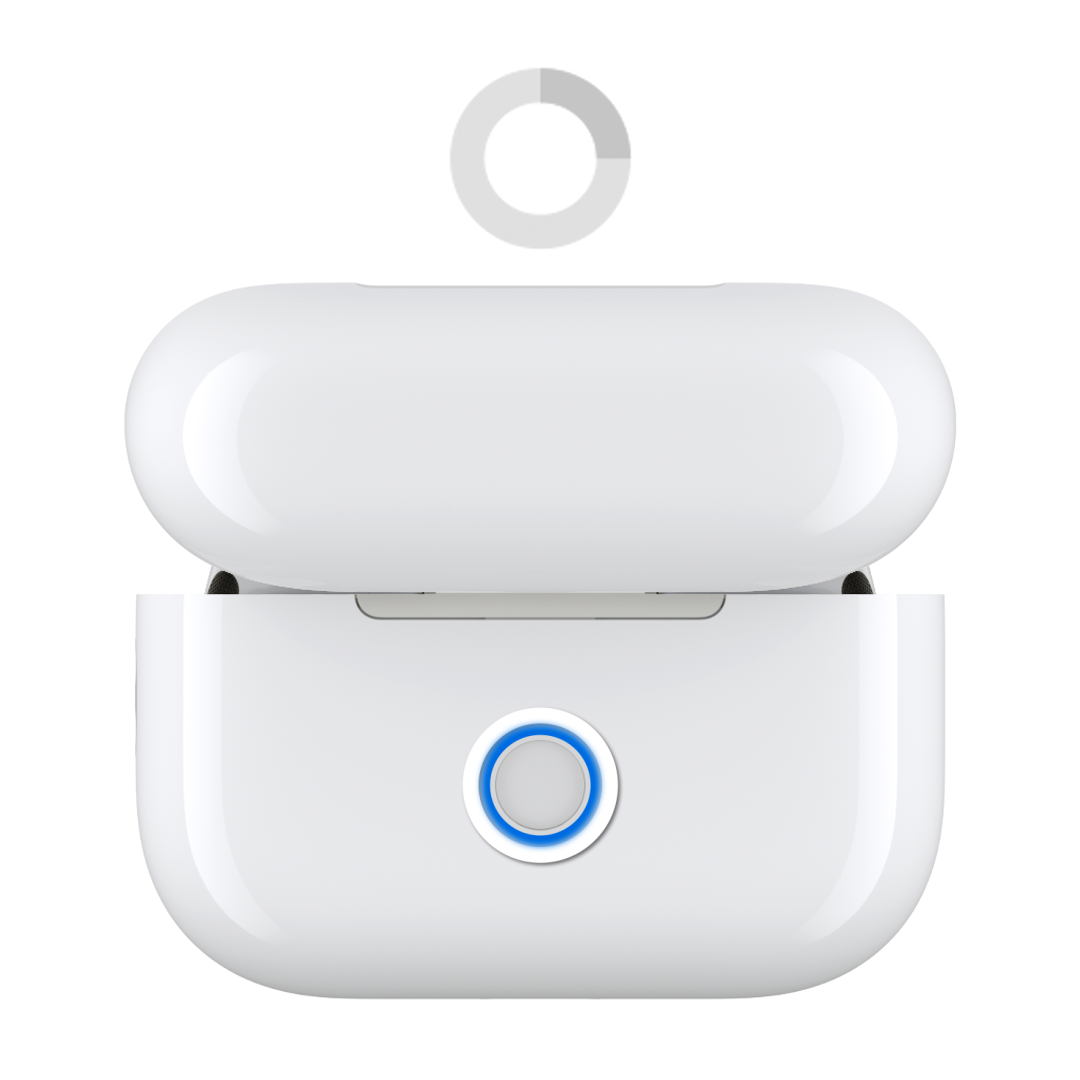
Step 3: Press and Hold the Setup Button
On the back of the case, locate the small setup button. Press and hold it for about 15 seconds.
You’ll notice the LED light:
- First, it will flash amber (orange)
- Then it will turn white
This light change confirms that the Reset AirPods process is complete.
Step 4: Reconnect to Your Device
Now bring your AirPods near your iPhone or other device. Follow the on-screen instructions to pair them again.
At this point, your AirPods are completely reset and ready for fresh use.
Reset AirPods for Different Models
While the general method is similar, here’s a slightly refined breakdown depending on your model.
AirPods 1 and 2
These older models are the easiest to Reset AirPods. The same button method works perfectly, and reconnection is usually instant.
AirPods 3
AirPods 3 may take slightly longer to reconnect after you Reset AirPods, especially if multiple Apple devices are linked to your iCloud account.
AirPods Pro
With AirPods Pro, resetting can also fix noise cancellation issues, transparency mode glitches, and uneven sound balance.
AirPods Max
For AirPods Max, the process differs slightly:
- Hold the Digital Crown and Noise Control button together
- Wait until the LED flashes amber, then white
This completes the reset process for over-ear Apple headphones.
What Happens When You Reset AirPods?
Many users wonder what actually changes when they Reset AirPods. Here’s what happens:
- All previous Bluetooth connections are removed
- Custom settings are cleared
- Device is restored to factory state
- Pairing memory is erased
- AirPods become “like new” in software terms
However, your physical hardware remains unchanged. It simply clears digital settings.
Common Problems Fixed by Resetting AirPods
A proper Reset AirPods process can solve a surprising number of issues.
Audio Issues
- Low volume problems
- Muffled sound
- Uneven left/right audio
Connection Problems
- Bluetooth pairing failure
- Random disconnections
- Device switching errors
Charging Issues
- AirPods not charging properly
- Case not recognized
- Battery percentage stuck
Microphone Issues
- Call audio not working
- Voice distortion
- Siri not responding
Troubleshooting After You Reset AirPods
Sometimes, even after you Reset AirPods, minor issues may still appear. Here’s how to handle them.
If AirPods won’t connect
- Turn Bluetooth off and on
- Restart your device
- Try pairing manually
If sound is still uneven
- Check ear tips (for Pro models)
- Clean speaker mesh
- Test on another device
If battery drains quickly
- Update firmware
- Avoid extreme temperatures
- Check background device usage
These steps usually restore full performance after you Reset AirPods.
Tips to Avoid Frequent Resets
You shouldn’t need to Reset AirPods often if you take care of them properly. Here are some practical tips:
- Keep AirPods in the case when not in use
- Avoid exposing them to moisture or dust
- Regularly clean charging contacts
- Update firmware when available
- Avoid connecting to too many devices at once
- Store in a safe, dry place
Good maintenance reduces the need for repeated resets and keeps performance stable.
Frequently Asked Questions
How often should I reset AirPods?
You should only Reset AirPods when you face persistent issues like connection failure or sound problems.
Will resetting delete my data?
No. Resetting only clears pairing settings, not personal data stored on your Apple ID.
Can I reset AirPods without the case?
No, the charging case is required to properly Reset AirPods.
Why won’t my AirPods reset?
This usually happens due to low battery or a faulty case. Charge them fully and try again.
Conclusion: A Simple Fix That Solves Most Problems
At the end of the day, most AirPods issues are not as serious as they seem. A quick Reset AirPods process can fix connectivity errors, sound glitches, and pairing problems in just a few minutes.
It’s one of the simplest yet most effective troubleshooting steps every user should know. Instead of worrying about hardware damage, a reset often brings everything back to normal.
If your AirPods ever act up again, don’t panic—just follow this guide and Reset AirPods the right way.













Leave a Reply