

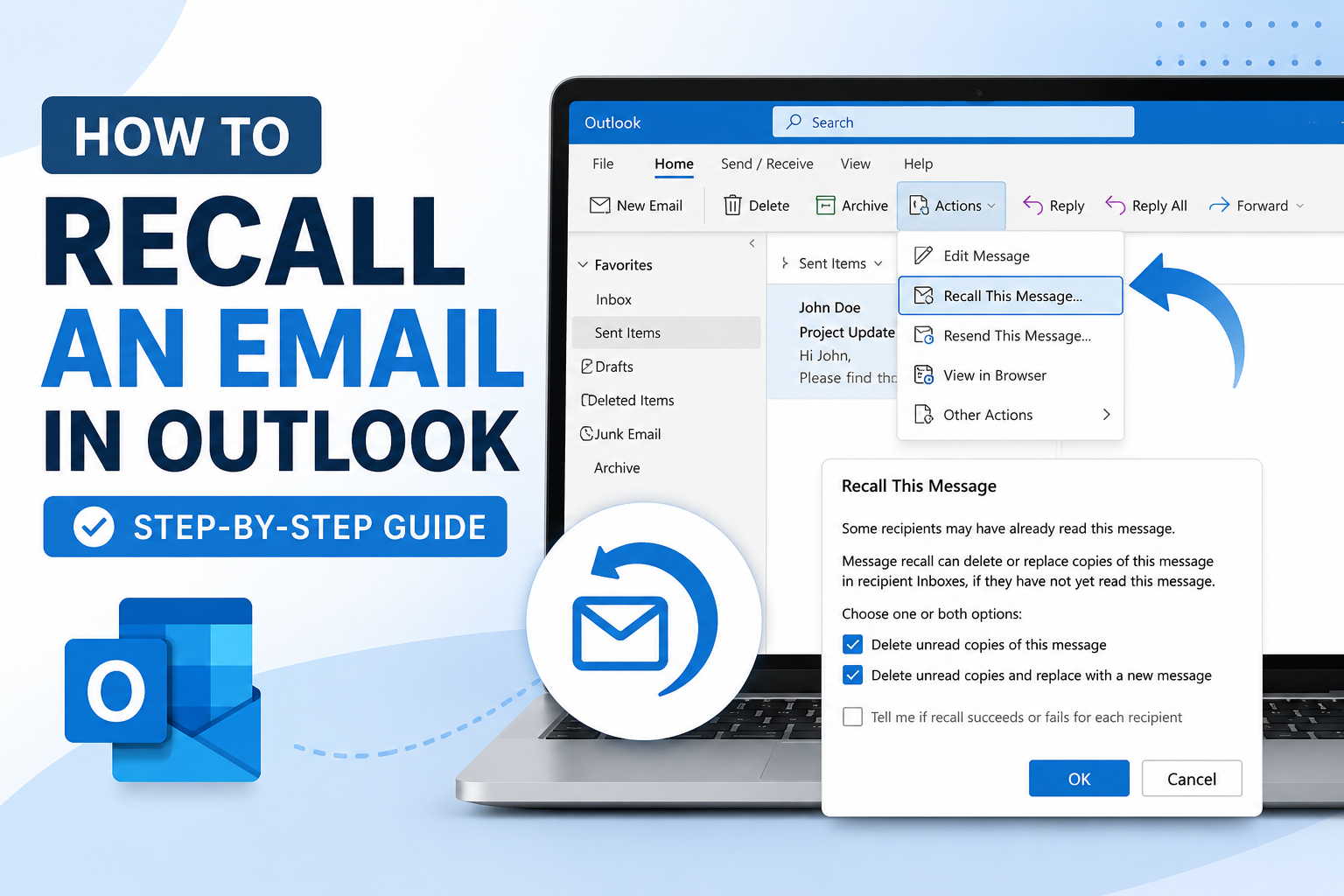
How to Recall an Email in Outlook: Step-by-Step Guide
Sending an email too quickly can happen to anyone. Whether you attached the wrong file, noticed a spelling mistake, or accidentally sent confidential information to the wrong person, knowing how to recall an email in Outlook can help you fix the situation before it causes problems.
Microsoft Outlook includes an email recall feature that allows users to attempt removing or replacing a sent message. However, the feature has specific requirements and limitations. A successful recall depends on factors such as the recipient’s email system, whether the message has already been opened, and the type of Outlook account being used.
In this guide, you will learn how to recall an email in Outlook, understand when the feature works, explore alternative solutions, and discover practical tips for avoiding email mistakes in the future.
Key Takeaways
- Outlook’s recall feature can remove or replace a sent email under certain conditions.
- Email recall works best when both sender and recipient use Microsoft Exchange or Microsoft 365 accounts within the same organization.
- A message cannot usually be recalled after the recipient has already opened it.
- Outlook offers alternatives such as sending a follow-up correction email or using delayed delivery.
- Checking email details before sending can prevent most recall situations.
What Does Email Recall Mean in Outlook?
Email recall is a feature in Microsoft Outlook that allows users to attempt retrieving a sent message from a recipient’s inbox. Instead of simply deleting the email from your own account, Outlook sends a recall request that asks the recipient’s mailbox to remove the original message.
There are two main recall options:
- Delete unread copies of the email
- Delete unread copies and replace them with a new message
For example, if you send a report with an outdated attachment, you can use Outlook recall to remove the original email and send a corrected version.
However, recall is not a guaranteed “undo send” button. Unlike some modern email platforms that provide a short cancellation window immediately after sending, Outlook recall depends on technical conditions.
Requirements Before You Recall an Email in Outlook
Before learning how to recall an email in Outlook, it is important to understand when the feature can actually work.
Conditions Required for Successful Email Recall
An Outlook email recall is more likely to succeed when:
- You and the recipient use Outlook email accounts connected to Microsoft Exchange or Microsoft 365.
- Both accounts belong to the same organization.
- The recipient has not opened the email yet.
- The email is still stored in the recipient’s mailbox.
- The recipient is using Outlook or a compatible Microsoft email environment.
Situations Where Recall Usually Fails
Email recall may not work if:
- The recipient uses Gmail, Yahoo Mail, Apple Mail, or another external email service.
- The recipient has already read the message.
- The email was moved automatically into another folder.
- The recipient’s mailbox settings prevent recall requests.
- The organization does not support message recall.
For example, if you send an email from a company Outlook account to a client using Gmail, the recall request will usually not remove the message.
How to Recall an Email in Outlook Desktop App
The Outlook desktop application provides the traditional email recall option. Follow these steps to attempt recalling a sent message.
Step 1: Open Outlook
Launch the Microsoft Outlook desktop application on your Windows computer.
Make sure you are signed into the correct email account where the message was sent.
Step 2: Go to Sent Items
Navigate to the Sent Items folder from the Outlook sidebar.
This folder contains all emails that have already been sent from your account.
Step 3: Open the Email You Want to Recall
Find the email you want to retrieve and open it.
Do not simply select the message from the email list. The recall option appears when the email is opened in its own window.
Step 4: Access the Recall Option
Depending on your Outlook version:
- Select File or the Message tab.
- Choose Actions.
- Click Recall This Message.
A recall window will appear with available options.
Step 5: Choose a Recall Action
You will see two choices:
Delete Unread Copies
This option attempts to remove the email from the recipient’s inbox if they have not opened it.
Delete Unread Copies and Replace With a New Message
This option removes the original message and allows you to send a corrected version.
Choose the option that matches your situation.
Step 6: Confirm the Recall
Select whether you want Outlook to notify you about the recall result.
The notification will tell you whether the recall succeeded or failed for each recipient.
How to Recall an Email in New Outlook and Outlook Web
The newer Outlook experience has changed several features compared with the classic desktop version.
At the moment, the traditional recall feature is primarily associated with the Outlook desktop application connected to supported Microsoft accounts.
If you are using:
- Outlook on the web
- The new Outlook app
- A personal Outlook.com account
you may have different options depending on your account type.
Using Undo Send as an Alternative
Some Outlook versions provide an Undo Send feature. This works differently from recall.
Instead of retrieving an already delivered email, Undo Send delays sending for a short period. During that delay, you can cancel the email before it leaves your mailbox.
To enable it:
- Open Outlook settings.
- Go to Mail settings.
- Find the Undo Send option.
- Select your preferred cancellation time.
This feature is useful because it prevents mistakes before they happen.
How to Know If Your Email Recall Worked
After attempting a recall, Outlook may send a notification showing the result.
Possible outcomes include:
| Recall Result | Meaning |
|---|---|
| Successful | The email was removed or replaced successfully |
| Failed | The recipient received or opened the email before recall |
| Pending | Outlook is still processing the recall request |
Keep in mind that recall notifications are not always immediate. The result depends on mailbox communication and server response times.
Common Reasons Outlook Email Recall Fails
Understanding recall limitations can help you avoid relying on it too heavily.
The Recipient Already Opened the Email
Once a recipient reads the message, Outlook generally cannot remove it.
The recall feature only works with unread messages.
The Recipient Uses Another Email Provider
Outlook recall is designed mainly for Microsoft-based workplace environments.
Messages sent to external email services usually cannot be retrieved.
The Email Was Forwarded
If the recipient forwarded the message before recall, the forwarded copy remains available.
Mobile Email Apps Can Affect Recall
Recipients may read emails through mobile apps before Outlook processes the recall request.
Once accessed, the recall attempt may fail.
Alternatives When You Cannot Recall an Email
If Outlook recall is unavailable or unsuccessful, there are still ways to handle the situation professionally.
Send a Correction Email
A quick follow-up message is often the best solution.
For example:
“Please disregard my previous email. I have attached the updated document in this message.”
Keep the correction clear and polite.
Apologize Briefly When Necessary
If the mistake involves incorrect information, acknowledge it without overexplaining.
A simple correction often appears more professional than a long explanation.
Contact the Recipient Directly
For sensitive information, contacting the recipient by phone or chat may help ensure they do not use or share the incorrect message.
Tips to Avoid Needing Email Recall
The best way to handle email mistakes is to prevent them.
Review Attachments Before Sending
Many email errors happen because users forget attachments or attach the wrong files.
Before clicking send:
- Confirm the attachment name.
- Open important documents.
- Verify the latest version.
Double-Check Recipients
Always review the “To,” “Cc,” and “Bcc” fields.
Autocomplete suggestions can sometimes select the wrong contact.
Use Delayed Delivery
For important emails, scheduling delivery a few minutes later gives you time to review the message.
Write Important Emails Last
For sensitive communication, consider adding recipients after writing and reviewing the email content.
This reduces accidental sending.
Outlook Recall vs Undo Send: Key Differences
| Feature | Email Recall | Undo Send |
|---|---|---|
| Timing | After sending | Before sending completes |
| Availability | Mainly Outlook desktop with supported accounts | Available in some Outlook versions |
| Success Rate | Depends on recipient conditions | Usually more reliable |
| Purpose | Remove delivered emails | Cancel before delivery |
Both features can be useful, but prevention tools like Undo Send and delayed delivery often provide better protection.
Frequently Asked Questions
Can I recall an email in Outlook after one hour?
Yes, you can attempt a recall after an hour, but success depends on whether the recipient has opened the email and whether your accounts support recall.
Does Outlook recall work with Gmail?
No, Outlook recall generally does not work when sending emails to Gmail or other external email providers.
Can I recall an email after it has been read?
Usually not. Outlook recall only works when the message has not been opened by the recipient.
How do I know if my Outlook recall worked?
Outlook may send a recall status notification showing whether the message was successfully removed or replaced.
Can I recall an email from Outlook mobile app?
The traditional recall feature is mainly available through Outlook desktop. Mobile users may need to use alternatives such as sending a correction email.
Is Outlook email recall available for personal accounts?
Recall availability depends on the account type. It works most reliably with Microsoft Exchange and Microsoft 365 business accounts.
What should I do if email recall fails?
Send a correction email, explain the mistake briefly if needed, and provide the correct information or attachment.
Conclusion
Knowing how to recall an email in Outlook can help you handle accidental email mistakes more effectively. While Outlook’s recall feature is useful, it is not guaranteed to work in every situation. Success depends on account compatibility, recipient settings, and whether the message has already been opened.
For the best results, use recall quickly when a mistake happens and always confirm the recall status afterward. However, the most reliable approach is prevention. Reviewing recipients, checking attachments, and using features like delayed delivery can reduce the chances of sending incorrect emails.
With the right understanding of Outlook’s email recall process, you can respond faster, communicate more professionally, and avoid unnecessary email problems.















Leave a Reply