

How to Clear Cache on iPhone in 5 Easy Steps
If your phone has started feeling slower, apps are taking longer to load, or storage is mysteriously disappearing, you’re not alone. Many users of iPhone experience the same issue over time. The good news is that there is a simple solution that doesn’t require any technical skills.
Learning how to Clear Cache on iPhone can instantly improve performance, free up storage space, and even fix annoying app glitches. The surprising part? Most people never do it regularly, even though it’s one of the easiest maintenance tasks you can perform.
In this guide, we’ll walk through exactly how to Clear Cache on iPhone in 5 easy steps, explain what cache really is, and show you how it affects your phone’s speed and storage.
What Does Cache Mean on iPhone?
Before learning how to Clear Cache on iPhone, it helps to understand what cache actually is.
Cache is temporary data stored by apps and websites to help them load faster in the future. For example:
- Safari stores website images
- Social media apps save feed previews
- Streaming apps store video thumbnails
- Shopping apps remember browsing history
- System apps keep temporary performance files
This data makes things faster at first, but over time it builds up and slows your device down.
That’s why people search for how to Clear Cache on iPhone when their device starts feeling sluggish.
Why You Should Clear Cache on iPhone
There are several reasons why it’s important to Clear Cache on iPhone regularly:
1. Improve Speed
Too much cached data can slow down apps and browsing.
2. Free Storage Space
Cache can take up gigabytes without you realizing it.
3. Fix App Issues
Some apps freeze or crash due to corrupted cache files.
4. Improve Browser Performance
Safari becomes faster and more responsive.
5. Enhance Battery Efficiency
A smoother system can help reduce unnecessary background activity.
So when users ask how to Clear Cache on iPhone, they are usually trying to fix one of these problems.
How to Clear Cache on iPhone in 5 Easy Steps
Now let’s get into the main part of this guide. Below is a simple, step-by-step method to Clear Cache on iPhone safely without losing important data.
Step 1: Clear Safari Cache
Safari is one of the biggest sources of cached data.
To Clear Cache on iPhone for Safari:
- Open Settings
- Scroll down and tap Safari
- Tap “Clear History and Website Data”
- Confirm the action
This removes browsing history, cookies, and cached website files.
It is one of the fastest ways to Clear Cache on iPhone and free up space instantly.
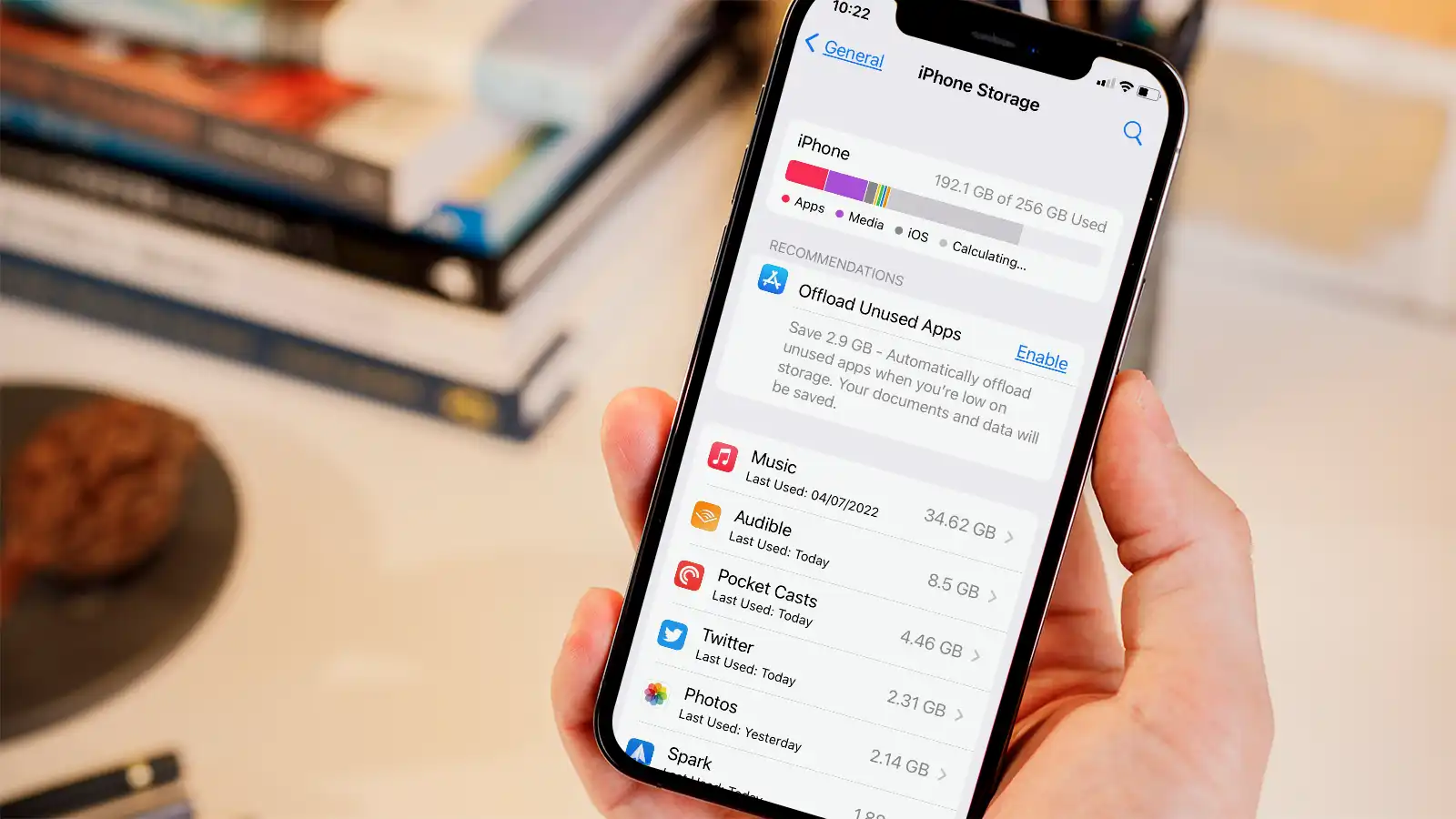
Step 2: Offload Unused Apps
A smart way to Clear Cache on iPhone without losing important data is to offload apps.
Here’s how:
- Go to Settings
- Tap General
- Select iPhone Storage
- Choose an app
- Tap “Offload App”
This removes cached files while keeping your documents and login data intact.
Many users don’t realize this is an effective way to Clear Cache on iPhone safely.
Step 3: Delete and Reinstall Apps
Some apps store large amounts of hidden cache.
To completely Clear Cache on iPhone:
- Press and hold the app
- Tap Delete App
- Reinstall it from the App Store
This resets the app entirely and removes all cached data.
It’s especially useful for social media and streaming apps.
Step 4: Restart Your iPhone
Restarting your device is a simple but often overlooked method to Clear Cache on iPhone.
To do this:
- Hold power button
- Slide to power off
- Wait 30 seconds
- Turn it back on
Restarting clears temporary system cache and refreshes memory.
It may seem basic, but it helps improve overall performance.
Step 5: Update iOS Regularly
System updates often include performance improvements and cache optimization.
To check for updates:
- Go to Settings
- Tap General
- Tap Software Update
- Install latest version
Keeping your system updated ensures better memory management and helps indirectly Clear Cache on iPhone.
Hidden Places Where Cache Builds Up
Even after following the steps above, cache can still build up in unexpected places:
- Messaging apps
- Photo thumbnails
- Streaming apps
- Browser extensions
- Social media feeds
- System logs
- Keyboard predictions
- Offline downloads
That’s why it’s important to Clear Cache on iPhone regularly, not just once.
Table: Quick Cache Cleaning Overview
| Method | What It Clears | Difficulty |
|---|---|---|
| Safari Reset | Browser history and cookies | Easy |
| App Offload | App cache but keeps data | Easy |
| App Delete/Reinstall | Full app cache reset | Medium |
| Restart iPhone | Temporary system cache | Very Easy |
| iOS Update | System optimization files | Easy |
Common Problems Fixed by Clearing Cache
When you Clear Cache on iPhone, you can fix several common issues:
- Apps freezing or crashing
- Slow Safari browsing
- Low storage warnings
- Delayed app loading
- Laggy scrolling
- Battery drain issues
- Login errors in apps
These problems often disappear after a proper cache cleanup.
How Often Should You Clear Cache on iPhone?
There is no strict rule, but most experts recommend:
- Once every 2–4 weeks for heavy users
- Once a month for average users
- Whenever performance slows down
Regular maintenance ensures your device stays fast and responsive.
Myths About Clearing Cache
There are a few misconceptions about how to Clear Cache on iPhone:
Myth 1: It Deletes Personal Data
False. Most cache clearing does not remove photos or contacts.
Myth 2: It’s Complicated
False. It only takes a few minutes.
Myth 3: It’s Not Necessary
False. It significantly improves performance.
Understanding these myths helps users feel more confident when they Clear Cache on iPhone.
Tips to Keep Your iPhone Running Smoothly
Besides learning how to Clear Cache on iPhone, here are some additional tips:
- Delete unused apps regularly
- Turn off background refresh
- Manage storage wisely
- Avoid too many open tabs
- Restart device weekly
- Keep apps updated
These habits reduce the need for frequent heavy cleanup.
Why iPhones Slow Down Over Time
Even high-performance devices like iPhones slow down because of:
- Accumulated cache files
- Background processes
- Storage overload
- Outdated apps
- System clutter
That’s why users often search for how to Clear Cache on iPhone when they notice performance drops.
Final Thoughts
Learning how to Clear Cache on iPhone is one of the simplest yet most effective ways to improve your device’s performance. It helps free up space, fix app issues, and make your phone feel brand new again.
By following these 5 easy steps regularly, you can keep your iPhone running smoothly without needing technical support or complex tools.
The key takeaway is simple: a few minutes of maintenance can save you from hours of frustration later.
If your phone is slowing down, don’t ignore it. Just Clear Cache on iPhone, and you’ll likely notice the difference immediately.














Leave a Reply