

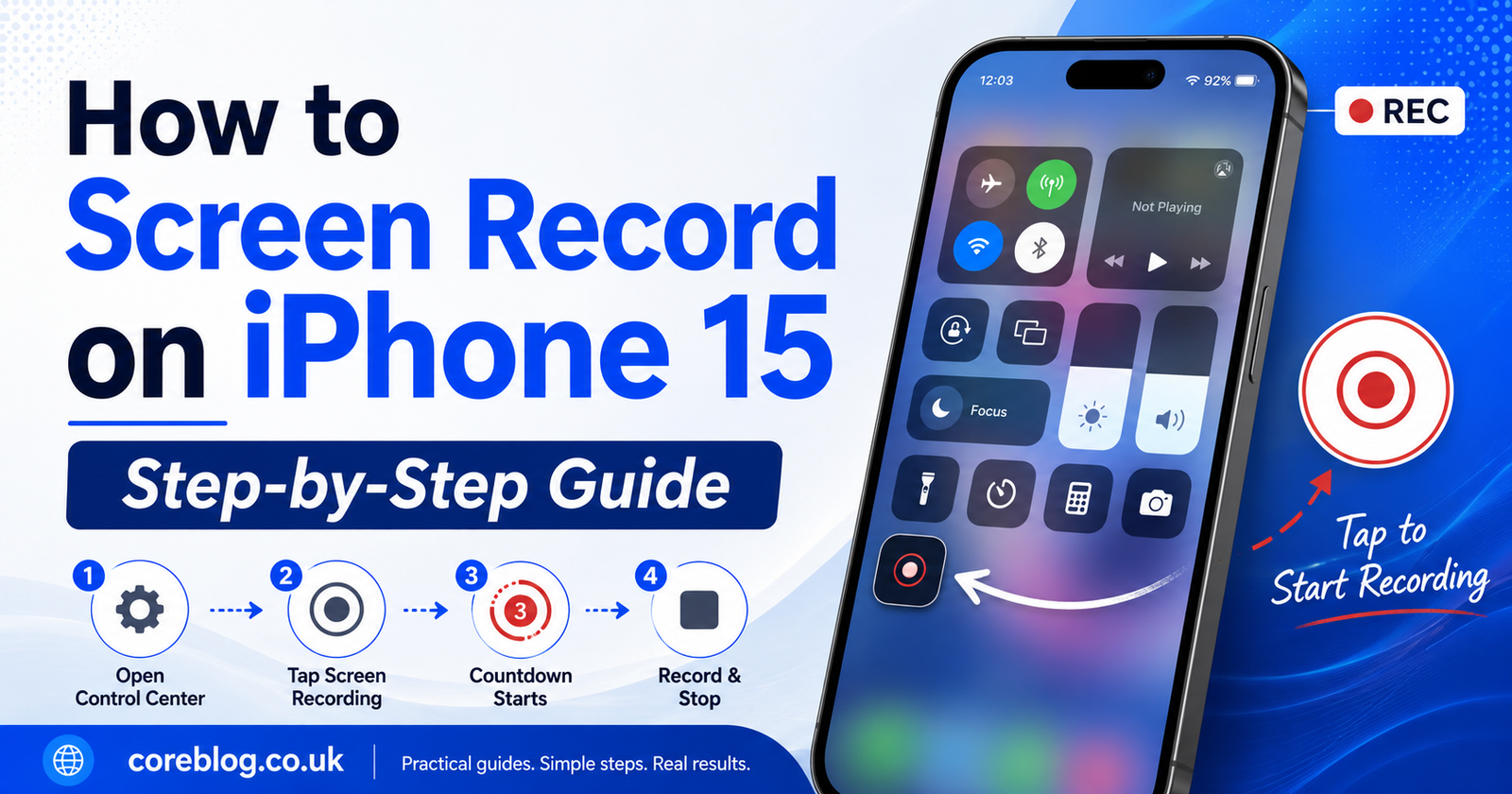
How to Screen Record on iPhone 15: Step-by-Step
The iPhone 15 is powerful, fast, and packed with features, but sometimes the most useful tools are the ones people overlook. Screen recording is one of them. Whether you want to save a FaceTime moment, record a tutorial, capture gameplay, explain a setting to a friend, or show proof of an app issue, learning how to Screen Record on iPhone 15 can make life much easier.
The good news? You do not need a third-party app. You do not need complicated software. Apple has built the screen recording feature directly into iOS, and once you know where it is, you can start recording your screen in seconds.
Still, many users get stuck at simple points. Some cannot find the screen record button. Others record video but get no sound. Some do not know where the recording is saved. And a few worry that screen recording may not work on certain apps. This guide clears everything up in a simple, step-by-step way.
By the end of this article, you will know exactly how to Screen Record on iPhone 15, how to record with microphone audio, where to find your saved video, how to fix common problems, and how to make your recording look clean and professional.
What Is Screen Recording on iPhone 15?
Screen recording on iPhone 15 lets you capture everything happening on your iPhone screen as a video. It works like a camera pointed at your display, but instead of filming from outside, your iPhone records the screen internally.
You can use it to record:
- App tutorials
- Game clips
- Social media steps
- Website walkthroughs
- Settings guides
- Online class notes
- Video call moments, where allowed
- Bugs or errors for support teams
- Product demos
- Personal reminders
When you Screen Record on iPhone 15, the video is usually saved in the Photos app. From there, you can watch it, edit it, trim it, share it, upload it, or delete it.
Apple’s built-in screen recording tool is available through Control Center. You can start recording from there, wait for the three-second countdown, and then capture your screen. Apple also notes that you can turn on the microphone if you want to record your voice with the screen video.
Why You Might Need to Screen Record on iPhone 15
Screen recording is not just for tech experts. In fact, everyday users often need it more than they realize.
For example, imagine your banking app keeps showing an error. Instead of explaining the problem in five long messages, you can record your screen and send the video to support. Or maybe your parent cannot find a setting on their phone. You can record the steps once and send them a clear guide.
Many content creators also use screen recording for quick tutorials. If you run a blog, YouTube channel, TikTok page, or Instagram account, screen recording can help you create simple and helpful content without expensive equipment.
Here are some common reasons to Screen Record on iPhone 15:
| Use Case | Why It Helps |
|---|---|
| Tutorials | Shows each step clearly |
| Gaming | Captures winning moments |
| Tech support | Records bugs and errors |
| Social media | Creates quick how-to clips |
| Education | Saves online lessons or notes |
| Work | Records app demos or workflows |
| Personal use | Saves important on-screen actions |
In short, screen recording turns your iPhone 15 into a mini content creation tool.
How to Add Screen Recording to Control Center
Before you can Screen Record on iPhone 15, you need to make sure the Screen Recording button is available in Control Center.
On many iPhones, it may already be there. But if you cannot see it, you can add it easily.
Step-by-Step Method
- Swipe down from the top-right corner of your iPhone 15 screen.
- This opens Control Center.
- Touch and hold the background area in Control Center.
- Tap Add a Control.
- Search for or find Screen Recording.
- Tap it to add it to Control Center.
- Once added, you do not need to add it again.
This is a one-time setup. After that, the screen recording button will stay in your Control Center unless you remove it.
What the Screen Recording Button Looks Like
The screen recording icon looks like a circle inside another circle. When it is not recording, it usually appears as a simple control button. When recording starts, it turns red.
If you are new to iPhone, do not worry. Once you spot it the first time, you will recognize it easily.
How to Screen Record on iPhone 15
Now let’s get to the main part: how to Screen Record on iPhone 15.
This is the easiest method and works for most normal recordings.
Step-by-Step Guide
- Open the screen, app, or page you want to record.
- Swipe down from the top-right corner to open Control Center.
- Tap the Screen Recording button.
- Wait for the three-second countdown.
- Leave Control Center and start doing what you want to record.
- When finished, tap the red recording indicator at the top of the screen.
- Tap Stop.
- Open the Photos app to find your screen recording.
That is it. Your iPhone 15 will save the screen recording automatically in your Photos library.
This method is perfect if you only want to record screen activity without your voice.
How to Screen Record on iPhone 15 with Sound
This is where many people get confused. A normal screen recording may capture some internal app audio, but if you want to record your voice, you need to turn on the microphone.
For example, if you are explaining steps while recording, the microphone must be enabled.
How to Turn On Microphone Audio
- Swipe down from the top-right corner to open Control Center.
- Press and hold the Screen Recording button.
- Tap the Microphone button to turn it on.
- Tap Start Recording.
- Wait for the three-second countdown.
- Speak clearly while recording your screen.
- Stop the recording when finished.
Now your video should include your voice.
This is especially useful for tutorials, lessons, app reviews, and walkthrough videos. Apple’s own support guidance confirms that holding the Screen Recording button lets users turn on the microphone before starting the recording.
Where Are Screen Recordings Saved on iPhone 15?
After you Screen Record on iPhone 15, the video usually goes straight to the Photos app.
To find it:
- Open the Photos app.
- Go to Library.
- Look for your latest video.
- You can also check the Videos album.
- Tap the recording to play, edit, or share it.
If you just finished recording, your iPhone may also show a small notification saying the screen recording was saved to Photos.
How to Edit a Screen Recording on iPhone 15
After recording, you may notice that the first few seconds show you opening Control Center. That is normal. You can trim that part out easily.
How to Trim Your Recording
- Open the screen recording in Photos.
- Tap Edit.
- Drag the video timeline handles.
- Cut out unwanted beginning or ending parts.
- Tap Done.
- Save the edited video.
This makes your screen recording look cleaner and more professional.
You can also adjust brightness, crop the video, mute audio, or add simple edits inside the Photos app.
How to Share a Screen Recording from iPhone 15
Once your recording is ready, sharing it is simple.
You can send it through:
- iMessage
- AirDrop
- TikTok
- Google Drive
- iCloud
- YouTube
- Slack
- Telegram
To share:
- Open the video in Photos.
- Tap the Share button.
- Choose the app or person.
- Send or upload the file.
If the recording is long, the file size may be large. In that case, uploading it to cloud storage first may be better.
How to Screen Record on iPhone 15 Without Microphone
Sometimes you may want a clean recording with no outside sound. This is useful when you are recording gameplay, app steps, or a silent tutorial.
To record without microphone:
- Open Control Center.
- Press and hold the Screen Recording button.
- Make sure Microphone Off is selected.
- Tap Start Recording.
This will help avoid background noise, breathing sounds, room chatter, or unwanted audio.
Can You Screen Record Calls on iPhone 15?
This depends on the app, location, and privacy rules. Some apps may block screen recording for privacy or copyright reasons. For example, streaming services, banking apps, and certain video platforms may show a black screen or stop audio during recording.
Also, recording calls without permission may be illegal in some regions. So, always ask for consent before recording private conversations, meetings, or calls.
A safe rule is simple: only record content you own, created, or have permission to capture.
Why Is Screen Recording Not Working on iPhone 15?
Sometimes users try to Screen Record on iPhone 15, but it does not work. The button may be missing, the recording may not save, or the audio may not record.
Here are the most common reasons.
Screen Recording Button Is Missing
If you cannot see the button, add it to Control Center again.
Go to Control Center, tap Add a Control, and add Screen Recording.
Not Enough Storage
Screen recordings can take up a lot of space. If your iPhone storage is almost full, the recording may stop or fail to save.
To fix this:
- Delete unwanted videos
- Remove unused apps
- Clear large attachments
- Move files to iCloud
- Restart your iPhone
Microphone Is Off
If your voice is missing, the microphone was probably turned off.
Press and hold the Screen Recording button before recording, then turn on Microphone.
App Blocks Recording
Some apps do not allow screen recording because of privacy or copyright protection. In that case, your iPhone may record a blank screen or no sound.
iPhone Needs Restarting
A simple restart can fix many small iOS glitches.
Turn your iPhone off, wait a few seconds, then turn it back on.
How to Improve Screen Recording Quality on iPhone 15
The iPhone 15 has a sharp display and strong performance, so your screen recordings usually look good. Still, a few small changes can make them better.
Clean Your Screen First
This may sound basic, but fingerprints and smudges can distract you while recording. A clean screen helps you tap accurately.
Turn On Focus Mode
Notifications can ruin a screen recording. Before you start, turn on Do Not Disturb or Focus Mode.
This prevents random messages, calls, or alerts from appearing in your video.
Plan Your Steps
Before recording, know what you want to show. A smooth video feels more professional than one where you keep going back and forth.
Keep Your Voice Clear
If recording with microphone, speak slowly and clearly. Try to record in a quiet room.
Avoid Sensitive Information
Before you Screen Record on iPhone 15, check your screen for private details such as:
- Passwords
- Email addresses
- Bank details
- Personal messages
- Login codes
- Private photos
- Location data
This matters a lot if you plan to share the video online.
Best Settings Before You Screen Record on iPhone 15
Here is a quick checklist you can follow before starting:
| Setting | Recommended Action |
|---|---|
| Battery | Keep above 20% |
| Storage | Make sure space is available |
| Notifications | Turn on Focus Mode |
| Microphone | Turn on only if needed |
| Brightness | Keep comfortable and clear |
| Private data | Hide sensitive information |
| App permissions | Check if recording is allowed |
Following this checklist can save you from recording the same video again and again.
Common Mistakes to Avoid
Even though it is easy to Screen Record on iPhone 15, beginners often make small mistakes.
Starting Too Early
Many people start recording before the app is ready. Open the app first, prepare the screen, then start recording.
Forgetting the Microphone
If you are making a tutorial, always check the microphone before recording.
Recording Too Long
Long videos are harder to edit and share. Keep your recording short and focused.
Ignoring Notifications
A random notification can expose private information. Turn on Focus Mode before recording.
Not Checking the Final Video
Always play your recording before sharing it. Make sure the sound, video, and steps are correct.
Can You Screen Record on iPhone 15 Pro and iPhone 15 Pro Max the Same Way?
Yes. The method is almost the same across the iPhone 15 lineup, including:
- iPhone 15
- iPhone 15 Plus
- iPhone 15 Pro
- iPhone 15 Pro Max
You open Control Center from the top-right corner, tap the Screen Recording button, wait for the countdown, and stop when done.
So, if someone asks how to Screen Record on iPhone 15 Pro Max, this guide still applies.
Is Screen Recording Safe on iPhone 15?
Yes, the built-in screen recording feature is safe when used properly. Since it is part of iOS, you do not need to download unknown apps that may ask for unnecessary permissions.
However, safety also depends on what you record. Be careful with personal data, passwords, private chats, and copyrighted content.
If you are creating public content, review the video before posting it.
Best Uses for Screen Recording on iPhone 15
Screen recording can be useful in many real-life situations.
For Students
Students can record educational apps, online notes, language lessons, or step-by-step study material.
For Teachers
Teachers can create simple iPhone tutorials, explain app usage, or prepare quick lesson clips.
For Gamers
Gamers can record gameplay, high scores, tricks, and short clips for social media.
For Bloggers
Bloggers can use screen recording to create visual guides for app reviews, tech tutorials, or website walkthroughs.
For Business Users
Business owners can record app demos, customer instructions, software bugs, and internal training videos.
For Everyday Users
You can record anything from a recipe app walkthrough to a travel booking process.
That is why learning to Screen Record on iPhone 15 is such a useful skill.
Quick Troubleshooting Table
| Problem | Possible Reason | Easy Fix |
|---|---|---|
| No sound | Microphone is off | Turn microphone on |
| Button missing | Not added to Control Center | Add Screen Recording |
| Video not saved | Low storage | Free up space |
| Black screen | App blocks recording | Try another allowed app |
| Recording stops | App issue or storage issue | Restart and check storage |
| Voice unclear | Background noise | Record in quiet room |
FAQs About Screen Record on iPhone 15
Does iPhone 15 Have Built-In Screen Recording?
Yes, iPhone 15 has built-in screen recording through Control Center. You do not need to install another app.
Can I Screen Record on iPhone 15 with Audio?
Yes. You can record with microphone audio by pressing and holding the Screen Recording button and turning on the microphone.
Why Is There No Sound in My Screen Recording?
The microphone may be off, the app may block audio, or your iPhone settings may need checking. Try turning on the microphone before recording.
Where Can I Find My Screen Recording?
Your screen recording is saved in the Photos app, usually in your Library or Videos album.
Can I Edit My Screen Recording?
Yes. Open the video in Photos, tap Edit, and trim or adjust it.
Can I Screen Record Netflix or Other Streaming Apps?
Many streaming apps block screen recording because of copyright protection. You may see a black screen or no audio.
Is Screen Recording Free on iPhone 15?
Yes, it is completely free and built into iOS.
Conclusion
Learning how to Screen Record on iPhone 15 is simple, but it can be incredibly useful. Once you add the Screen Recording button to Control Center, you can capture your screen in just a few taps. You can record silent videos, turn on your microphone for voice tutorials, edit clips in Photos, and share them with friends, clients, students, or followers.
The key is to prepare before you record. Check your storage, turn on Focus Mode, hide private information, and decide whether you need microphone audio. These small steps can make your screen recording look clean, clear, and professional.
Now that you know how to Screen Record on iPhone 15, try making a short test video. Record a simple app walkthrough, check the sound, trim the beginning, and save it. Once you do it once, the process becomes second nature.
If this guide helped you, share it with someone who recently bought an iPhone 15 or is still trying to figure out screen recording. A quick share might save them a lot of confusion.











Leave a Reply